
Key takeaways:
- Integrating Proxifier with MarsProxies helps you route your traffic where you want it to go.
- App-based rules let you send some traffic through the app while others remain on a direct connection.
- Test your connection, check for common issues, and fix common errors before they cause problems.
You probably found Proxifier because you want more control over which apps use your proxy server, or you are stuck with an app that has no built-in proxy settings.
This guide will cover how to install Proxifier, the protocol types it supports, how to set up the proxy settings, and how to deal with common errors.
Which proxies and protocols work with Proxifier?
Proxifier is useful for web scraping, running bots, and accessing region-locked content. It helps you hide your IP address easily, making it a lightweight alternative to VPNs with secure, encrypted channels.
The good news is that it already works with the proxy types many people use every day. When working through a proxy server, you'll likely encounter these types:
- SOCKS Version 4
- SOCKS Version 5
- HTTPS
The better question is when each option makes sense for your setup, your apps, and the kind of proxy you are trying to manage.
- Use SOCKS when you want to route traffic from different apps through the same proxy server. SOCKS5 is a general traffic relay, so it can carry different kinds of network traffic more broadly.
- Use an HTTPS proxy when you have a specific endpoint configured for HTTPS traffic and want your proxy configuration to match that exact protocol.
Just make sure the option you choose matches what is configured in your MarsProxies dashboard, along with the IP address, port number, and username and password for that proxy setup.
How to set up MarsProxies in Proxifier
Here is how to set up MarsProxies inside the app.
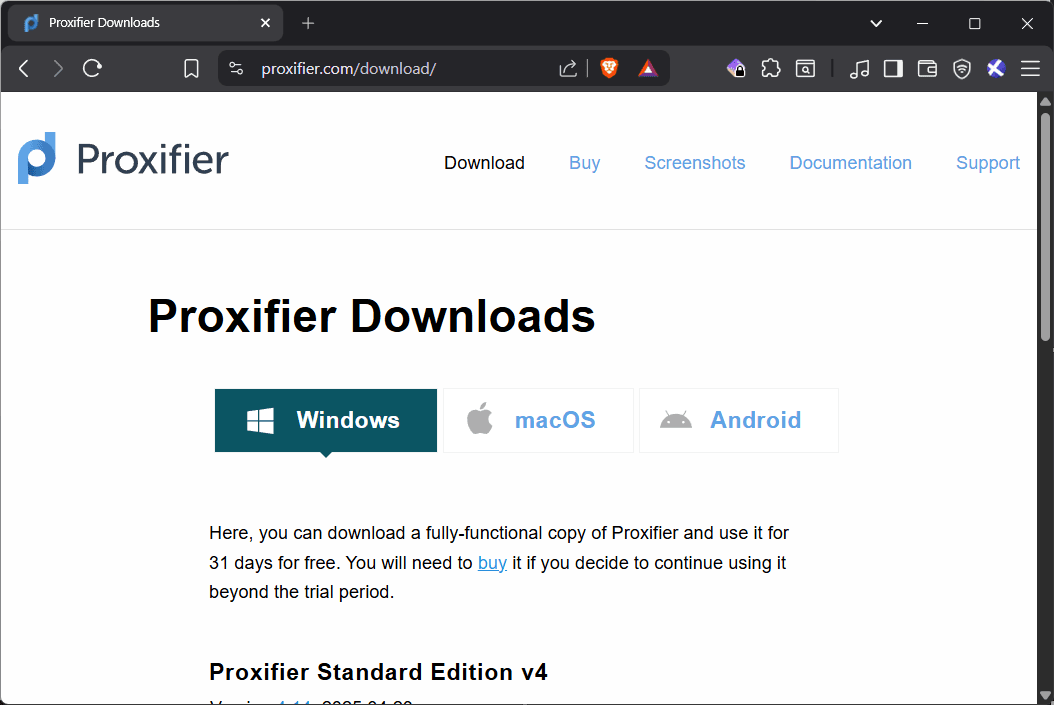
- Step 1: Go to the Proxifier website and download the version for the device you are currently using.
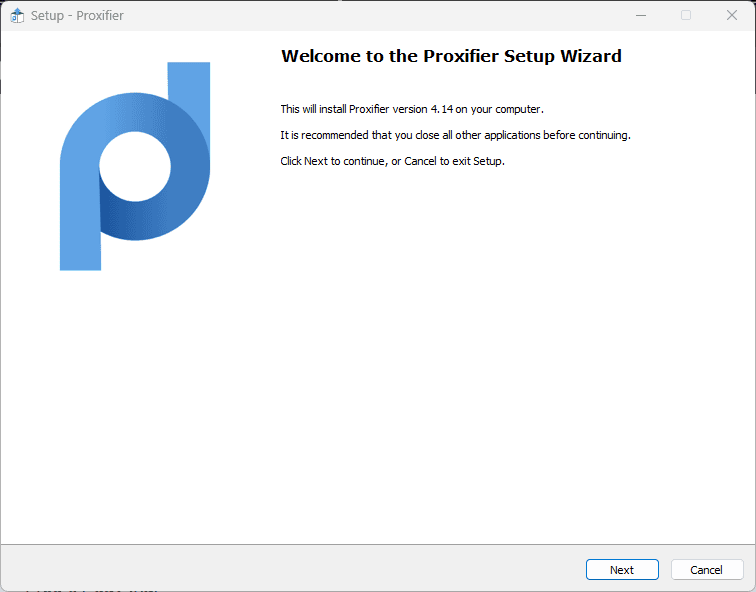
- Step 2: Install Proxifier on your device.
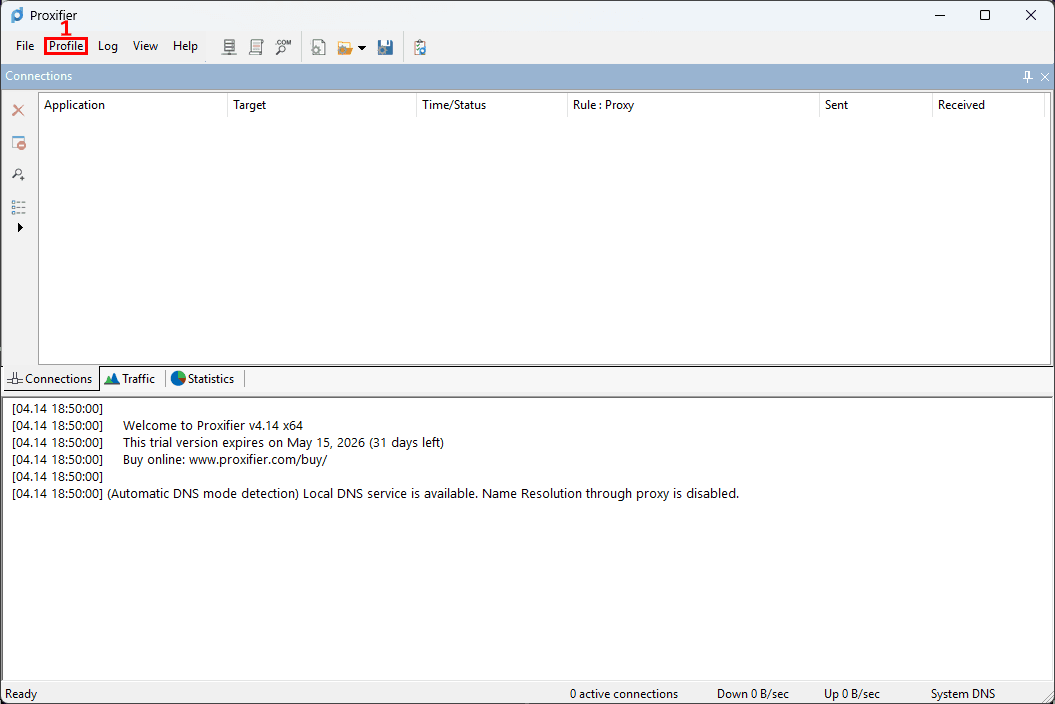
- Step 3: Once you've successfully installed Proxifier, open it and click 'Profile' (1) in the top ribbon.
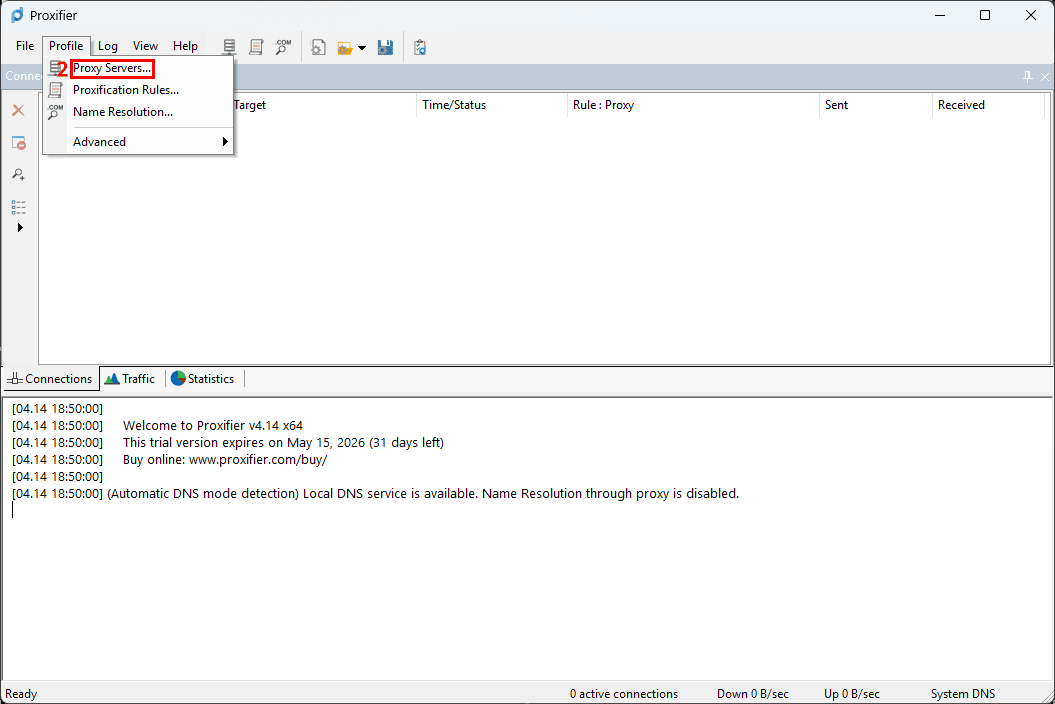
- Step 4: From the drop-down menu, click 'Proxy Servers' (2).
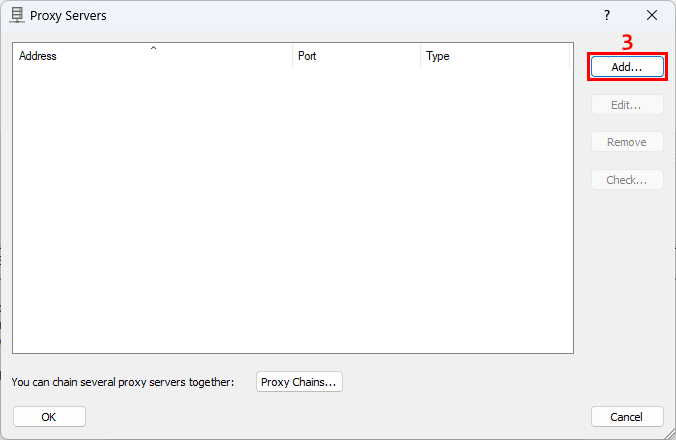
- Step 5: Click 'Add' (3) to configure a new proxy server.
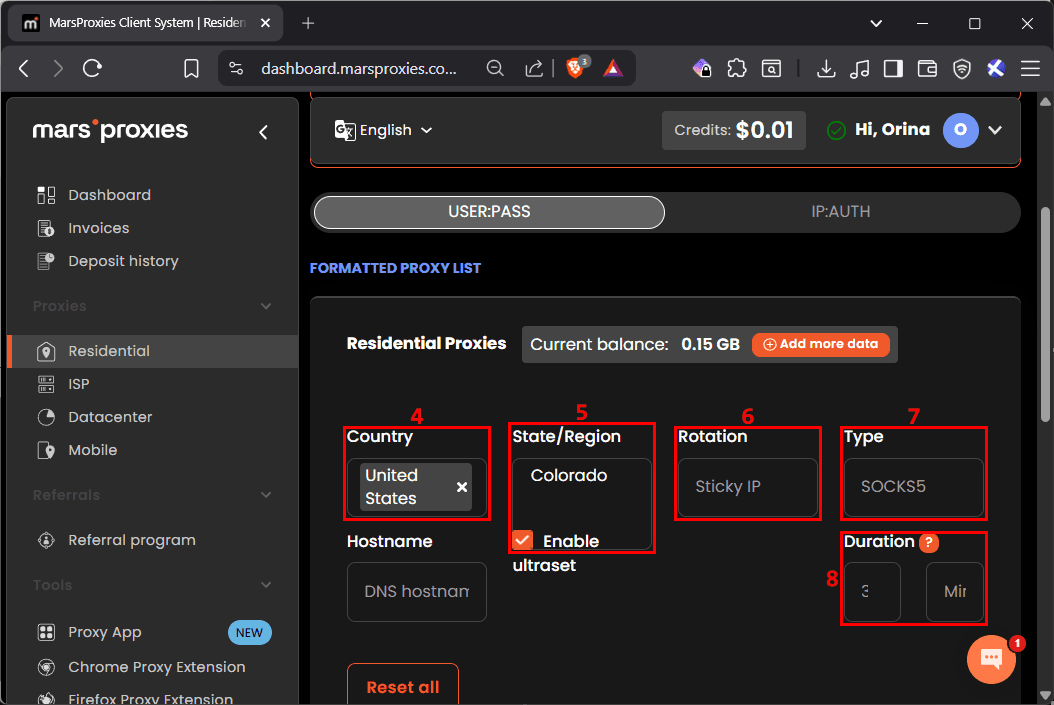
- Step 6: Open your MarsProxies dashboard and configure your proxies. We will use Residential Proxies as an example, but the setup is the same for all proxy types. Choose the country (4), then select the state or region (5), rotation type (6), proxy type (7), and session duration (8).
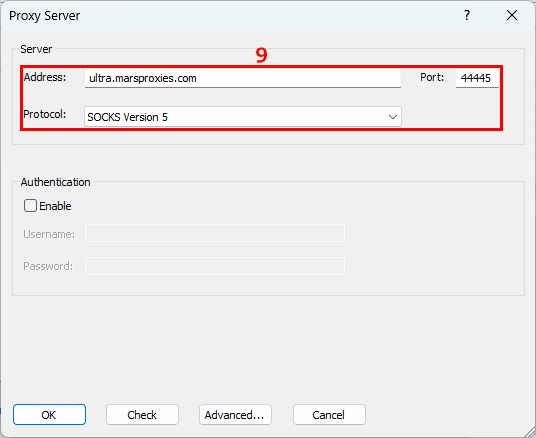
- Step 7: Go back to the app and enter the corresponding IP address, port number, and protocol in the correct fields (9).
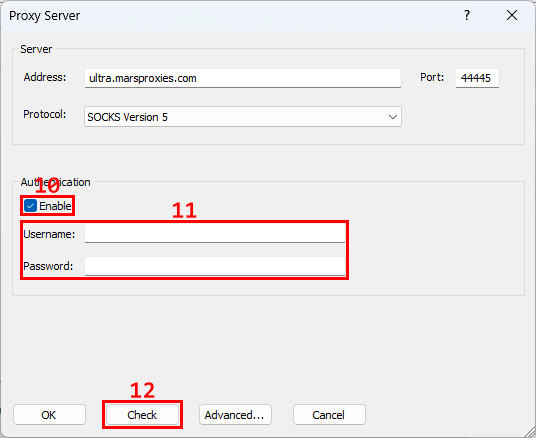
- Step 8: Enable authentication (10), then enter the username and password in the correct fields (11). Click 'Check' (12) to test the proxy connection.
- Step 9: Once the proxy checker confirms everything is working, click 'OK' (13).
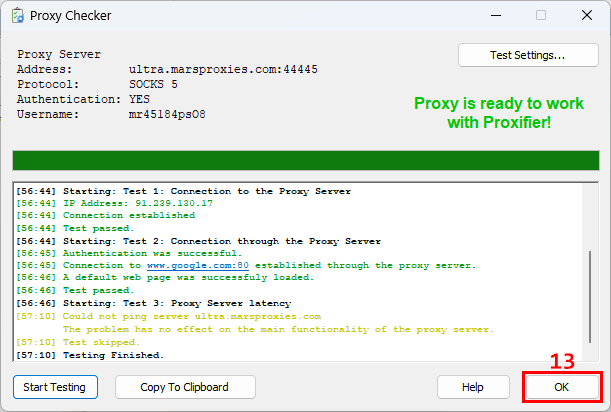
- Step 10: Once the proxy checker confirms everything is working, click 'OK'.
How to proxy all traffic or one app only
Now that you have successfully set up your MarsProxies proxy server, do not make the mistake of assuming everything is already set. You still have one choice to make, and that choice affects what you need to do next.
Would you like all apps to route traffic through the proxy, or only a specific app?
In the app, that decision changes how you use proxy rules and where you assign the proxy server you just created.
If you want all apps to connect through the selected proxy
- Step 1: In the top ribbon, click 'Profile' (1).
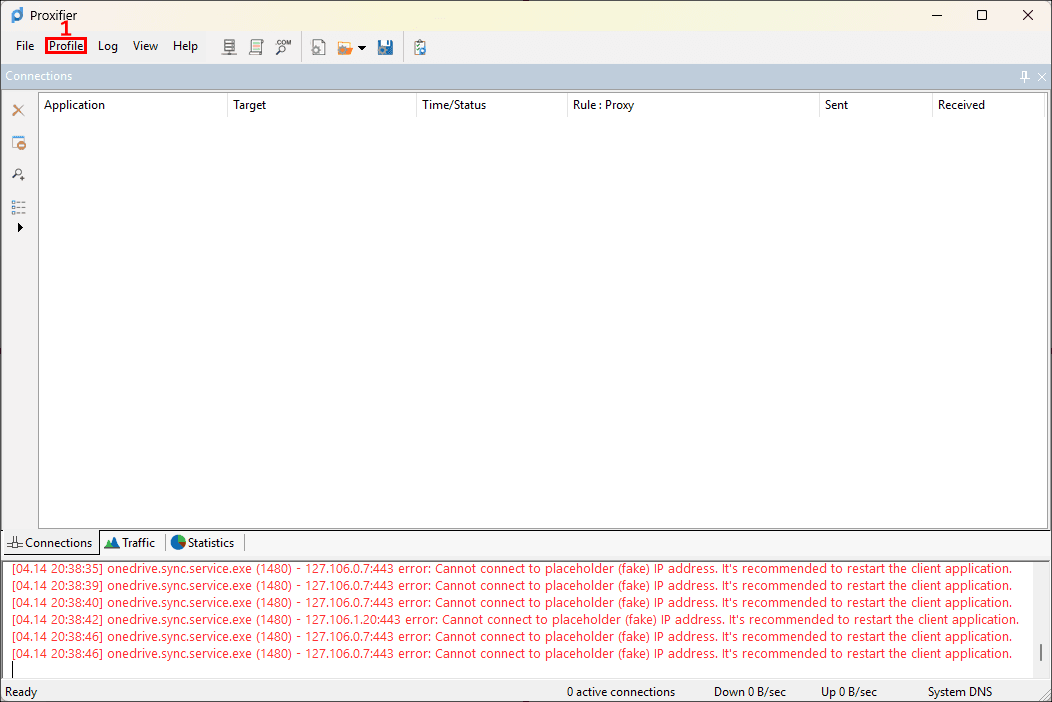
- Step 2: From the drop-down menu, select 'Proxification Rules' (2).
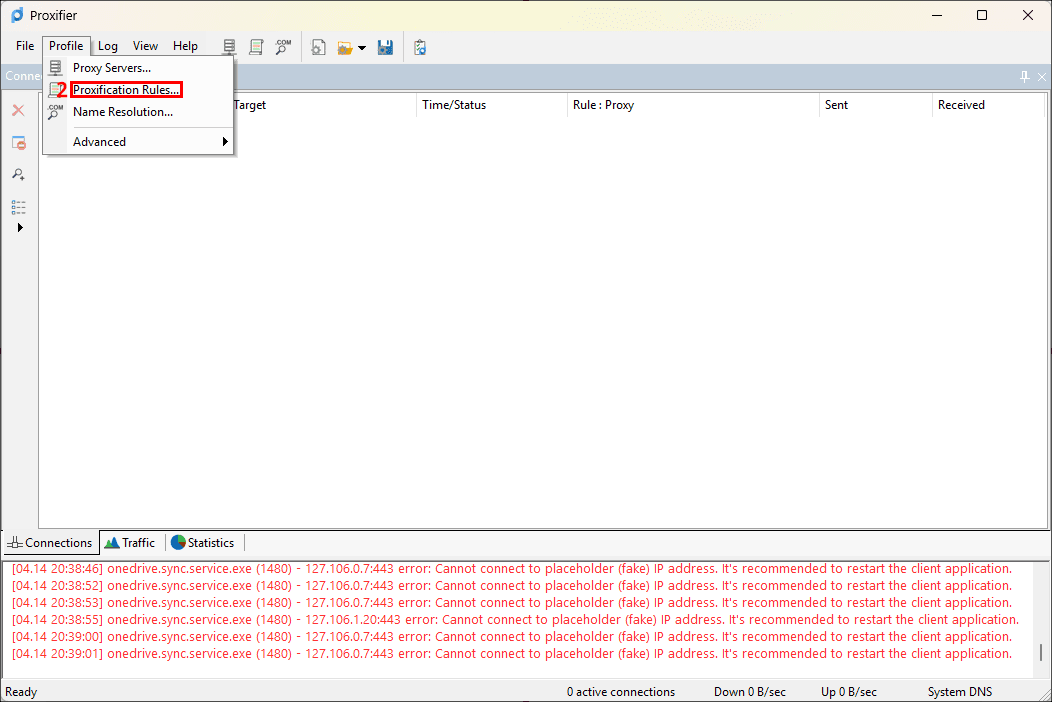
- Step 3: Under the 'Default' rule, go to the 'Action' column and click the drop-down list (3).
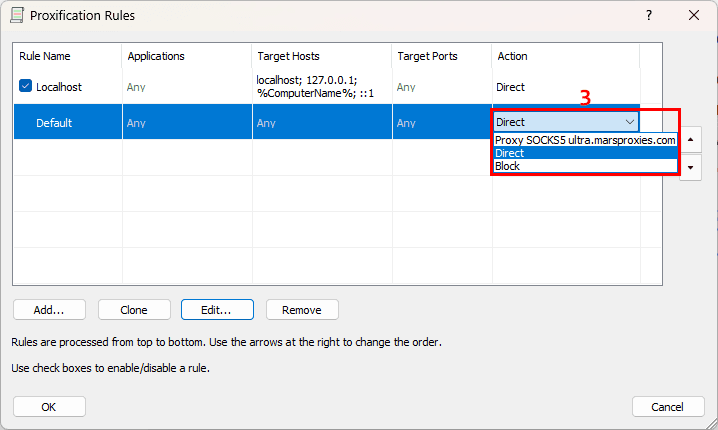
- Step 4: Select the residential proxy server (4) you just set up and click 'OK' (5).
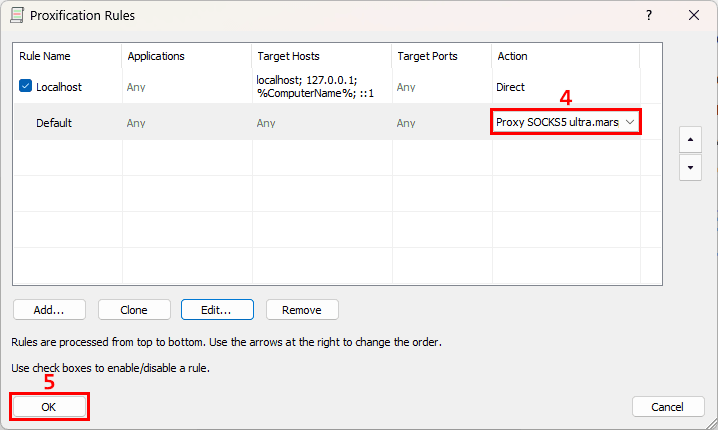
Doing this means all traffic that matches the 'Default' rule will go through that proxy server.
If you only want a specific app to connect through the selected proxy
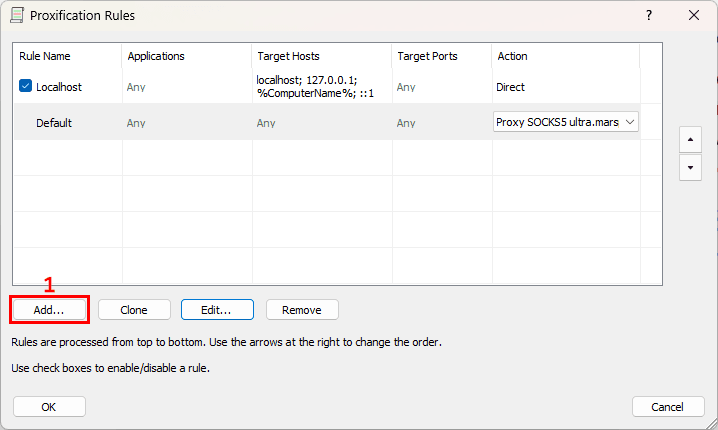
- Step 1: Still in the 'Proxification Rules' window, click 'Add' (1).
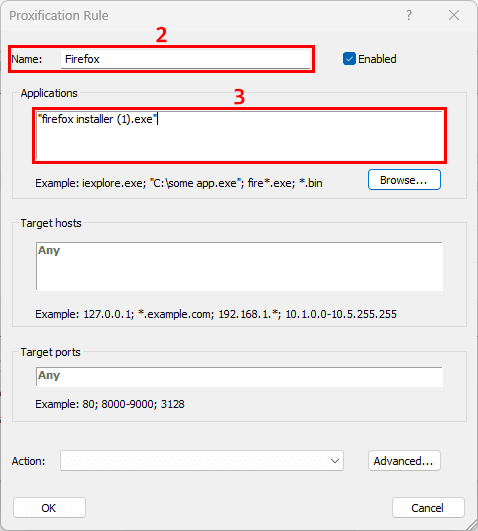
- Step 2: In the new dialog box, enter the rule name (2). For example, you can enter “Firefox”, then choose the app you want to add under 'Applications' (3).
- Step 3: Under 'Action', click the drop-down list and select the proxy server (4) you just set up. Click 'OK' (5) to add the rule.
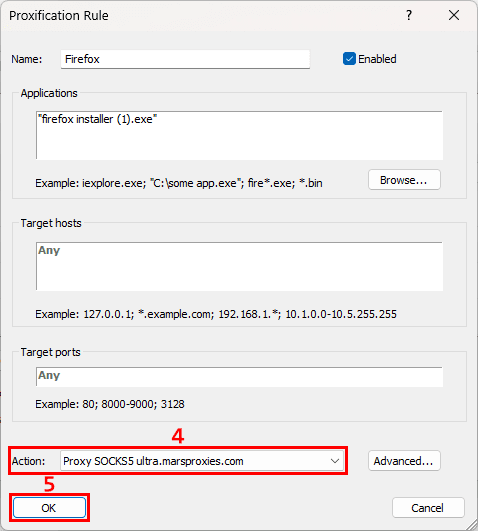
- Step 4: Click 'OK' (6) again to save the rule.
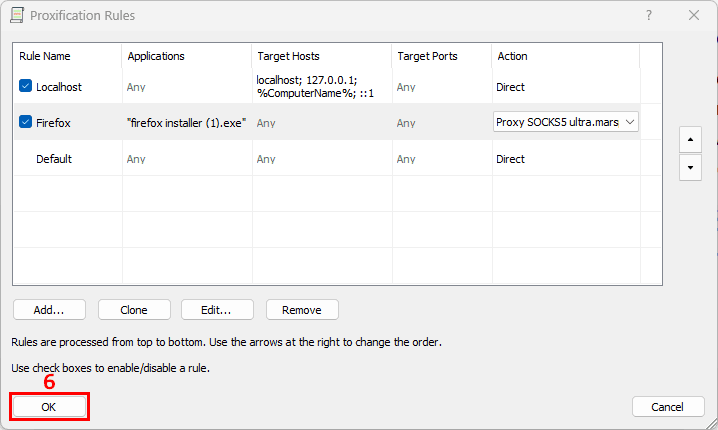
That's it! With such a granular proxy setup process, you get control over corporate networks by enabling remote updates and resource access control.
How to verify your proxy is working
Now you can route either all your traffic or only some of it through MarsProxies. To verify that your connection is actually working, there are a few simple checks you can run before you move on.
- Use Proxifier’s proxy test
You can use the built-in Proxy Checker we covered during setup, since that is still the fastest way to confirm that the proxy server itself is responding and accepting your proxy configuration.
- Open the target app and confirm it is working
You can also open the app you routed through Proxifier and check whether traffic is going through the configured proxy by using a site such as WhatIsMyIPAddress to confirm the visible IP address.
If you are getting an error, try restarting the application. Some apps do not pick up updated proxy configurations right away, so a restart can help the new proxy connection apply properly.
Common Proxifier errors and fixes
Wrong protocol selected
Go back to your proxy server entry and check the selected connection type. Make sure it matches the one configured in your MarsProxies dashboard.
Authentication failed
Recheck the username and password, then confirm the IP, port number, and protocol are all correct for that proxy.
Rule not applied correctly
Open 'Proxification Rules' and confirm the app is assigned to the correct proxy server. If needed, move the rule higher so Proxifier matches it before a broader rule.
App still uses the local connection
Check that the rule is tied to the correct executable, then restart the app and test the visible IP address again.
DNS or hostname resolution issues
To prevent DNS leaks, ensure 'Resolve hostnames through proxy' is checked in 'Profile' -> 'Name Resolution'.
Conclusion
Now you have a way to control the apps that route traffic through proxies and those that don't. Remember that Proxifier does not control the quality of the proxies in use. Go for top-tier proxies, preferably residential proxies from reputable providers. Want more tips on proxy management? Join our Discord.
Does Proxifier work with HTTP, HTTPS, and SOCKS5 proxies?
Yes, the app works with HTTPS and SOCKS proxies, including SOCKS5. Just make sure to select the same connection type as your proxy server is configured for. If the connection type doesn’t match your proxy settings, the connection will fail.
Should I use SOCKS5 or HTTPS in Proxifier?
Use SOCKS5 when you want to support app-level traffic for tools beyond normal web browsing. Use HTTPS when your proxy endpoint is specifically configured for HTTPS traffic. In any case, Proxifier should match the connection type shown in your proxy settings.
Can I use Proxifier with one app only instead of routing all traffic?
Yes, Proxifier can route traffic through a proxy for one app only. To do that, create a Proxification Rule for the specific executable instead of assigning the proxy to the Default rule, which affects much broader traffic.
How do I check if Proxifier is using my proxy?
Start with Proxifier’s built-in proxy test to confirm the proxy server is responding. Then open the target app and check your visible IP using an IP checker. If needed, restart the app to apply the new rule.
Why is Proxifier not changing my IP address?
This usually means the proxy type is wrong, authentication failed, or the proxification rule is not being applied. It can also happen when the app is still using a direct connection or has not picked up the new settings yet.
Does Proxifier support proxy chains?
Yes, Proxifier supports proxy chains. That means you can route traffic through more than one proxy server in sequence instead of using a single proxy. This can be useful in setups that need more control over how traffic is routed.