
As one of the most popular browsers, Mozilla Firefox is known for its emphasis on privacy, security, and customization. Part of that flexibility comes from its proxy configuration options, allowing you to route your traffic through a proxy server. As a result, you can enhance your online privacy, access geo-restricted content, manage connections with company or school networks (like unblocking Discord), and more.
In this guide, we’ll show you how to configure proxy settings in the Firefox browser, test if they are working correctly, and troubleshoot common issues.
What are Firefox proxy settings?
A proxy in Firefox acts as an intermediary server, routing your traffic between your browser and the websites you visit. It uses its own IP address to connect you to target websites, but only when using the browser. That way, configuring a proxy in Firefox masks your IP address and protects your online activity.
Since you’re no longer connecting directly, you can browse anonymously, access geo- or network-restricted content, manage multiple accounts, and maintain your privacy.
Firefox manages proxy connections independently from your operating system’s network settings, giving you precise control over which connections use a proxy and how they are routed.
How to open Firefox proxy settings
Follow the steps below to open these settings in your Firefox browser.
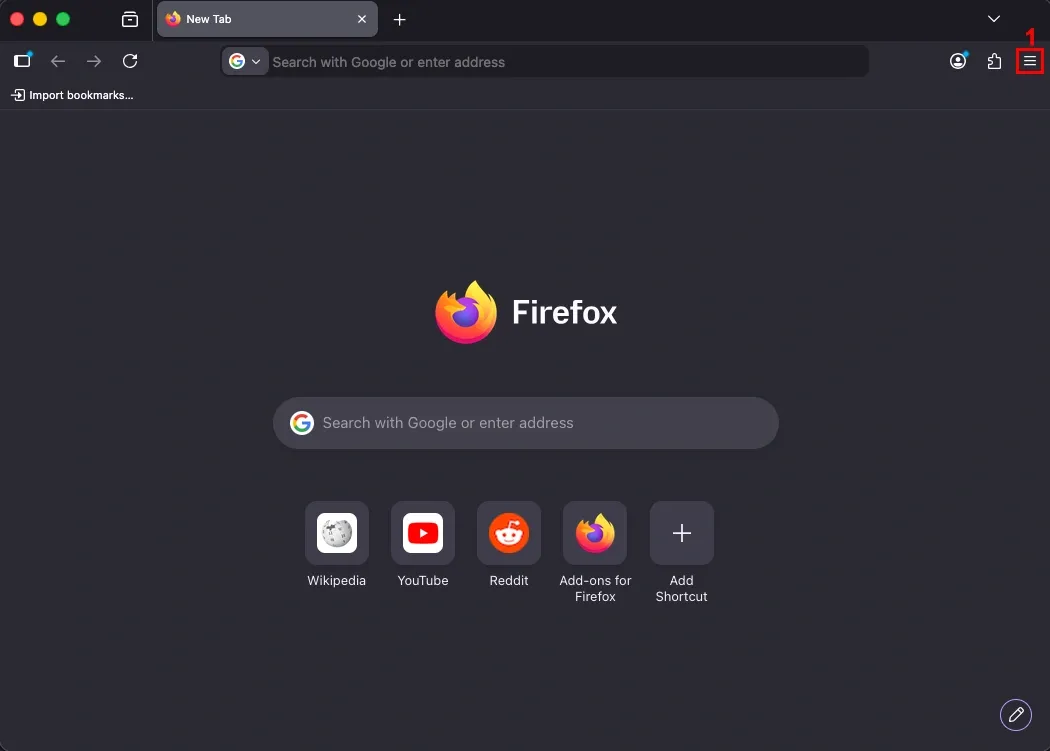
1. Launch Firefox and click the three-line menu icon (1) in the top right corner.
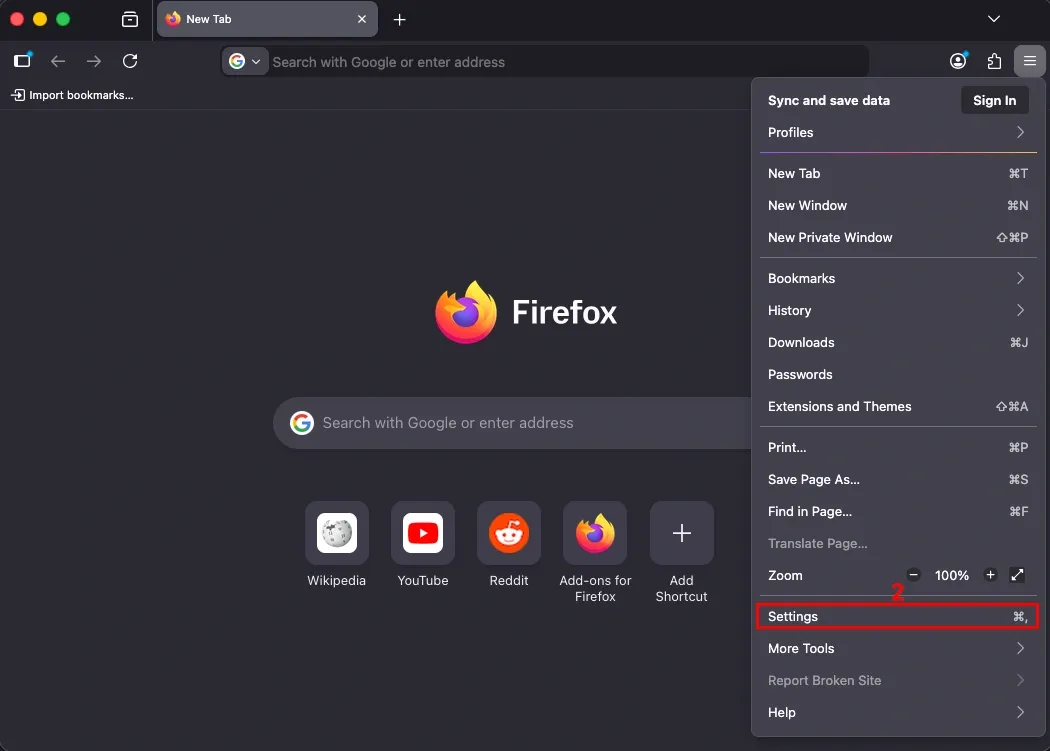
2. Select ‘Settings’ (2), or ‘Preferences’ on some macOS versions.
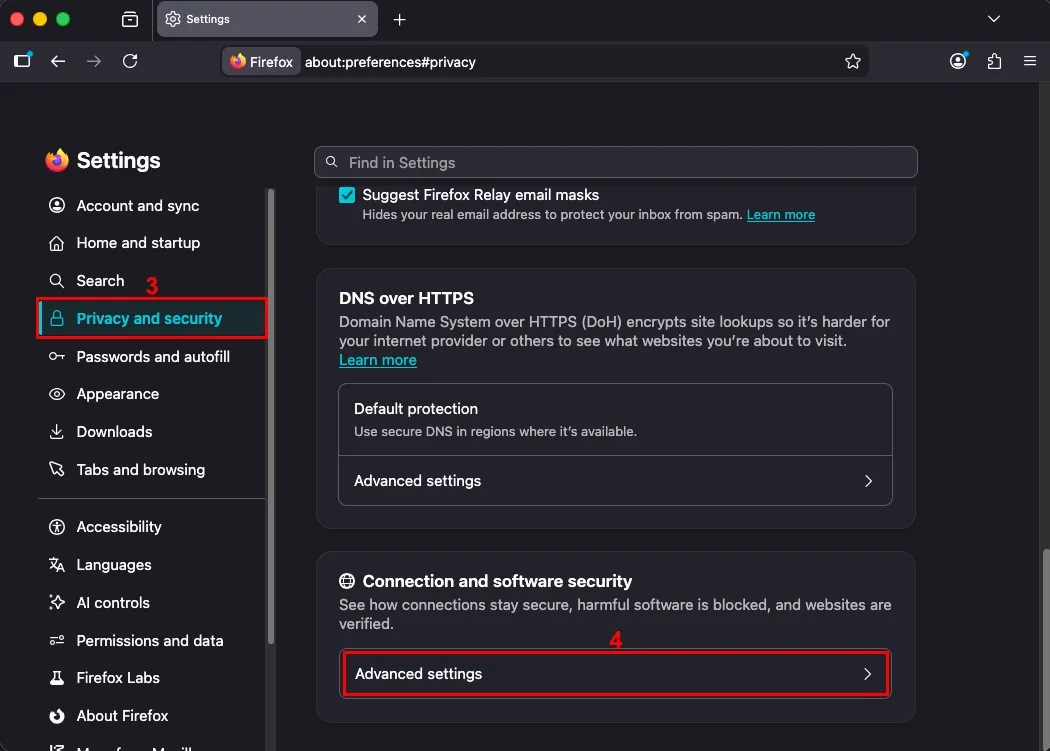
3. Scroll down to the bottom of the ‘Privacy and security’ (3) tab to find ‘Connection and software security’, and click ‘Advanced Settings’ (4).
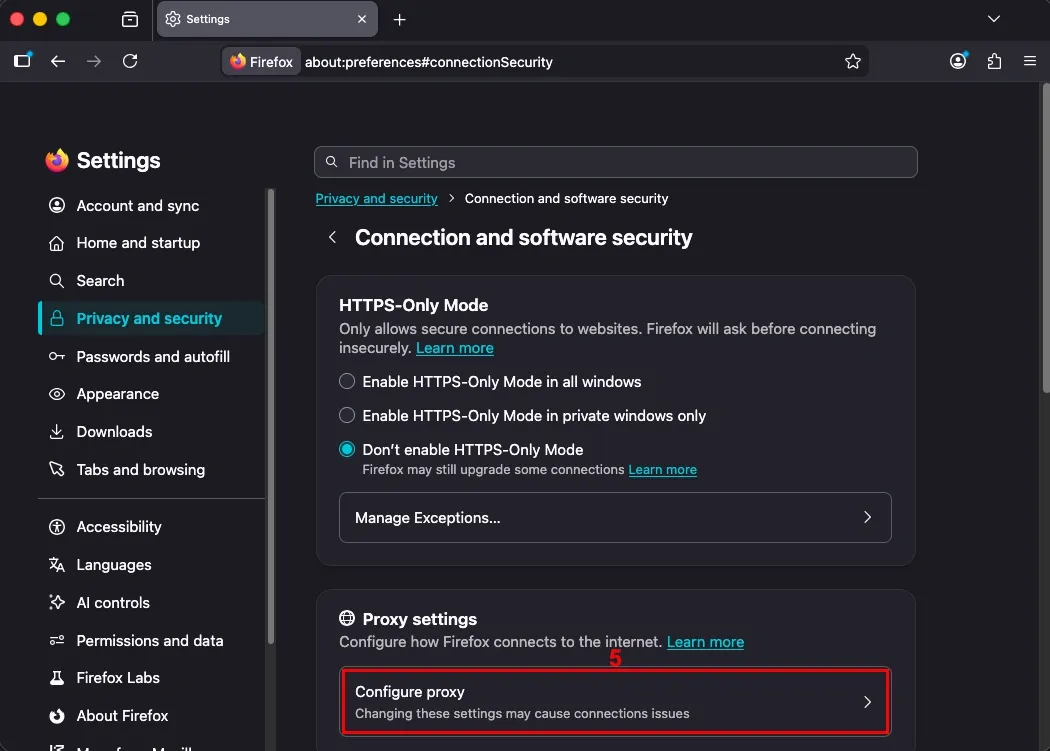
4. Click ‘Configure proxy’ (5) under ‘Proxy settings’.
This will open the ‘Connection Settings’ window, where you can set up your proxy.
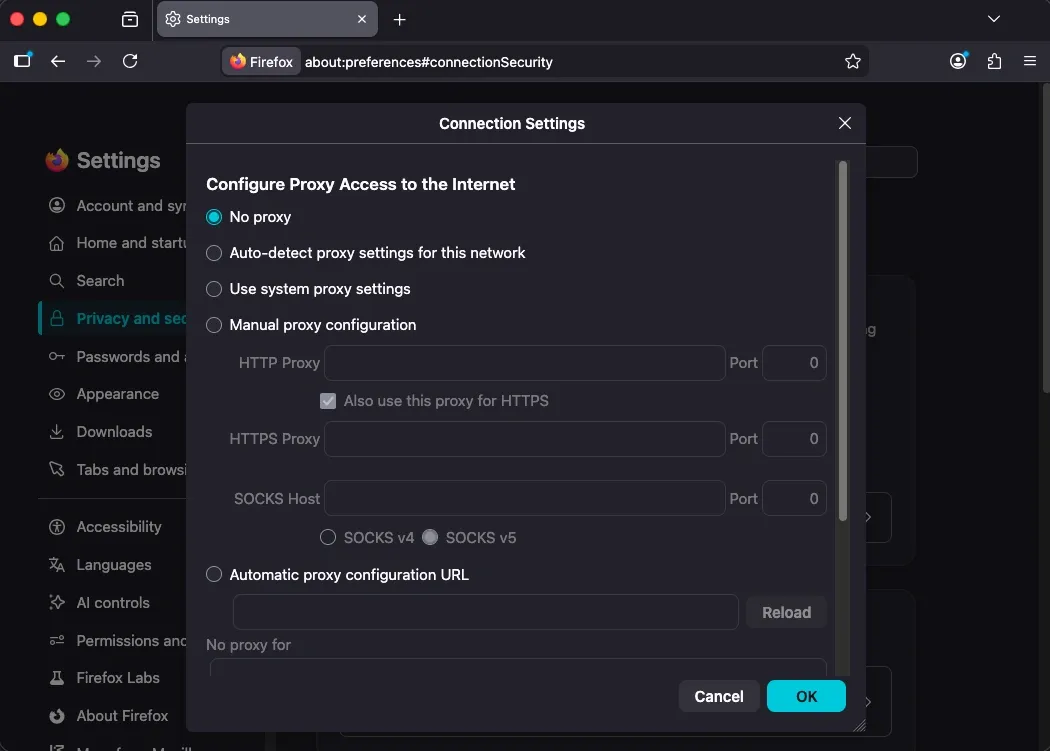
Firefox proxy configuration options explained
Let’s go through each option in the ‘Connection Settings’ window, so you can choose the best configuration for your needs.
No proxy
Use this option when you want to stop using a proxy server in Firefox. This will tell the browser to connect directly to websites without using any proxy, making it ideal when you don’t need additional privacy, geo-routing, or network control.
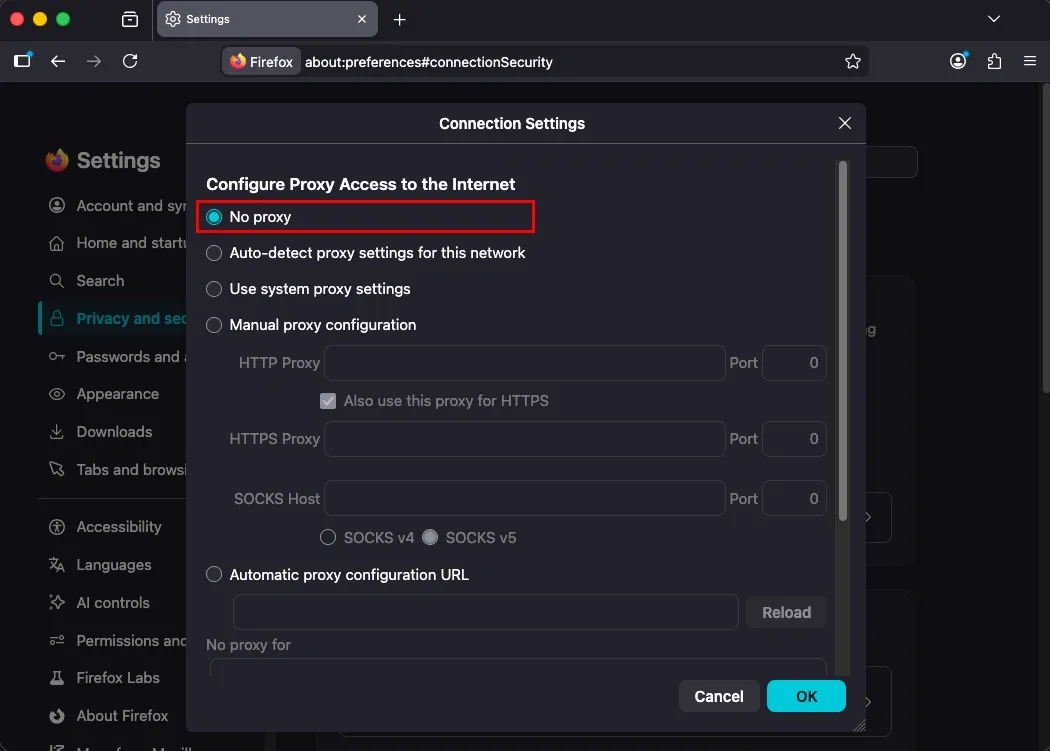
Auto-detect proxy settings for this network
This option lets Firefox automatically detect proxy settings for the network you’re connected to. It uses a protocol called WPAD (Web Proxy Auto-Discovery) to find and apply the network’s recommended proxy configuration without you having to enter any proxy details manually.
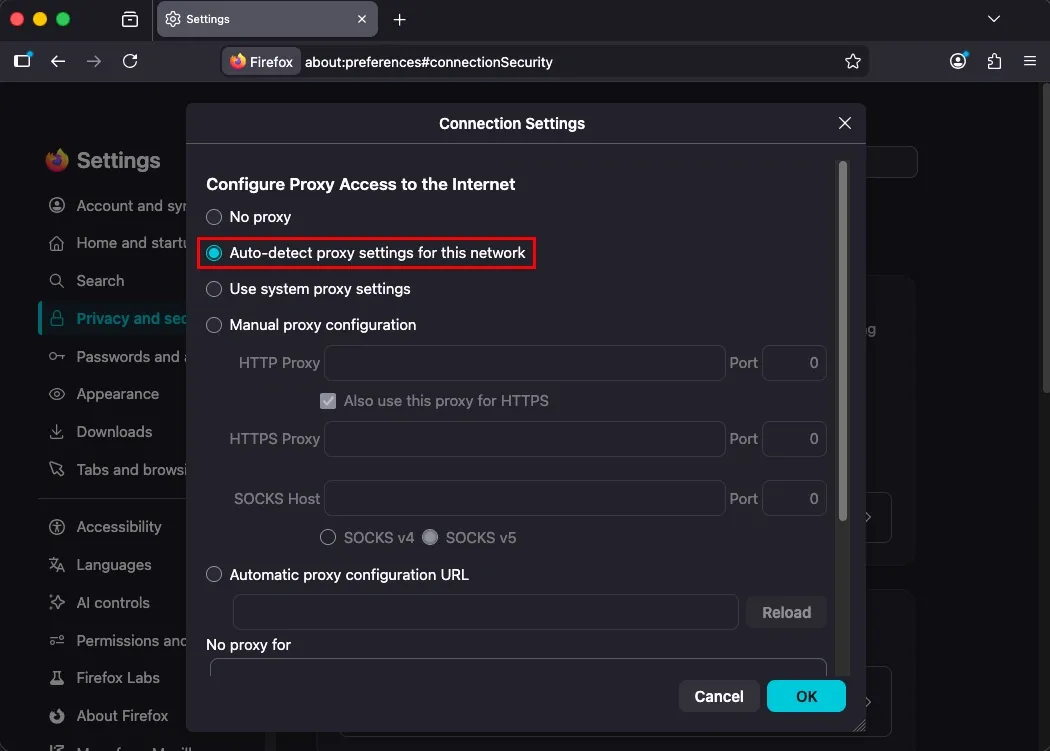
It’s great for workspaces, schools, or public networks that require a proxy but provide automatic setup.
Use system proxy settings
With this option, you allow Firefox to use the same proxy configuration as your operating system. Instead of setting up a separate proxy in the browser, Firefox automatically uses whatever proxy your macOS, Windows, or Linux system is set to use.
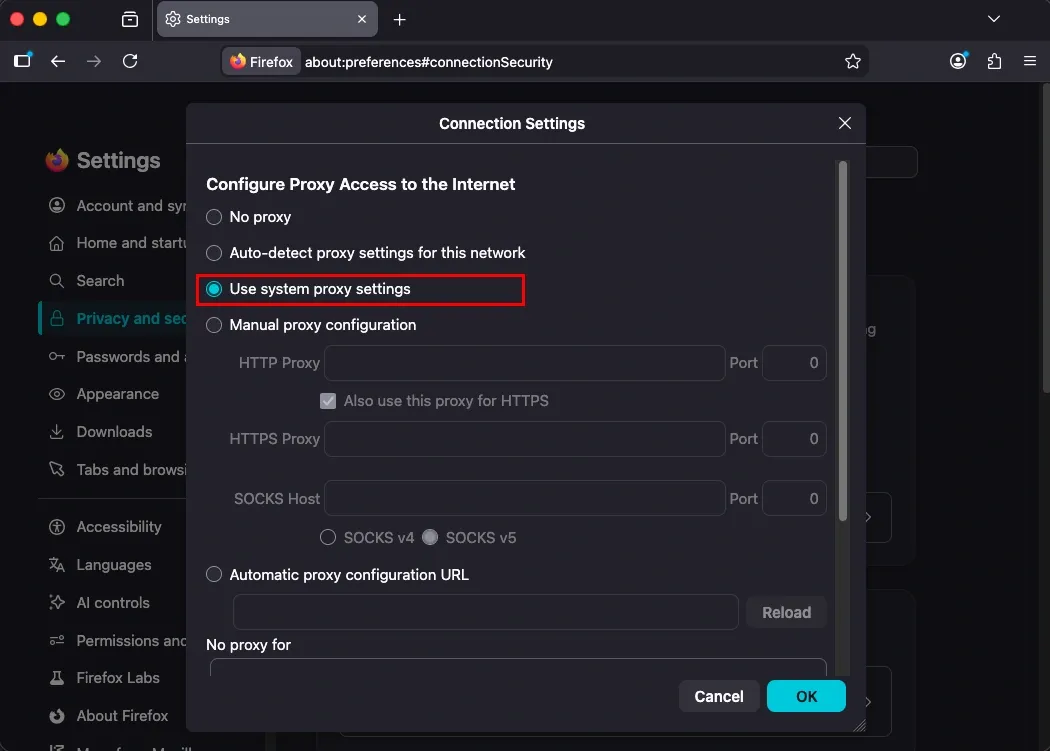
This is especially useful in enterprise environments, where proxy configurations are managed centrally across all devices. Instead of configuring each browser individually, IT administrators can deploy a policies.json file placed in the Firefox distribution directory, which instructs Firefox to automatically follow the system’s network configuration on all machines.
Use this option when you already have a system-level proxy set up and don’t need a different configuration specifically for Firefox.
Manual proxy configuration
Manual Proxy Configuration allows you to enter specific proxy details yourself, giving you full control over how Firefox connects to the internet. You can specify separate servers for HTTP, HTTPS, and SOCKS protocols, depending on your needs.
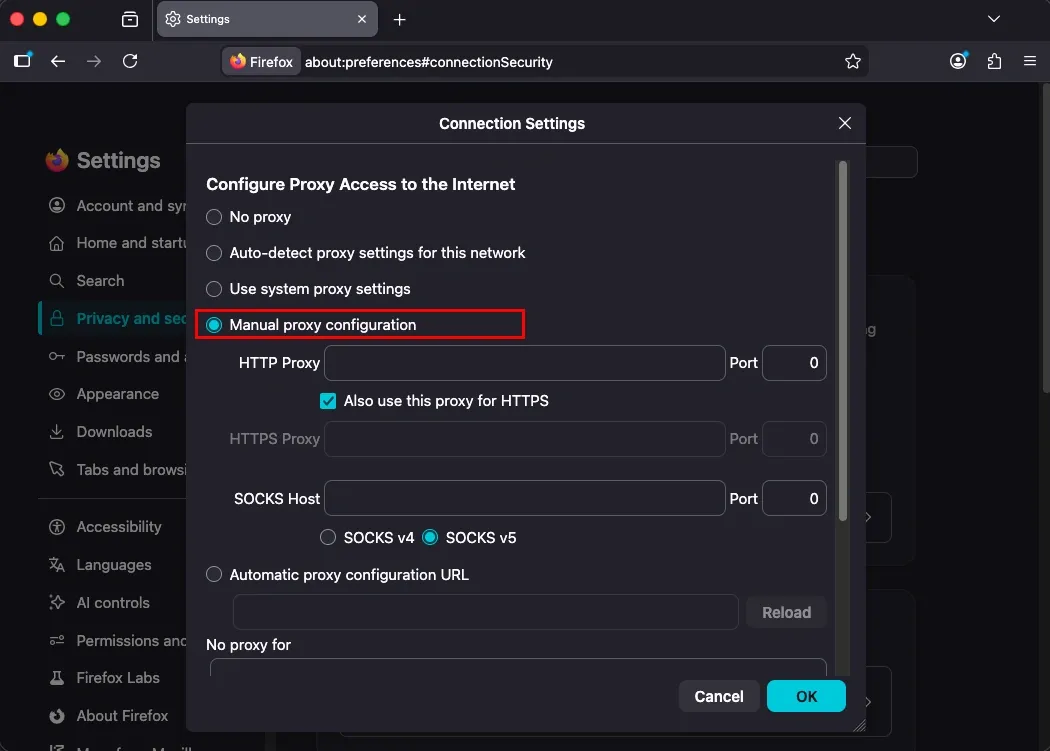
By configuring the proxy manually, you ensure Firefox connects exactly the way you want, giving you the flexibility you need for various use cases.
Automatic proxy configuration URL
This option lets you enter the URL of a PAC (Proxy Auto-Configuration) file. Once provided, Firefox uses the script in the file to determine the appropriate proxy for each website automatically.
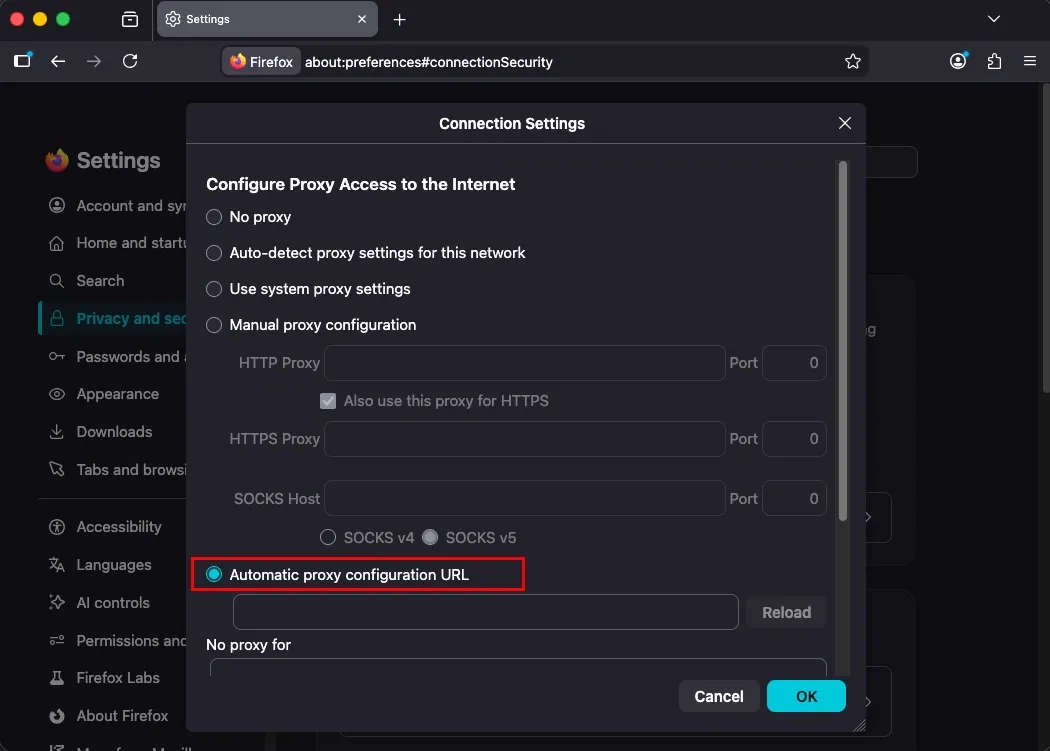
It’s especially useful for networks with complex rules or for organizations that want to manage these settings centrally, so you don’t have to configure each server manually.
How to set proxy manually in Firefox (step-by-step)
Manually configuring a trusted proxy server in the Firefox ‘Connection Settings’ menu ensures better privacy, security, and flexibility. Here’s how to set up a specific proxy server in your Firefox browser.
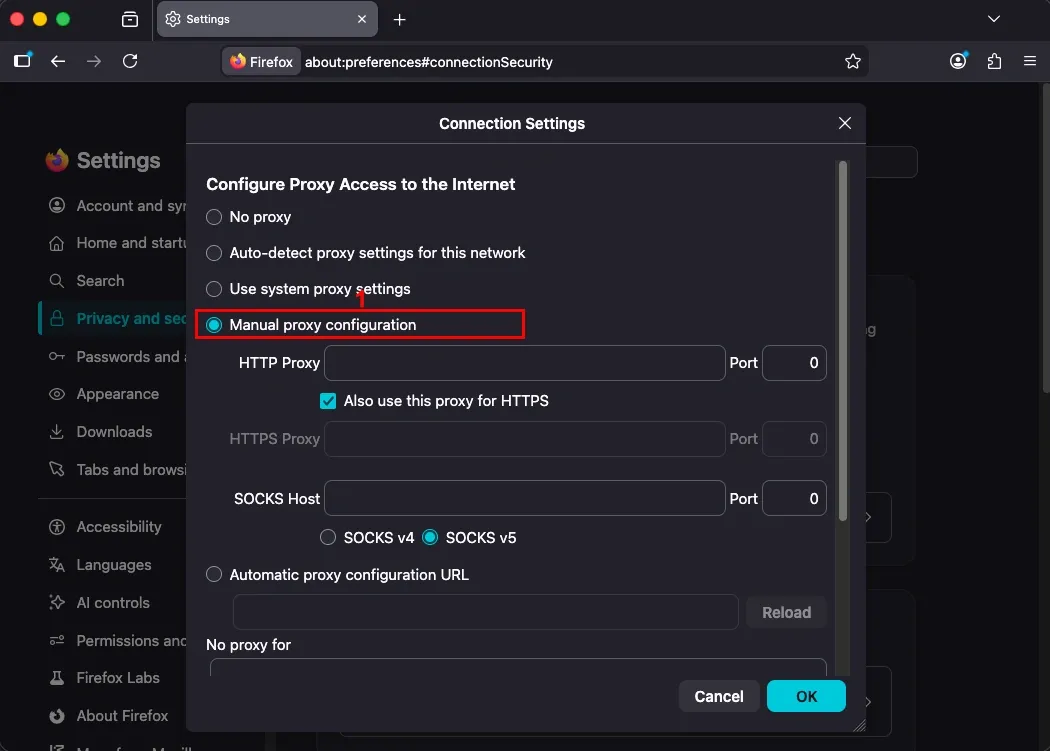
1. Open ‘Connection Settings’ in your browser and select ‘Manual proxy configuration’ (1).
2. Enter your proxy IP address or hostname (2) and port number (3) in the designated fields next to HTTP proxy, HTTPS proxy, or SOCKS proxy - depending on the protocol your proxy supports. You can find your proxy hostname and port in your proxy service dashboard.
Enter proxy details in one or multiple fields, and Firefox will use the appropriate proxy based on the type of traffic or protocol being used.
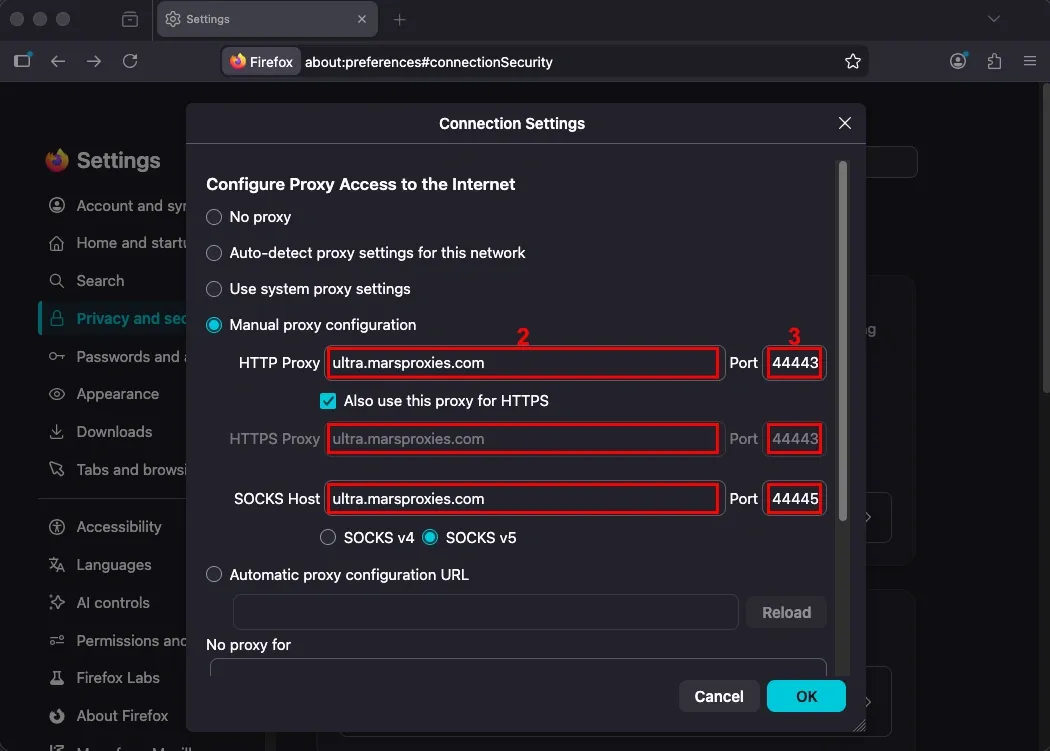
3. Check ‘Also use this proxy for HTTPS’ (4) if you want the same proxy server to handle both HTTP and HTTPS traffic, as long as your proxy provider supports this configuration. If you’re configuring a SOCKS proxy, select the version - SOCKS4 or SOCKS5 (5) - that your proxy provider supports.
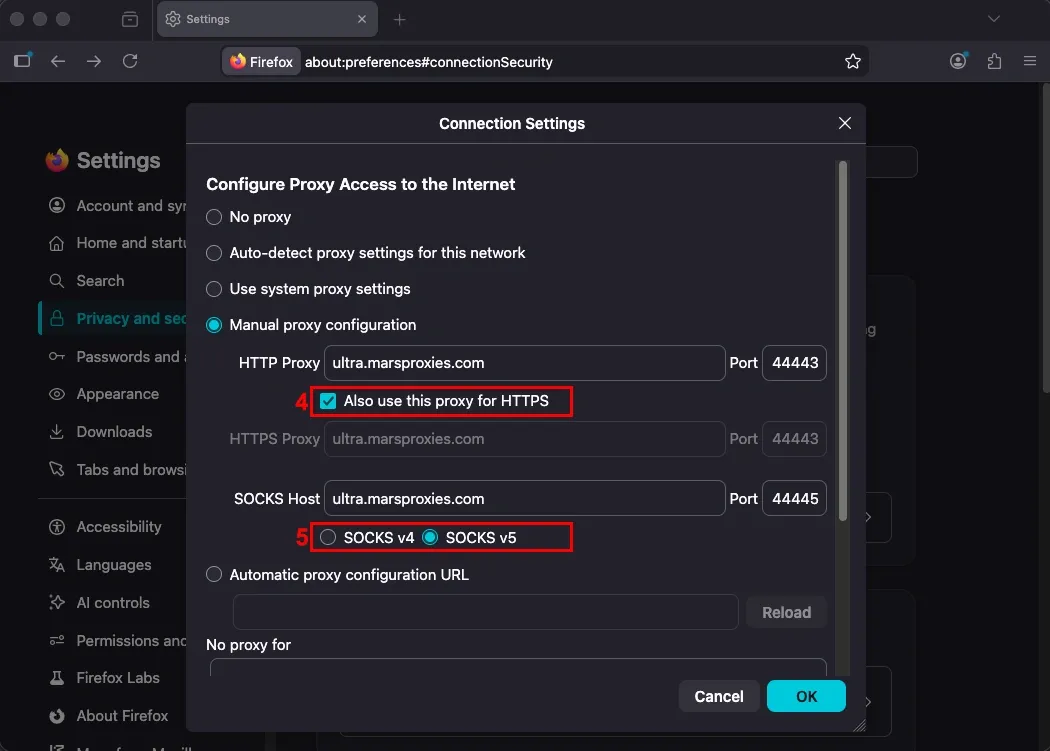
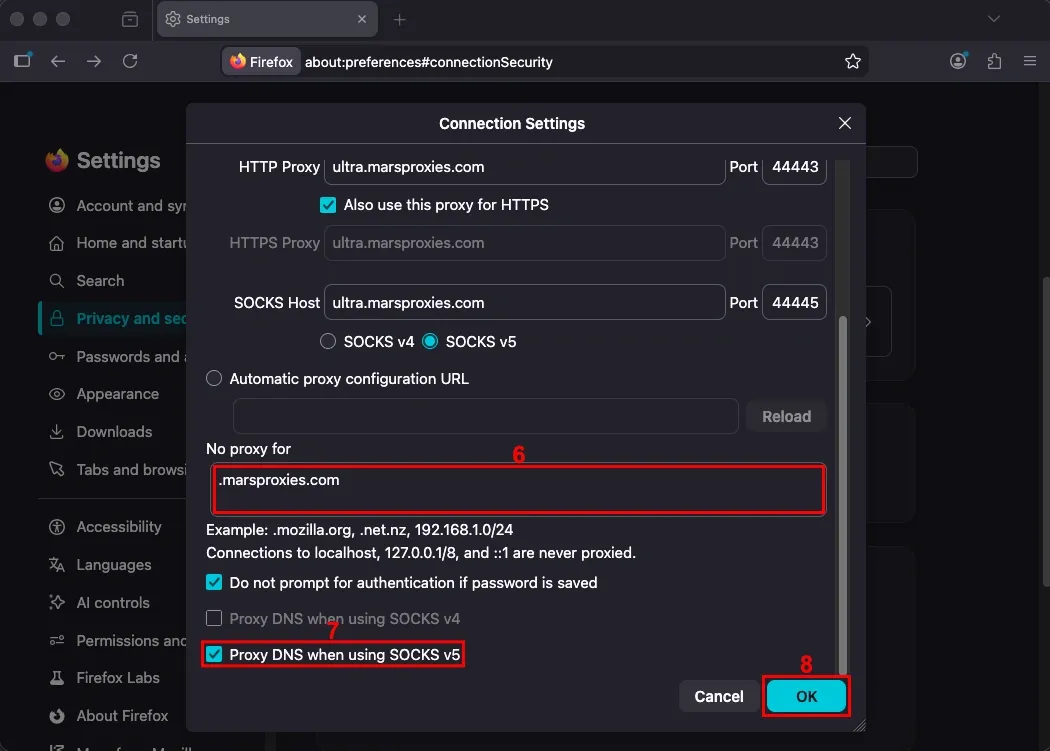
4. If there are any specific domains or IP addresses you don’t want to route through the proxy server, enter them in the ‘No proxy for’ (6) field. Firefox will then connect to these sites directly, bypassing the proxy server.
Keep the ‘Proxy DNS when using SOCKS v5/v4’ (7) enabled when using SOCKS4/5 proxies. This option routes your DNS requests through the proxy server instead of resolving them locally on your device. After entering your proxy information, click the ‘OK’ (8) button to save your settings in Firefox.
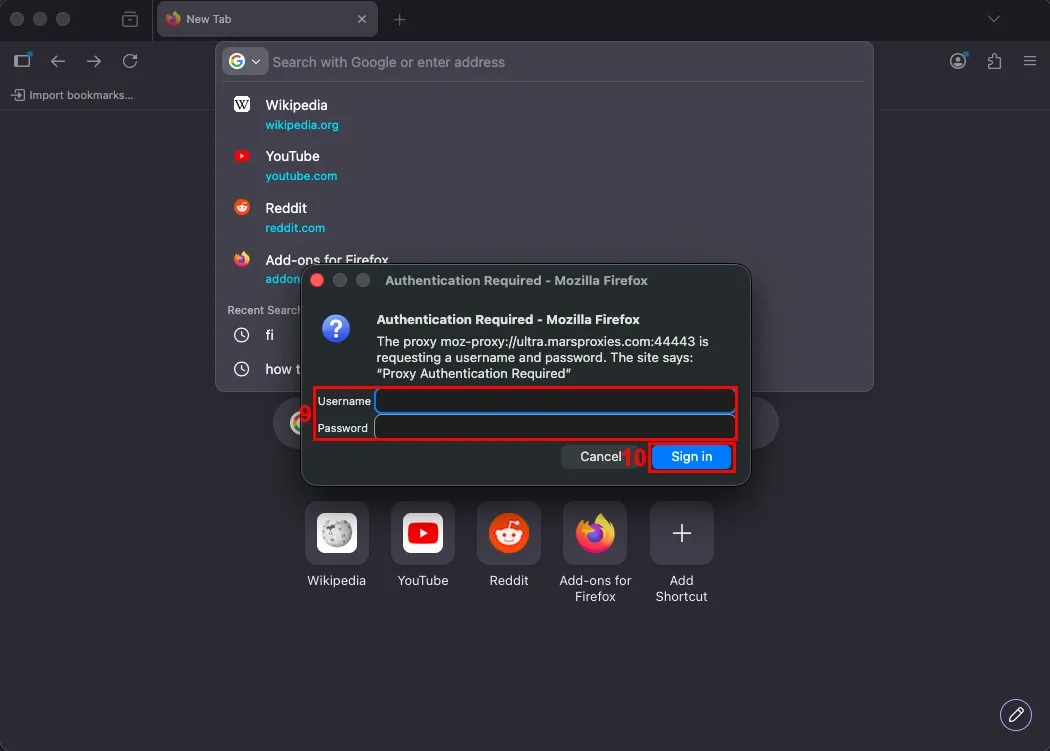
5. When trying to browse the web, Firefox will ask for your proxy username and password (9) after entering your proxy information if authentication is required. You can find these details in your proxy service dashboard.
Once you add the information, click the ‘Sign in’ (10) button, and you can start using your proxy.
How to test Firefox proxy settings
To verify your traffic is actually being routed through the proxy, open a new tab and visit a site like WhatIsMyIP. If your IP address and location have changed or they match the configuration in your proxy dashboard, you have successfully set up a proxy in Firefox settings.
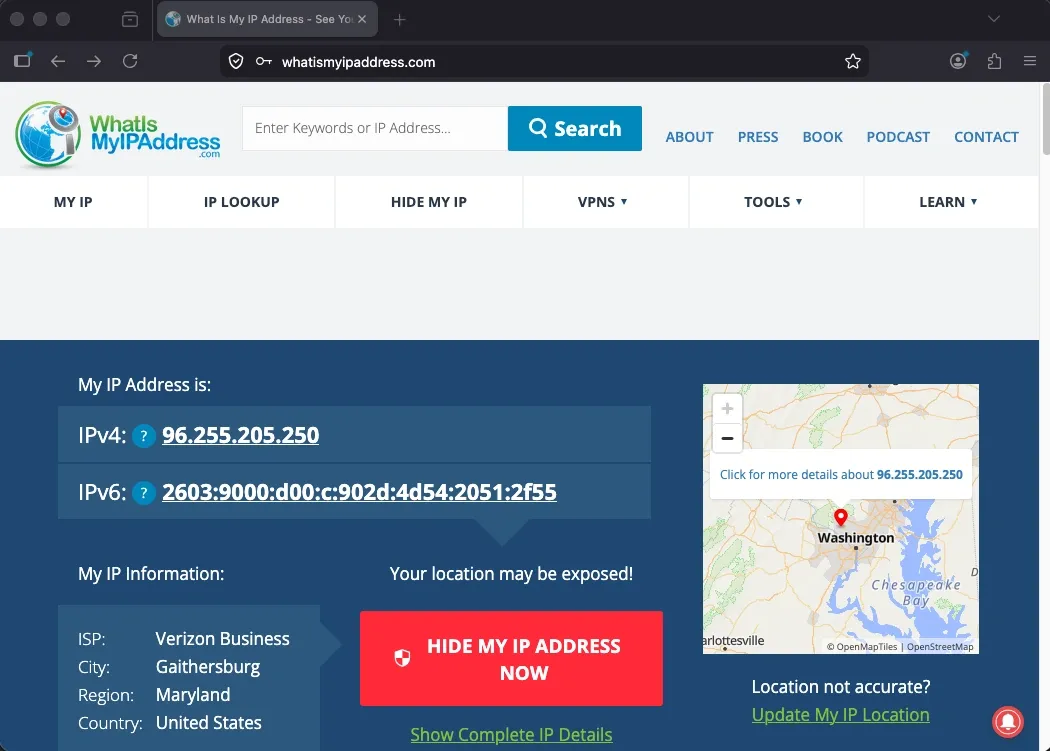
A common mistake is testing right after saving your settings without fully reloading the browser. If the IP check doesn’t reflect your proxy, try closing and reopening Firefox.
Common Firefox proxy problems & fixes
Even if you’ve set up your proxy correctly, you may still run into some issues. Here are the most common Firefox socks5 proxy issues and how to resolve them.
Proxy not working
If your proxy isn’t working, double-check the IP address or hostname and port number in your Firefox ‘Connection Settings’ and correct any typos if needed.
Also, make sure the proxy type you selected (HTTP, HTTPS, or SOCKS) matches your configuration in the proxy service dashboard, or that your provider supports that protocol.
If everything looks correct, your network itself may be blocking proxy connections. This is common on corporate or school networks that restrict outbound traffic on certain ports.
Proxies may also not work if they are free or obtained from an unreliable provider. Using free proxy lists is strongly discouraged as they often lack security guarantees and may steal your data. This is why you should always use a reputable, paid proxy service, as free proxies can pose significant privacy risks.
MarsProxies Residential Proxies are fast, reliable, and support HTTP/HTTPS and SOCKS5 protocols. You can order as many GBs as you need and use them whenever you want because they never expire.
Can’t access certain websites
If specific sites aren’t loading while others work fine, check your ‘No proxy for’ field in the ‘Connection Settings.’ If a domain or IP range is listed there, Firefox will bypass the proxy for those sites and connect directly instead.
DNS issues can also be a reason you can’t access some websites through the proxy. If you’re using a SOCKS5 proxy, make sure the ‘Proxy DNS when using SOCKS v5’ option is enabled, as unproxied DNS requests can sometimes interfere with site access.
Settings not saving or greyed out
If your settings appear greyed out or reset every time you reopen Firefox, your browser is probably being managed by an organization policy or enterprise configuration. In this case, your network administrator controls the proxy configurations and has restricted changes at the browser level.
You can confirm this by typing about:policies in the Firefox address bar and checking if any network-related policies are listed. If that’s the case, contact your IT department to make any changes.
Using proxy extensions in Firefox
Proxy extensions can simplify your proxy management, especially if you’re working with multiple proxies or need to frequently switch between them.
Unlike Firefox settings, which apply a single static configuration to all your traffic when using the browser, proxy extensions let you switch between multiple proxies in a few clicks, set up rules for different sites, and manage everything from one place.
This makes proxy extensions particularly useful when managing multiple accounts, working across different regions, or whenever you want more flexibility than the built-in settings offer.
MarsProxies Firefox Proxy Extension is free, easy to use, and allows you to save and manage an unlimited number of proxies. Instead of opening ‘Connection Settings’ and enabling or disabling a proxy, or manually updating proxy details whenever you need a different one, you can do that directly from the extension in just a few clicks.
And if you need simplified proxy usage in Chrome, MarsProxies Chrome Proxy Extension can help you manage and switch between proxies in the same way directly from the browser.
Conclusion
Setting up a proxy in Firefox gives you greater control, privacy, and flexibility while browsing. You can set up a proxy manually if you want full control over which servers and protocols to use, or use system or automatic detection if you prefer Firefox to follow your network’s or OS’s existing configuration.
Firefox proxy extensions streamline the proxy management process, and testing the proxy before using it ensures it’s working correctly. Whether you need proxies for anonymous browsing, accessing geo-restricted or network-restricted content, streaming, or anything else, MarsProxies’ reliable proxies will keep your activity private without breaking the bank.
If you’re looking for more tips on proxy usage or want to share your experiences, make sure to visit our Discord community.
How do I find proxy settings in Firefox?
Open the browser menu in the top right corner and select Settings. In the ‘Privacy and security’ tab, scroll down to the ‘Connection and software security’ section and click ‘Advanced Settings.’ This will open the ‘Connection Settings’ window, where you can view or configure your proxy connection.
What does “Use system proxy settings” mean in Firefox?
It means the browser follows the proxy server configuration set in your operating system. Instead of setting up a separate proxy inside Firefox, the browser automatically uses the same network configuration defined in your system settings.
Can Firefox use SOCKS5 proxies?
Yes, Firefox supports SOCKS5 proxies. You can configure one manually by entering your SOCKS5 proxy’s hostname and port in the ‘SOCKS Host’ field. Don’t forget to select SOCKS5 as the version.
How do I disable proxy settings in Firefox?
To disable the proxy server in Firefox, follow the steps to open ‘Connection Settings’ and select the ‘No proxy’ option. Then, click the ‘OK’ button to save the settings.
Why is my proxy not working in Firefox?
Common reasons why your proxy may not work in Firefox include entering incorrect proxy details, selecting the wrong proxy type (HTTP, HTTPS, or SOCKS), or using free proxies from unreliable providers.