Key takeaways:
- Tun2TAP lets you route Android traffic through SOCKS5 or HTTP proxies while acting like a local VPN for more control.
- It stands out with features like per-app routing, custom DNS, and flexible proxy management on Android.
- Most setup problems come from mismatched proxy types, wrong credentials, or incorrect host and port details.
Tun2TAP lets you turn your Android phone into a local VPN device when you need a bit more control over how your traffic gets routed and enhanced security. What that means is, it can send some or all of your internet traffic through a proxy server of your choice.
What is Tun2TAP?
In a nutshell, Tun2TAP is a bridge between a proxy and a VPN on Android. Rather than just using a server network like most VPNs do, it leverages a pre-existing SOCKS5 or HTTP proxy to send your phone's traffic through a local VPN.
Here are some of the core features of the app:
- Full traffic routing through a proxy
You can configure the app to route all internet traffic on your device through a configured proxy, then present that traffic as a local VPN on the phone.
- Per-app proxy control
Instead of sending all traffic through the proxy, you can choose which applications bypass it while the rest of your Android device connects through the rerouted proxy connection.
- Custom DNS setup
If you want to ditch your ISP's DNS for a more customized approach, then you're in luck. Tun2TAP lets you plug in your own DNS server. That will give you more control over name resolution and can even help prevent DNS leaks.
- Multi-proxy support
The app is compatible with SOCKS5 and HTTP proxy types. If you need more support, perhaps for specific apps or UDP traffic, then go with SOCKS5. For standard internet use, such as basic web browsing, HTTP is the simpler option
Essentially, this app turns your device into a local VPN that routes traffic through a configured proxy, making it a more streamlined alternative to manually setting up a proxy server on Android.
When choosing a proxy, go with a reputable provider and select the type that fits your needs. Residential proxies are ideal when you want anonymity, datacenter proxies work best when you want speed, and mobile proxies help you mimic mobile traffic.
How to set up MarsProxies in Tun2TAP: step-by-step
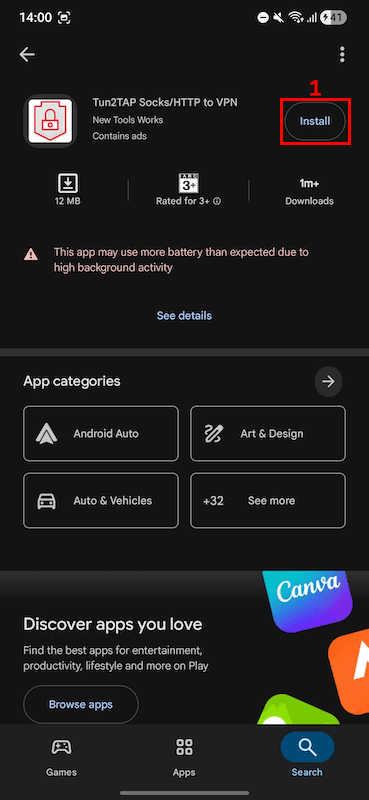
- Step 1: Open the Play Store on your Android device. Type “Tun2TAP” in the search bar to find it, then tap 'Install' (1) to begin downloading it.
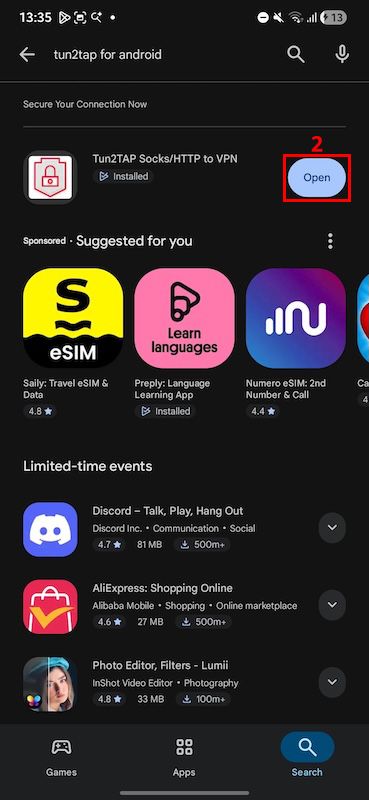
- Step 2: Once the app finishes downloading, tap 'Open' (2) to begin configuring the connection.
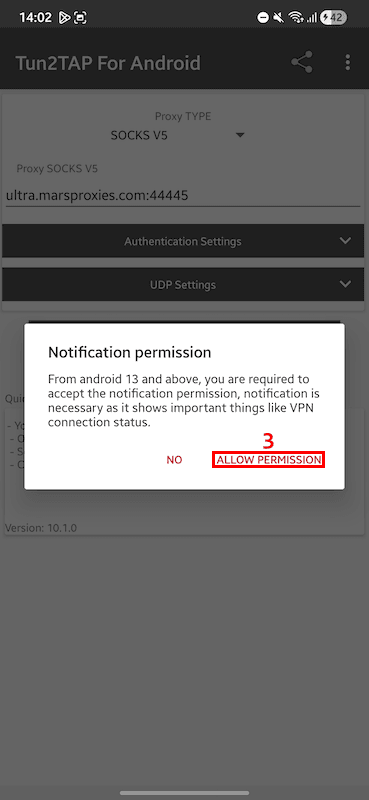
- Step 3: Enable all required permissions (3).
- Step 4: Go to the MarsProxies dashboard and configure the proxy you want to use. Set the country (4), state or region (5), rotation (6), type (7), and session duration (8).
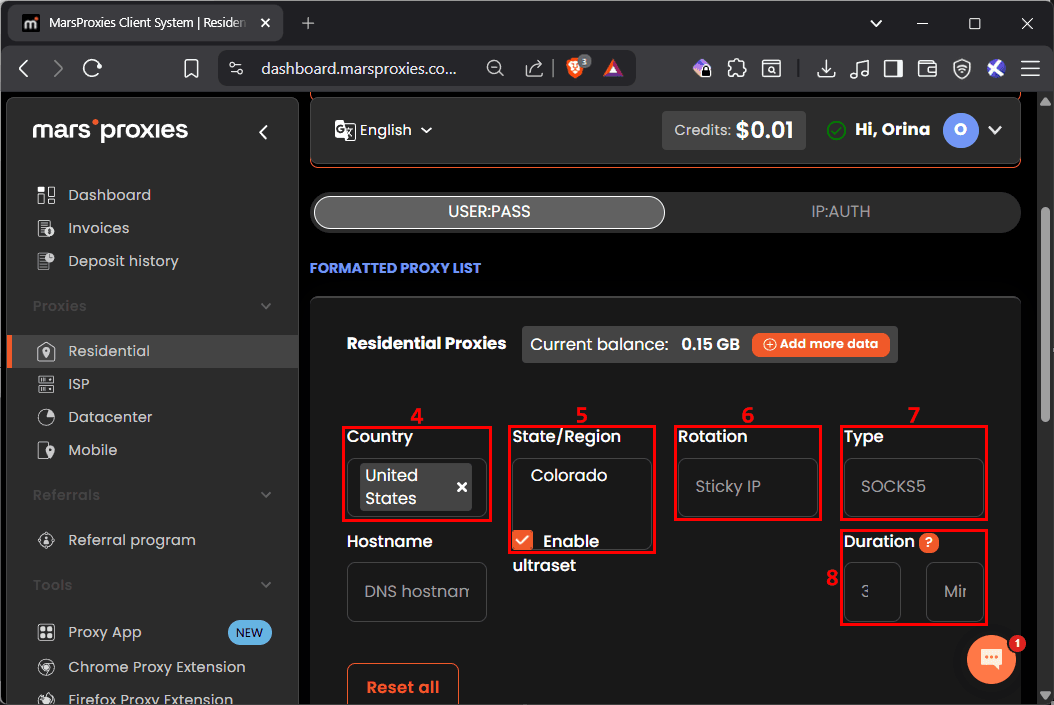
- Step 5: Back in the app, tap the 'Proxy TYPE' (9) field to open the drop-down list, then select the same protocol (10) you configured in the MarsProxies dashboard.
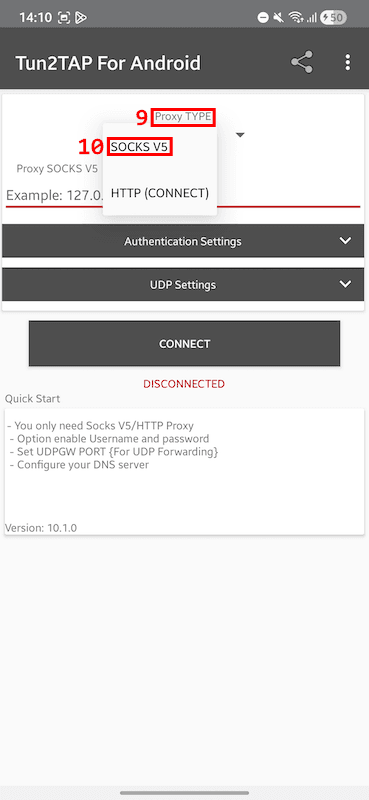
- Step 6: Enter the proxy address and port number (11) in the required format using the details from your MarsProxies dashboard.
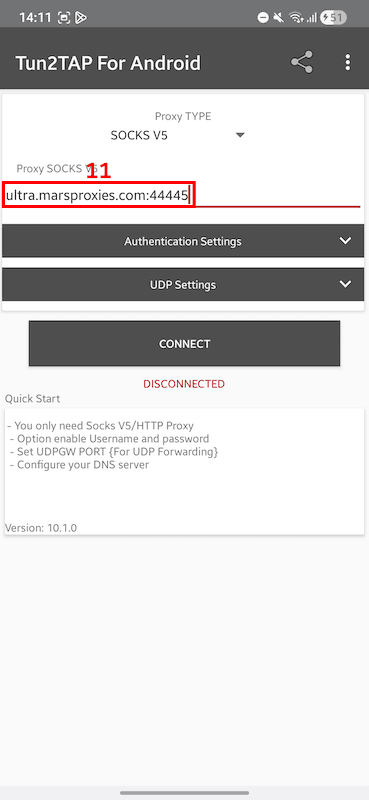
- Step 7: Tap 'Authentication settings' (12) to open the drop-down, and then enable authentication (13) for the proxy server.
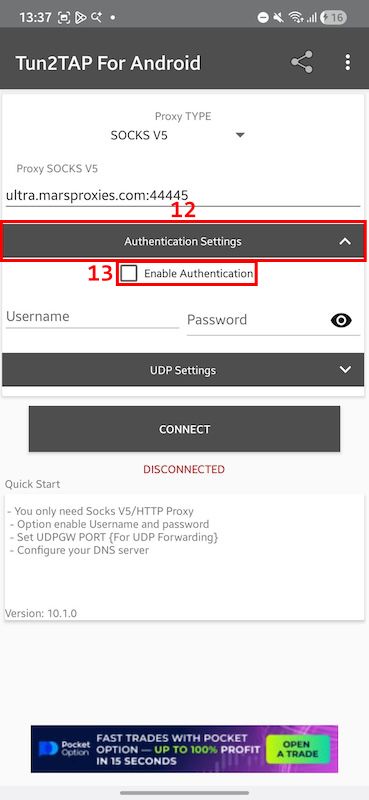
- Step 8: Enter the proxy username and password (14) from the MarsProxies dashboard that you set up earlier in step 4.
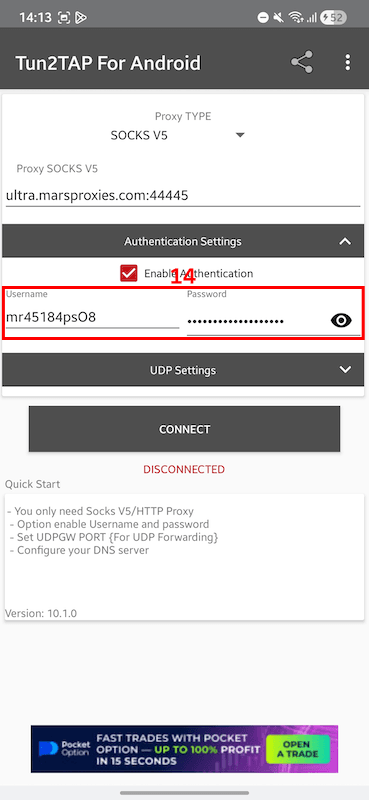
Step 9: Only set up UDP traffic (15) if your setup actually needs it. If not, leave that part alone and continue with the main proxy connection.
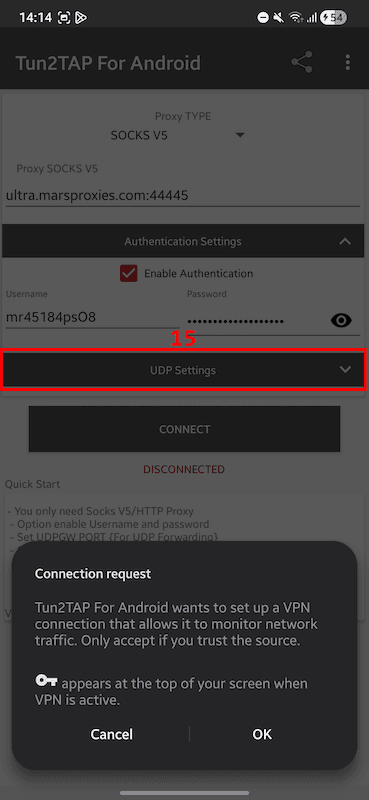
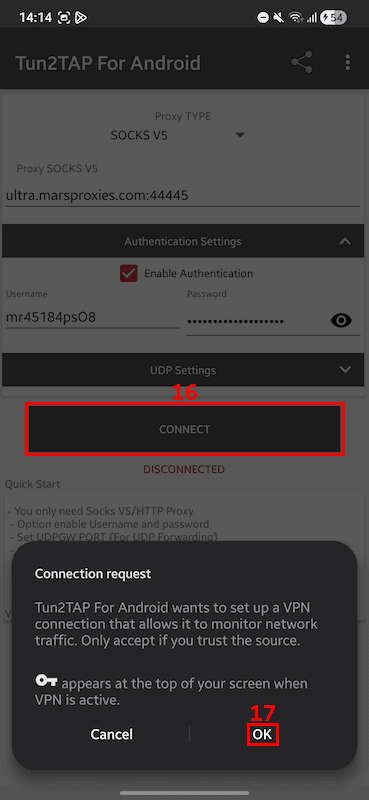
- Step 10: Tap 'Connect' (16) to start your proxy connection. After that, a new connection request prompt will appear on your screen. Tap 'OK' (17) to allow the connection.
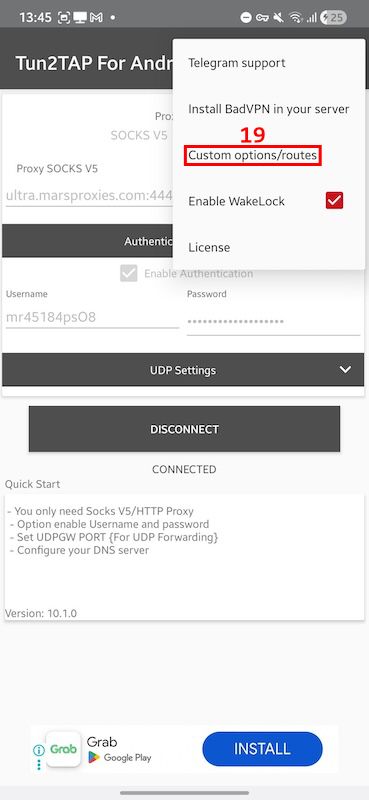
- Step 11: At this point, your phone becomes a local VPN with traffic routed through the MarsProxies server you just configured. If you want certain applications to bypass the proxy, tap the three dots (18) in the top-right corner.
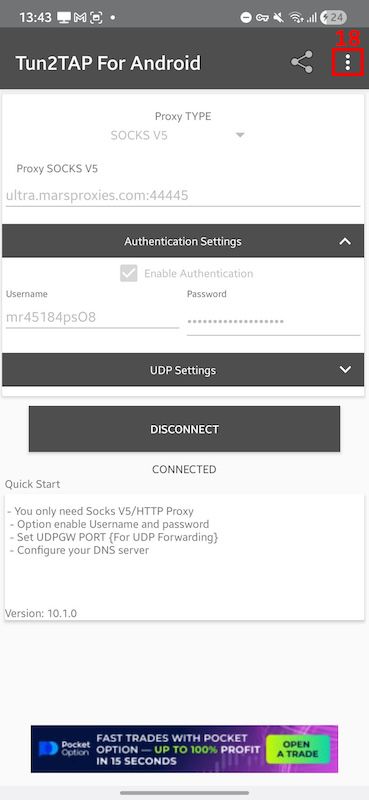
- Step 12: In the new menu that appears, tap 'Custom options/routes' (19) to open the routing settings screen.
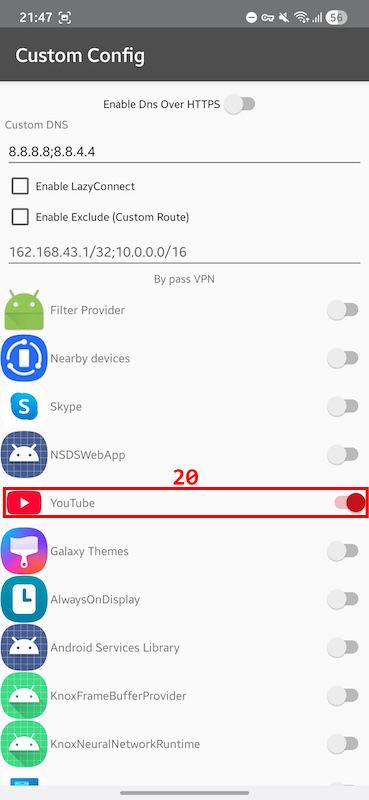
- Step 13: On this screen, you can adjust DNS settings, review advanced features, and choose which applications should bypass the proxy. To exclude an app like YouTube, find it in the list and toggle it (20).
Tun2TAP vs VPN: what’s the difference?
Tun2TAP may feel like a VPN when you use it, but it works differently. Here is a side-by-side comparison of the two apps:
What it is
A proxy-to-VPN adapter for Android
A VPN service with its own server network
What you need first
Your own proxy server
A VPN subscription or account
Server network
Does not provide one
Provides its own servers
How traffic is routed
Routes traffic through the proxy you enter
Routes traffic through the VPN provider’s servers
Setup style
Manual, you enter proxy details yourself
Simpler, usually just sign in and connect
Per-app control
Built around app-level routing and exclusions
Depends on the VPN app
Best for
Users who want routing control on Android
Users who want a simpler privacy setup
Main advantage
Lets you use your own proxy server on Android
Usually easier to use and faster to start
Main limitation
Requires a working proxy and more setup
Gives you less control over custom proxy routing
In summary, Tun2TAP lets you manage your own proxies, while a VPN relies on its own server network. If you want a simpler setup, the MarsProxies Android Proxy App also lets you manage proxies on your phone with just one tap.
Use Tun2TAP when:
- You already have a private proxy and want to use it on your phone
- You want more control over how specific applications route traffic
- You need to work directly with a proxy server
- You want to adjust custom settings like DNS or other advanced features
Use a VPN when:
- You want a service that comes with its own server network
- You want a simpler setup that does not require proxy credentials
- You want to connect quickly without entering details manually
Join our Discord channel for more insightful tips on proxy management.
Does Tun2TAP support SOCKS5?
Yes. Tun2TAP supports SOCKS5 proxies and HTTP proxies. SOCKS5 is usually the better choice when you need broader app compatibility, more flexible traffic handling, or support for setups involving UDP traffic.
Why is my Tun2TAP proxy not working?
Tun2TAP usually fails because the proxy type is incorrect, the host or port format is invalid, the login details are incorrect, or the app is rejecting a domain rather than a raw IP. Alternatively, make sure no conflict are present in your device configuration or Chrome proxy settings.
Can I use residential proxies with Tun2TAP?
Yes. It can work with residential proxies from any location as long as the provider supports SOCKS5 or HTTP. They are useful when you want better anonymity and more natural-looking traffic on Android.
What are some alternative tools similar to Tun2TAP?
Some alternatives include Drony, Postern, SocksDroid, and VPN Hotspot. Each handles proxy routing differently, so the best choice depends on app control, protocol support, and setup simplicity.