We’ve all been there. We’re ready to watch one of our favorite content creators on YouTube, when, out of the blue, a prompt blocks access and asks us to log in again. Whenever this issue appears, it’s not your YouTube account that’s causing it, but rather the platform detecting unusual behavior on your end.
The causes of this issue are various. From heavy ad-block and VPN usage to deleting your cookies frequently or network restrictions in your area. They can all make this issue rear its ugly head.
In this article, we’ll go over what this error message means, explain why it pops up, and offer effective measures to avoid it. Tired of dealing with this issue constantly? These quick solutions are all you need to go back to your happy YouTube days.
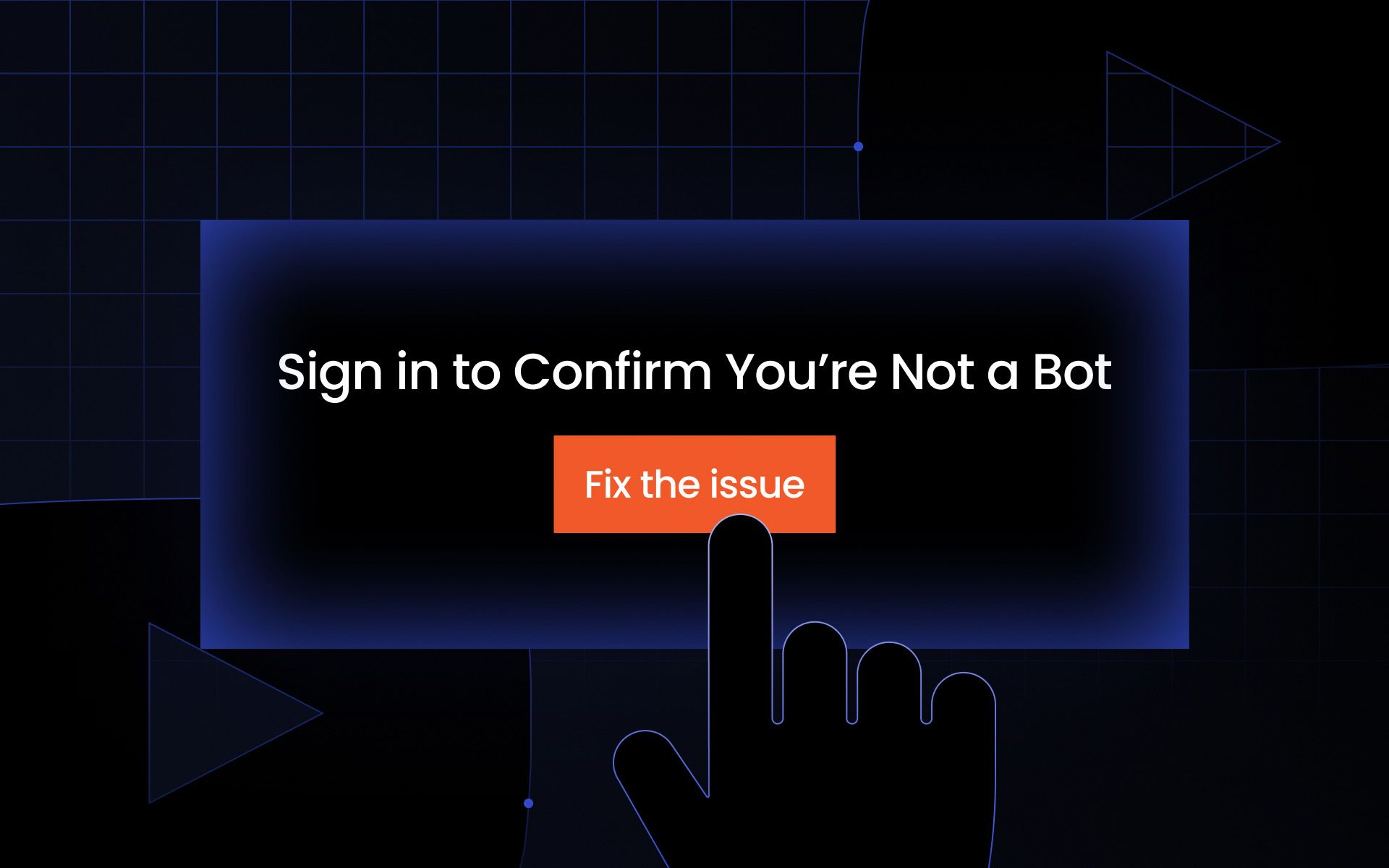
What does “Sign in to confirm you’re not a bot” mean?
This message typically appears as a security verification step. To crack down on illegal bot usage inflating views, likes, and shares, YouTube has implemented strict security measures. These scan incoming traffic to the platform and assess whether users may be using bots.
It’s no secret that many are willing to use automated tools to spam comments, download videos, or influence social media stats in some way. To combat this, Google and YouTube developed an automated traffic-based detection system. Encountering this error likely means the platform has deemed your traffic behavior suspicious.
It's been theorized that this verification process is meant to ensure viewers watch videos directly on YouTube rather than through embedded links on third-party sites. However, the bot verification process affects both third-party players and YouTube's official website and apps when users are logged out.
Some have reported that session management issues also trigger this bot verification process, particularly when using multiple tabs or windows. The message essentially asks you to sign in again to confirm you're, in fact, a human. It’s intended to keep bots away while letting real humans in. Nevertheless, the whole ordeal can cause frustration for those who are already signed in but still receive prompts to log in.
It’s also important to highlight that this denied access is often temporary. Just waiting a few hours or days is enough for it to go away.
Why YouTube says “Sign in to confirm you’re not a bot”
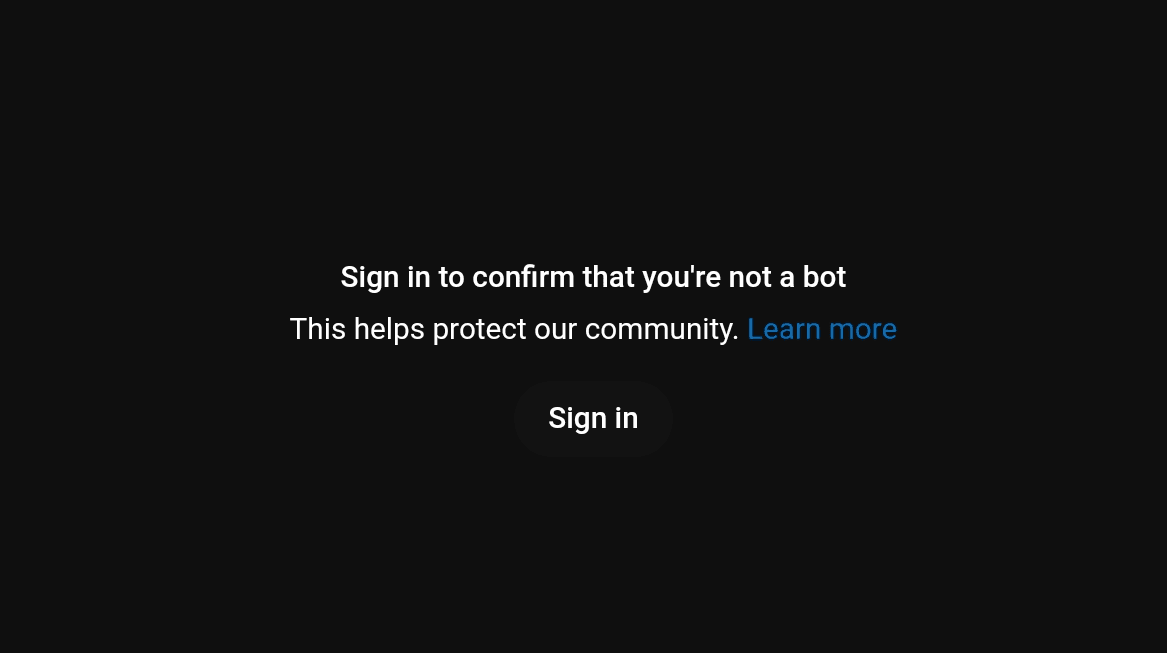
As mentioned earlier, the causes of this error message are varied. Excessive VPN and ad-block usage in your browser, as well as frequent cookie clearing, can lead to this issue.
Likewise, YouTube may also bar certain IP addresses to prevent automated access. If you’re on a shared connection and the platform detects a surge of high network activity, chances are you’ll find your access barred as well. A high volume of requests coming from a single internet address may result in temporary limitations.
The issue may also be related to YouTube silently expiring sessions and failing to manage session states correctly across separate tabs or windows. The undesirable sign-in prompt can also appear when trying to watch embedded YouTube videos on third-party websites, even if the user is logged in to YouTube's main site.
Let’s go over some of these possible causes in a more detailed manner.
VPN or proxy traffic
Shared traffic behavior is one of the main causes that trigger this security issue. Free VPNs or proxies often route traffic through a single address, with several users sharing it. This is one of many reasons why proxy quality matters — our guide on whether proxies are safe explains what separates reliable providers from risky ones. Such usage is enough for YouTube to deny access.
At the same time, Google knows that some visitors use VPNs and proxies to bypass access restrictions. If your IP address range happens to be shared with that of a known bot cluster, YouTube will most likely deny access to it.
Bot-like patterns, such as liking content in a predetermined way or accessing several videos at the same time, may also trigger these security issues.
Suspicious or shared IP address
A situation with shared internet addresses can also occur on public Wi-Fi networks and hotspots, where multiple users in an apartment complex, university campus, or airport share the same internet connection. Should several of these users happen to access YouTube from this address, then an access limitation is bound to happen.
Here is where a dedicated proxy from MarsProxies could be a lifesaver. To avoid finding yourself in a shared address situation, simply enable your dedicated proxy and browse to your heart’s content. If you also use proxies for securing limited hardware drops, our AMD proxies are purpose-built for high-competition releases on AMD's store.
Cookie or browser restrictions
Sometimes the issue may lie within your browser. Privacy blockers, like those that stop trackers, ads, and cookies from tracking your activity, can often mess with YouTube’s security measures.
Furthermore, frequent cookie deletion can also alert the platform. Since cookies are designed to store session information and remember site preferences, their continued removal can also cause the error message to appear.
Unusual network activity
Another surefire way for YouTube to bar access to the platform is when it detects abnormal activity on your network. A large number of requests, the presence of automated tools, extensions sending odd data, and more - all of these fall within possible robot behavior according to YouTube.
Google can go so far as to analyze mouse movements and click patterns to assess user behavior, limiting access if robotic patterns are detected.
Try these ideas first
Before we jump into the nitty-gritty and discuss in detail the approaches you can take to prevent this error message from appearing, let’s touch on the basics. These are the first things you should do to tell YouTube you’re just a regular human being trying to watch some videos on the platform. In no particular order:
- Turn off your VPN
If using a free VPN or proxy service, consider turning it off. Both Google and YouTube can tell when you’re behind these cheap, unreliable services.
- Switch to mobile data
Not getting any luck on your standard home connection? Switch over to mobile. Sometimes this simple switch is all it takes to avoid issues.
- Restart router
The old tried-and-true method of resetting your router works wonders, too. It allows your router to get a new IP address, refreshing your online identity with the platform.
- Clear cookies/cache
Excessively clearing cookies and cached data can cause issues. However, a single clear when encountering the “not a bot” error can remove problematic or corrupted files that may be causing verification issues with the platform.
- Sing into Google temporarily
Sometimes the easiest solution is the simplest one. Simply log in to your Google account momentarily to tell YouTube you’re not a robot.
9 Ways to solve the “Sign in to confirm you’re not a bot” error
If none of the above methods seem to work, let’s try some new ideas. This section will outline some of the previous approaches a little further, as well as introduce some new workarounds.
Disable VPN or proxy
VPNs and proxies are outstanding privacy tools. However, some have found that using a VPN can trigger the sign-in requirement on YouTube. More so, the effect of these tools is undermined whenever you use a free alternative that logs data and shares the same address.
For best results, you'll always want to go with a quality provider, one that will offer you a dedicated proxy or VPN that only you can use.
This approach not only enhances anonymity but also allows you to bypass any instances of platform access being blocked. Additionally, it could also be that YouTube blacklisted the specific VPN/proxy provider you are using. If that’s the case, then moving over to another provider is what you need to do.
Change your network
If YouTube is blocking all traffic from a specific IP range, then changing your network might be in your best interest. You can achieve this in multiple ways. The most usual one is by switching from your standard home internet connection to your phone’s mobile carrier network.
Alternatively, you can also switch to a wholly different Wi-Fi if possible. It could be your friend’s, family’s, or even neighbor’s network. So long as you get a new internet address from the network you’re switching into, this can make the “confirm you’re not a bot” error message go away.
Clear browser cache and cookies
Corrupted cookies and cached files can sometimes interfere with YouTube’s security verification algorithms. Since cookies store session info and site preferences, any mismatch in them can trigger the platform to think you’re a robot.
Clearing your browser’s cache and cookies can resolve the error by refreshing all your stored data. This way, the platform will give you fresh new cookies and files to store, hopefully alleviating any error messages. Make sure not to overdo it, though.
Enable cookies for YouTube
The issue could also lie with your browser, which may not be storing the platform’s cookies by default. YouTube requires you to accept cookies for proper video playback. This sort of cross-site tracking in your browser settings can resolve the issue.
Enabling third-party cookies allows verification of your YouTube login when using embedded videos. This process changes from program to program, but often, you’ll need to head into your settings to enable third-party cookies.
For example, here’s how to do it in Google Chrome:
- Click the three-dot icon in the top right corner and select ‘Settings’
- Move over to the ‘Privacy & Security’ section in the dropdown menu
- Select third-party cookies, and then click to allow them
Alternatively, you can also manually add YouTube to the list of sites you’re willing to accept cookies from in a section below.
Sign into your Google account
If you have a free Google account, signing in will be enough to clear any instance of YouTube blocking access. Once you sign in, you’re essentially fulfilling the platform’s request to confirm that you are a human. Hence, it’ll make the error go away with 100% certainty.
It can be your Gmail account or your own YouTube account. Simply navigate to the login area, input your credentials, and voila! The platform will give you no more issues.
Restart your router
Resetting your router allows the DHCP of your Internet Service Provider (ISP) to assign a new address to your connection. You can do this in a couple of ways: either by pressing a hidden button on the hardware itself or by opening the device’s settings in your browser and rebooting it there.
Both options should yield the same results. Once the device reboots, wait a couple of minutes for your ISP to assign you a new address. This workaround should fix the “confirm you’re not a bot” issue.
Check browser extensions
Browser extensions are a godsend to make your online excursions more enjoyable. Nevertheless, outdated or poorly built ones can affect YouTube’s detection measures. To assess which extension may be causing trouble, consider turning them off one by one in your browser settings.
This approach will help you identify the problematic extension that’s interfering with YouTube security measures. Once you’ve isolated the extension, you can either remove it, update it, or replace it with another that has similar functions.
Update or switch browsers
On a similar line of thinking to the workaround mentioned above, updating your browser of choice or moving to a completely different one can also help. If the program you use to surf the internet is outdated or its internal workings are incompatible with YouTube, issues are bound to appear.
If that’s the case, then either updating your browser or switching to a new one altogether will make the problematic error go away.
Wait out the temporary ban
If all else fails, you can always wait things out. As previously mentioned, these access issues are often temporary. They usually go away on their own after a few hours or a couple of days at worst. While not ideal, sitting the error out and waiting is the final recourse you can opt to regain access.
How to avoid the “not a bot” error in the future
Lastly, what can you do to avoid this annoying error from ever showing again? Thankfully, it’s all very simple. Sticking to the following strategies will keep your YouTube binge-watching experience going for days:
- Avoid constant VPN switching
Avoid hopping from one VPN to another within a short period. Adhering to specific provider and server settings helps the platform avoid becoming suspicious of your traffic.
- Limit aggressive privacy blockers
Some ad blockers and tracker detectors can go a little too far in their pursuit of privacy. Consider using ones that won’t interfere with your YouTube endeavors.
- Keep a stable IP when possible
Frequent IP address changes from the same device alert the website to possible robot behavior. Sticking to a stable address tells YouTube your connection is trustworthy.
- Don’t run automation/download tools
Play it safe and don’t use scripts or other automated software on the platform. Likewise, avoid the issues that come with downloading or collecting data from the website.
Conclusion
YouTube’s “Sign in to confirm you’re not a bot” error message is a security measure designed to curb the use of automated tools on the platform. Its appearance is in no way related to your YouTube account; rather, it’s a temporary platform limitation designed to determine user trustworthiness.
All of the solutions outlined here should put you on the right path to regain access and continue watching videos on the platform. Consider starting with VPN and network changes, and then move from there. If you’re still having trouble, visit our Discord community for the latest fixes!
Why does YouTube say “Sign in to confirm you’re not a bot”?
Your current internet traffic is signaling the platform of possible bot behavior. To confirm you’re a real human, it then asks you to submit your login information again. To sign in to YouTube again, you will have to complete any two-factor authentication steps if enabled.
How do I solve the “sign in to confirm you’re not a bot” error?
Anything that re-establishes the platform’s trust in the traffic coming from your network should help the error go away. Many of the workarounds discussed in this article center around that.
Can a VPN cause the “not a bot” message on YouTube?
Yes, it can. Using a VPN may trigger the sign-in prompt, as YouTube can block certain VPN providers. Additionally, if you’re using a low-quality VPN that shares a single internet address between multiple users, then it is likely you’ll encounter the error message.
Is my IP address banned by YouTube?
Yes, but only temporarily. This can mainly happen due to shared connections, which signal the platform to potential bot behavior.
Why am I seeing this error even when signed in?
The error message can appear even if you’re already signed in on YouTube. Any irregular traffic pattern or inconsistency in the requests sent by your browser can trigger this issue to appear. They basically trigger the platform to take the necessary steps to confirm you’re not a bot.