Key takeaways:
- Understanding the causes behind error 1005 (ASN and IP address bans) is integral to working out an effective solution.
- Website visitors can regain access by stopping proxy or VPN usage, double-checking their ASN information, or hopping over to a different network.
- Admins can tweak rules and specific ASN restrictions on Cloudflare’s security dashboard to ensure proper access.
Imagine this: you’re going about your online tasks without a care in the world, when suddenly, you find yourself completely blocked. On your screen, a Cloudflare error sits reading: “Error 1005: Access denied.” Without enough information, hitting this kind of digital brick wall can be confusing and annoying.
Luckily, we’re here to shed some light on the situation. This error means Cloudflare’s access-blocking rules have stopped you from reaching your target website.
Whether you’re a regular visitor or a website owner, there are several approaches you can try to sort out the situation. For example, switching networks or reviewing your ASN-blocking rules can work well.
What is Cloudflare error 1005?
Error 1005 pops up on screen whenever Cloudflare, the security service behind most websites today, denies access based on its security policies. More often than not, it means Cloudflare has blocked you from reaching your intended destination because of an ASN or IP address ban.
Error 1005 doesn't mean the website is down or that you don’t have the proper permissions to see the content, as is the case with Cloudflare’s 403 Forbidden error. Instead, it means Cloudflare has decided not to grant you access based on policies set by the administrator.
Triggering error 1005 looks like this:
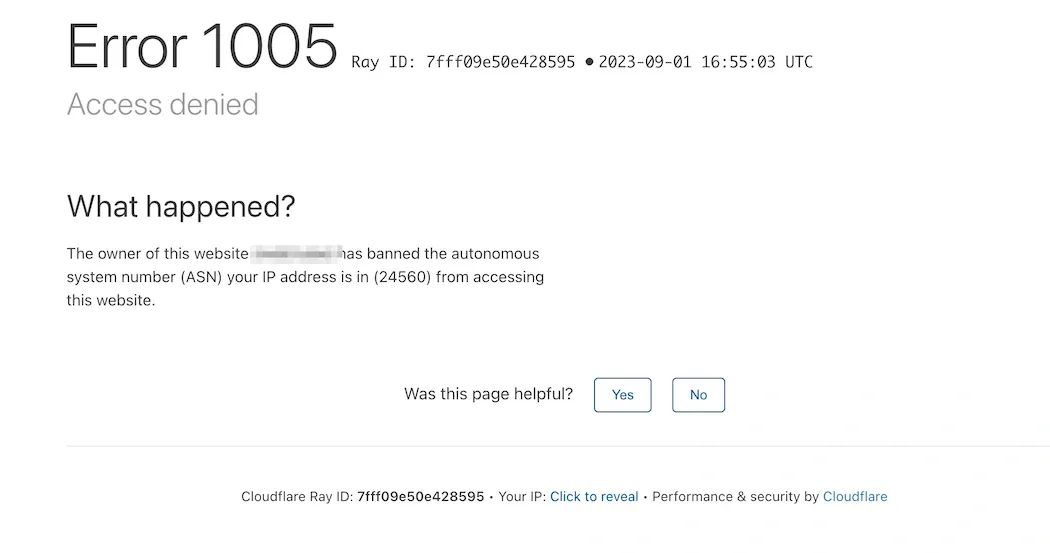
ASN blocking is the main cause behind Cloudflare error 1005. To understand how it works, you first need to grasp what an ASN (Autonomous System Number) is. Basically, it’s a unique identifier number that’s assigned to a network provider. This number groups all of the IP addresses contained within a specific network.
Whenever Cloudflare blocks an ASN, it isn’t targeting your IP address specifically. Instead, it casts a wider net, covering all the IP addresses in the network you’re on. Site owners can configure Cloudflare’s security firewall to block millions of IP addresses like that.
When you’re on a blocked network, Cloudflare’s servers reject any requests on the spot before they even reach the target.
To understand the scale, error 1005 will pop up on any device on that same blocked network provider trying to access the website (which could be hundreds, if not thousands), not just yours. Cloudflare’s official documentation on error 1005 can help you understand it better.
ASN-level blocking is highly effective at stopping traffic from a large group of IP addresses. Its main downside is that it may ban a considerable number of legitimate users. Naturally, if you happen to be on a shared network or use a VPN or proxy that gets caught by this ASN-level blocking, your access will also be blocked.
How to fix error 1005 as a website visitor
Are you a frustrated user trying to reach a website blocked under Cloudflare error 1005? Try out the following methods to see your access restored.
1. Confirm the error and check its details
Before trying to troubleshoot Cloudflare error 1005, there’s one thing you need to make sure of first: identification and proper collection of info. Usually, error 1005 pages should show the error code in your browser right away when you trigger it.
Remember, this error is a security measure that blocks access. Triggering it shows an HTTP status code detailing that the website owner has banned your entire network operator via its ASN (Autonomous System Number).
Compared to traditional IP address bans, error 1005 blocks affect a broader range of devices within a network. This means every other device under that same network operator will encounter error 1005 when trying to access the target website.
Alongside the error 1005 screen, you’ll find the date and time of the incident, as well as the Ray ID code. Keep this information on hand in case you need to contact the site owner to resolve the issue.
2. Disable your VPN or proxy
Proxy servers and VPNs are essential tools for privacy-oriented users. However, when used incorrectly, they can also create more barriers instead of lifting them. Proxy and VPN providers often own or lease IP address ranges. Because thousands of people may share these IPs, you may get one that has been abused.
For these providers, policing what each user does with the multiple IP addresses they assign for proxy and VPN usage is immensely difficult. This problem is even worse with free VPNs and proxy servers since they have no monitoring policies whatsoever.
So, a site owner can flag a specific VPN or proxy provider’s ASN and shutdown the entire access from any IP address in that range. If you’re assigned one of these IPs, naturally, you'll encounter Cloudflare error 1005, and your access will be blocked.
The best thing you can do in this scenario is turn off your VPN or proxy and test the site directly. If you can access it again, you’ll know the proxy’s or VPN’s ASN was probably banned.
Alternatively, you can also try switching regions or even providers. Since you’ll be routing your requests through a different server with a different ASN, your access might get restored. If a proxy is vital to your online tasks, the solution is to choose a residential proxy provider whose IP address ranges haven’t already been flagged.
3. Try a different internet connection
What if someone else on the same ISP (Internet Service Provider) as you decides to participate in a DDoS attack or goes crazy scraping data from a given website? Even if you have nothing to do with it, a site owner can still block your ASN in Cloudflare in response.
In situations like this, you can always try switching to a different network to see if the block goes away. Switching to a friend’s Wi-Fi (from another ISP), or the one at the library or coffee shop, might prove helpful. If the site loads in those locations, the issue is likely your ISP at home.
If you’re on a mobile device, try disabling Wi-Fi and enabling mobile data. Since this uses your cellular provider network instead, it counts as a different ASN. If the blocked site loads, your ISP network’s ASN was the issue.
4. Check your IP address and ASN
Wondering how to identify your public IP address and ASN? You can do that easily with the right online lookup tools. Several options exist, but you can try checking things separately with the following tools:
- Identify your public IP
Open your web browser and check out IP detection services like What Is My IPAddress or What’s My IP. These websites show your current IP address assigned by your ISP. These tools can display your IPv4 and IPv6 addresses, along with other useful information.
- Look up your ASN details
After copying your public IP address from the previous tools, paste it into a dedicated routing lookup tool such as Hacker Target and DNS Checker. Clicking on the ‘Lookup’ button will display your network's ISP, ASN, and more.
- Get all the info in one move
Tools that auto-detect your public IP address and then deliver all the related ASN information are also available for maximum convenience. In that regard, What Is My IP offers an outstanding service.
You can then use the information you collect from these websites to assess whether your network provider’s ASN is being blocked. Running these tools with the IP address you get from proxy servers and VPNs can also help you further narrow down which provider or IP range is causing the issue.
If all else fails, the information you have will prove valuable for the next step.
5. Contact the website owner
So, switching to a different network didn’t solve the issue, and either turning off or replacing your proxy or VPN produced no results. If you’ve confirmed the website owner is indeed blocking your ASN or IP range by mistake, you can always reach out to explain the situation.
For that purpose, use the information you collected in the previous steps, like your IP address, ASN number, the date and time of the incident, and the Ray ID code. Explain your case respectfully and tell the site owner why you think they should remove the blockade.
It may not be the fastest workaround, but it’s a chance to resolve the issue at the root. If the site owner thinks the ban is unjustified, they can lift it on their end.
Get past Cloudflare error 1005 with clean IPs
Get residential IPsHow to fix error 1005 as a website owner
Website owners are the ones in charge of policies and security measures. If you have legitimate visitors who can't access your site due to Cloudflare error 1005, try these steps to restore access.
1. Check Cloudflare security events
As a website administrator, the very first thing you should do to help users regain access is review Cloudflare’s security events. To do this, log in to your Cloudflare dashboard, then go to ‘Security’ and finally to ‘Events.’ There, you should be able to filter the logs by the user’s ASN or IP address to see which rule triggered the block.
If your user provided a Ray ID code, you can also search for the specific security log that resulted in the blocked access. Seeing this information will help you determine whether the user is a legitimate visitor and whether you should allow access.
2. Review your ASN blocking rules
Once you’ve identified users who need to regain access, the next step is to find the specific ASN restrictions causing the issue. To adjust Cloudflare’s firewall settings and access rules, go to the ‘Security’ tab. Here, search for ‘IP Access Rules’ and find the rule containing the blocked ASN. If you don’t want to restrict that user’s entire network, delete the ‘Block’ rule.
Alternatively, you can also whitelist specific user IPs. This lets you keep a broader problematic network blocked while still allowing legitimate users through. To do this, you can create an ‘Allow’ rule for their specific static IP address.
3. Adjust the rule and test again
You can also adjust how strictly your ruleset is applied and loosen it to allow more legitimate traffic through. Locate the relevant rules and tweak them so that users can access your website without restrictions.
For example, instead of a hard ‘Block’ on an entire ASN or hosting provider, you can set that to a ‘Managed Challenge.’ This forces suspicious traffic to complete a verification check to gain access.
At the same time, review your WAF (Web Application Firewall) rules that might be blocking access to shared network environments and certain mobile carriers or ISPs. Loosen some of these rules in Cloudflare and verify that the right users can get through to ensure equitable access.
Conclusion
Error 1005 may sound intimidating at first because of the wide net it casts, blocking multiple site users and leaving them without access. However, the information we’ve outlined here should make it clear how these ASN-blocking measures come into play.
If you’re a site visitor trying to regain access, you can either disable or switch your proxy or VPN, change to a different network, or contact the site’s administration with the right information. Website owners can check Cloudflare’s security events, adjust firewall settings, or tweak ASN-blocking rules to grant legitimate visitors access.
Ultimately, knowing how these access restrictions work will make the fixes easier to implement and ensure access for the right kind of users any site needs.
FAQ
Is Cloudflare error 1005 permanent?
That depends on how long the website owner decides to enforce the IP access rules and ASN blocking. If administrators know a specific network provider is used for illegitimate online activity, they can permanently block its ASN. Other times, threats may be temporary, meaning the website owners can lift the block after a set time.
Can clearing cache or cookies fix error 1005?
No. Since the network rule targets the ASN behind your connection, changes in your browser’s stored information shouldn’t have much effect. However, cached redirect responses or corrupted cookies can sometimes prolong an error even after the issue is resolved, so clearing your cookies and flushing out your cache is the recommended approach.
Why does error 1005 appear on Wi-Fi but not mobile data?
If so, the website owner may be blocking your ISP's ASN, but not your cellular provider's. Cloudflare’s ASN-blocking measures can target specific networks like this while leaving others unaffected.
What's the difference between error 1005 and error 1020?
Cloudflare error code 1005 relates to ASN-blocking measures that can cut off access for thousands of devices on a specific network. Cloudflare’s error code 1020, on the other hand, appears when a site visitor breaks a firewall rule, often while using scripts or automated tools.