
PlayStation 5 is the latest Sony gaming console with major improvements over PS4. On top of better hardware, it improves performance for streaming services like YouTube and Netflix.
Setting up a proxy server on PS5 can improve your console experience in several ways. You can access streaming content restricted to other regions. You may also get better connection quality and improve your online privacy protection.
PlayStation 5 has built-in proxy settings. In this article, we'll show you how to set up a proxy server on it and troubleshoot the most common issues.
What is a proxy server?
A proxy server is an intermediary between your device and the internet. It can be a data center server. Or a simple laptop or smartphone belonging to another person, in the case of residential proxies.
A PS5 proxy accepts incoming traffic from the gaming console and forwards it to the target destination. It masks your original IP address and uses the proxy server's IP address instead.
You need two proxy server details to set up proxy servers on PS5: the proxy server address and the port number. The proxy server address can be a numeric IP address (like 198.51.100.42), or it can be the proxy provider's hostname (like ultra.marsproxies.com). The port number is always numerical, like 44443.
There are three major proxy server types: HTTP, HTTPS, and SOCKS. The first two handle standard web traffic, like casual browsing. SOCKS proxies support many more protocols, including UDP, which is used for online gaming. However, PS5 does not support SOCKS proxies natively.
Why use a proxy server on PS5?
You may encounter geographical restrictions while streaming on a PS5. Occasionally, proxy servers may also optimize your data routing and fix latency issues. Here are four main PS5 proxy server use cases.
Bypass geo-restrictions
Streaming services limit content availability worldwide. You can use a proxy server IP address in a desired country to unblock its content.
For example, the popular Grey's Anatomy is only available on the US and Canadian Netflix libraries. If you connect to a proxy server there, you can start streaming their regionally exclusive shows on your PlayStation 5.
Sony also enforces service restrictions in the following countries: Russia, Cuba, Syria, Iran, and North Korea. Its game catalog is heavily restricted in China.
Using a proxy server to bypass these blocks is possible. However, the efficiency substantially depends on the proxy server settings and the severity of the imposed restrictions.
Improved speed & reduced lag
Your Internet Service Provider (ISP) does not necessarily use the best data routing. Suppose you're playing Yu-Gi-Oh! Master Duel on the US server from Poland. Your ISP may send your traffic through Italy to Spain to France and only then to the US, introducing lag.
In this case, you can connect to a proxy server in Frankfurt, Germany. It will then connect to the nearest relay that sends data over the ocean, possibly reducing the distance it travels. In turn, that reduces video game latency and lag.
Sometimes connecting to a proxy server in the target destination may also optimize routing. The goal is to find a proxy server that makes the data-travel path shorter. It may take a few tries to spot the right one.
Better security & privacy
Your IP address is like your online home address. It reveals which ISP you use and even your approximate geographical location. Hackers use IP addresses for Distributed Denial of Service (DDoS) attacks and as part of toxic swatting schemes.
DDoS floods the victim's IP address with fake queries. Your router receives so many fake requests that it dramatically slows down your internet connection speed or even forces a disconnect.
Swatting uses the victim's available personal information, including the IP address, to identify their actual address. Then criminals call law enforcement about it with some fake pretense. Unfortunately, this happens way too often for streamers.
A proxy server hides your original IP address. Hackers can only see the proxy server address, so it doesn't give away your location details. If they manage to flood the proxy with a DDoS attack, you simply connect to another one and continue your match.
More stable connections
Some ISPs throttle internet connection speed for high-bandwidth online activities, like streaming or gaming. They can artificially reduce it to save data, which introduces lag and bad ping.
Whenever you use an HTTPS proxy, it encrypts your data flow. An ISP cannot identify your exact activities, so they are less likely to limit your connection speed.
It's worth mentioning that VPNs can be a better choice. Major VPN protocols, like OpenVPN and WireGuard, support UDP traffic, which HTTPS does not. This protocol is used to transfer most of the data for online games. HTTPS proxy server can still reveal your online activities via the UDP protocol, but a VPN masks it all.
How to choose the best proxy for PS5
PS5 is somewhat needy with its proxy settings. It supports only HTTP and HTTPS proxies, which do not support the UDP protocol. Meanwhile, most online games use it for fast data transfers.
Here are two popular proxy types you can use directly on your gaming console.
Types of proxies
There are many proxy types, but only a few work with PS5 natively. Let's start with the best.
Residential proxies
A residential proxy server is another person's device that shares their internet traffic with you. These proxies excel at unblocking regionally restricted content and masking your online activities. You can use them for:
- Enhance streaming. Access all Netflix, Disney+, HBO Max, and other popular streaming service libraries wherever you are.
- Improve connection speed. If your ISP uses bad routing paths or throttles your connection, residential proxy servers can improve it, reducing lag.
- Bypass local restrictions. You can bypass school or university campus PS5 restrictions using a residential proxy server.
- Bypass IP bans. If PlayStation banned your original IP address, you can create a new account using a fresh proxy server IP address.
Datacenter proxies
Datacenter proxies are faster and more affordable, but also easier to detect and block. Here's what you can do with them on PS5:
- Faster downloads. You can get better download speeds if your ISP is limiting it for high-bandwidth activities.
- Hiding your IP address. If your only goal is to hide your IP address from third parties, datacenter proxies offer the best connection quality.
- Improved routing. FOR TCP-based games (card games or turn-based strategy), datacenter proxy servers can reduce session latency and lag.
Keep in mind that datacenter proxies should not be used to unblock streaming service libraries.
Key factors to consider
You should consider a few things to pick a proxy server compatible with PS5. Here are our tips:
- Ensure that your proxy service provider offers top-notch connection speed and low latency.
- Look for HTTPS proxies to encrypt data and add a layer of online privacy.
- Check the provider's reputation on websites like Trustpilot, G2, and review sites like PCMag.
- Compare prices, because you don't need expensive business-oriented proxy servers for PS5.
Unlock Region-Locked Streaming on Your PS5 in 2026
Get PS5 proxiesHow to set up a proxy server on PS5
Now that we've got the theory sorted out, here's how to set up a MarsProxies proxy server on PS5.
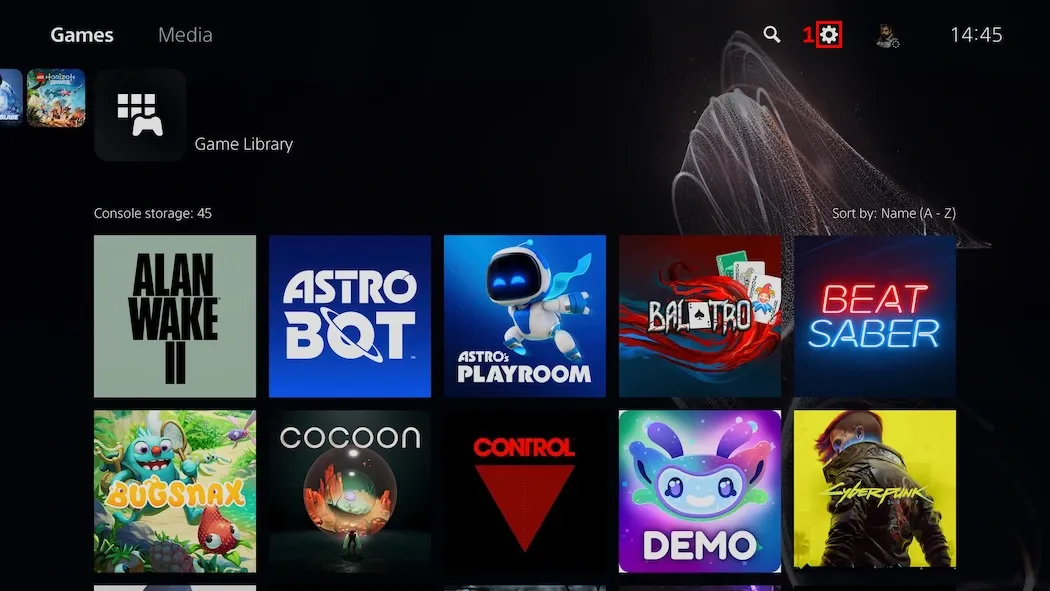
1. Click on the gear icon (1) in the top-right corner of the home screen.
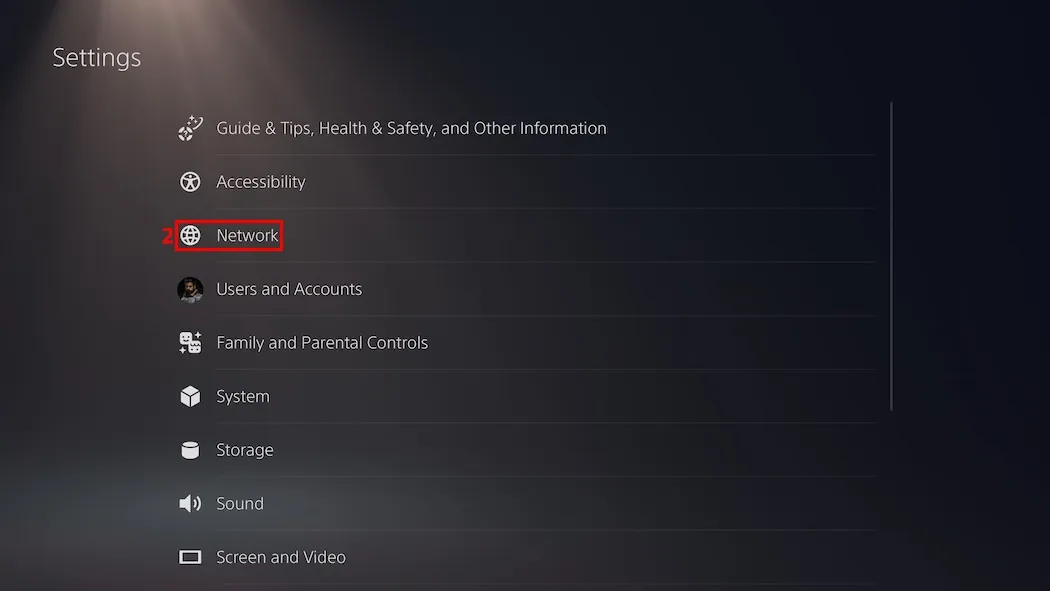
2. Select the 'Network' (2) option from the menu.
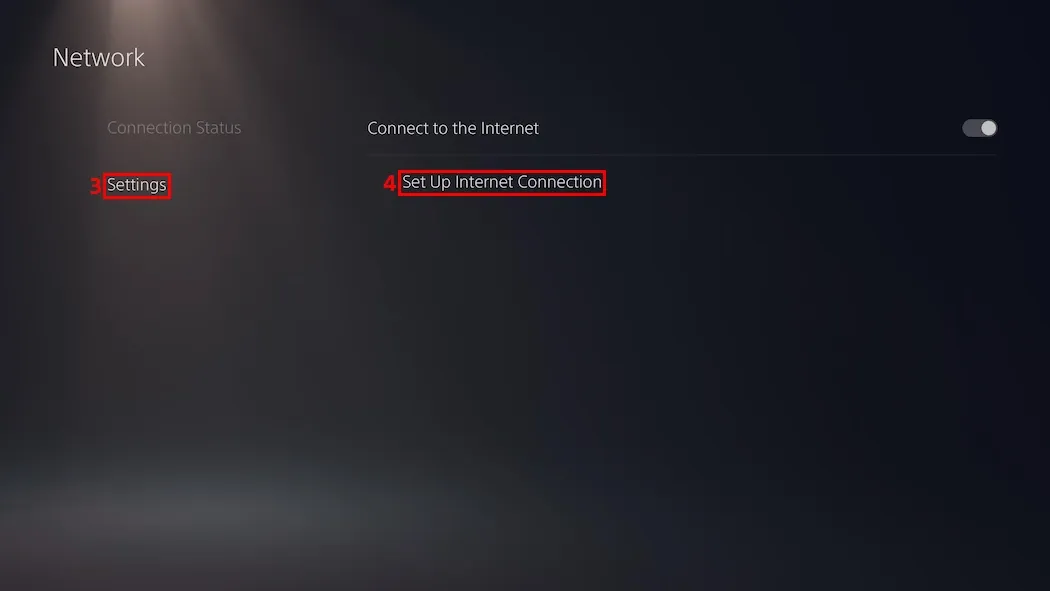
3. Select 'Settings' (3) on the left side and 'Set Up Internet Connection' (4) on the right.
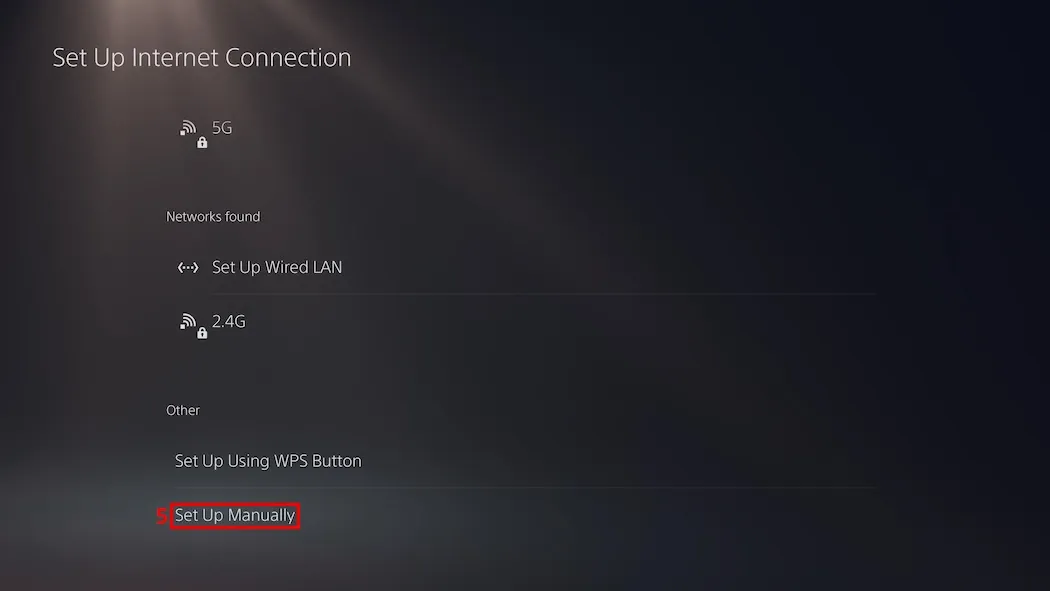
4. Choose the 'Set Up Manually' (5) option at the bottom.
5. Pick a 'Wi-Fi' or 'LAN Cable' (6) connection depending on what you use.
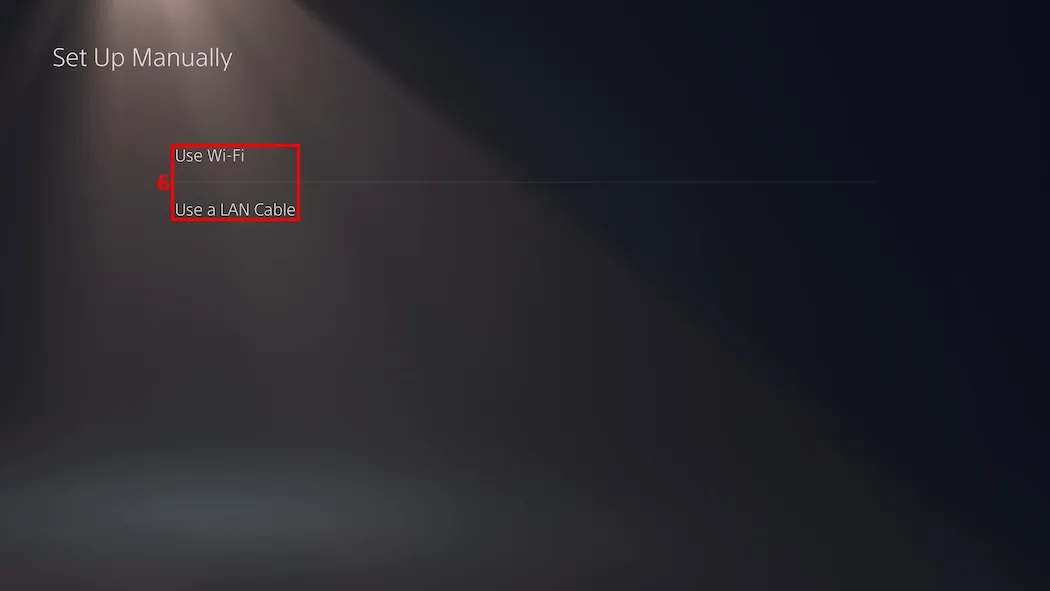
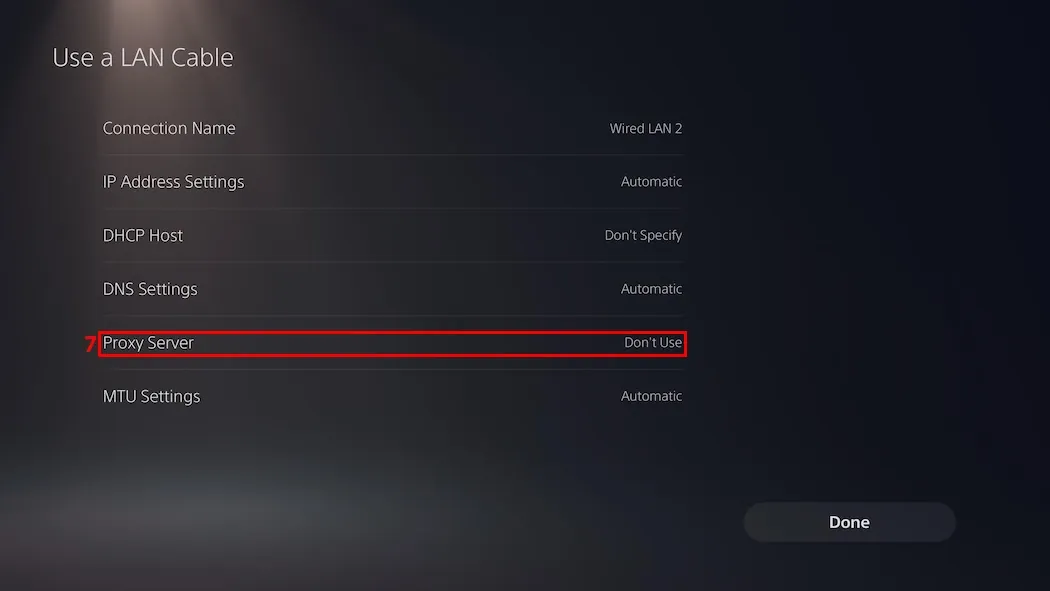
6. Move down to the 'Proxy Server' (7) feature and select 'Use'.
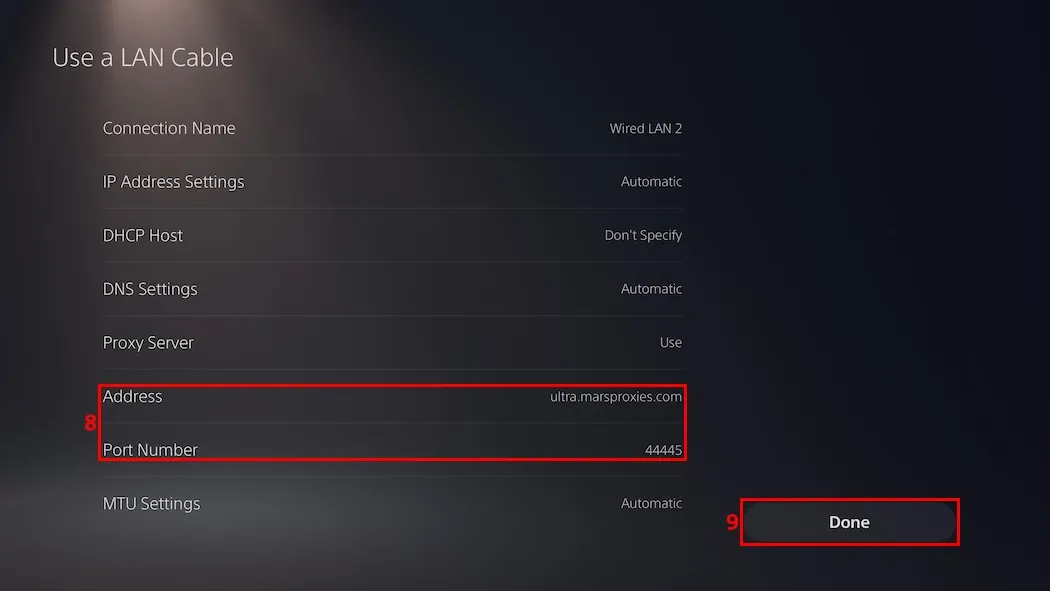
7. Enter the proxy address and port number (8) in the corresponding fields and click 'Done' (9). Remember to whitelist your original IP address in the MarsProxies dashboard, as PlayStation 5 does not support username-password authentication.
8. Wait until the console establishes an internet connection via the new proxy server details.
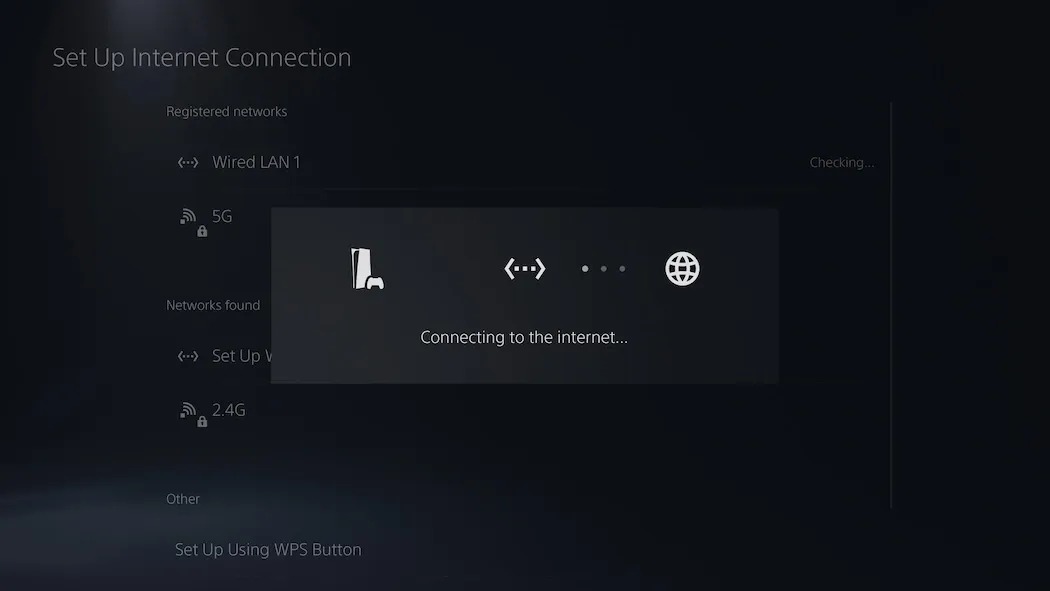
9. If all proxy server settings are correct, you will see 'Connected' written next to your network.
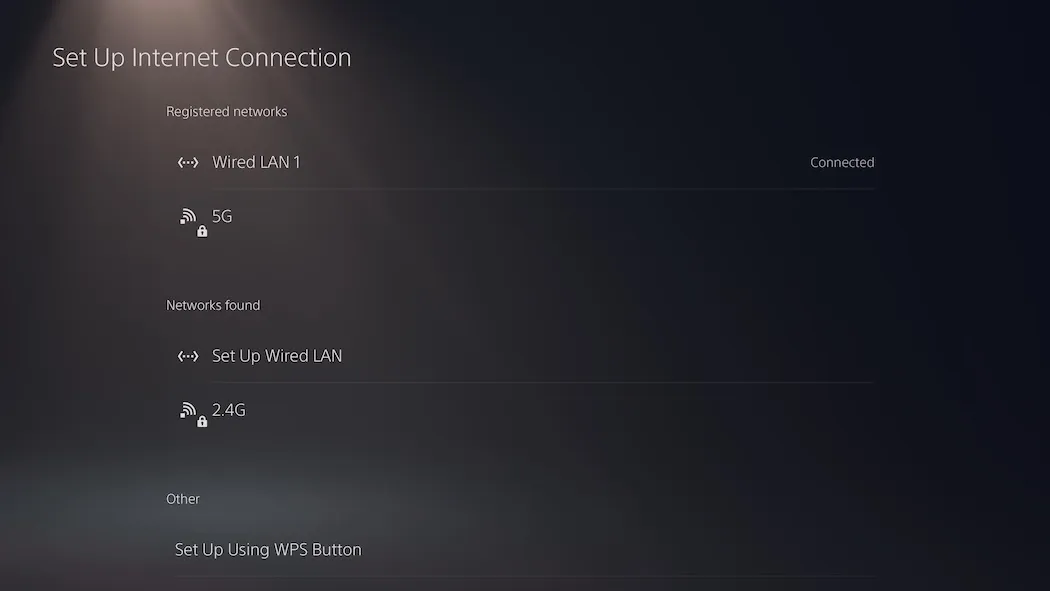
Now your PS5 uses the new proxy server address to connect to the internet. However, because HTTP and HTTPS proxy servers do not support UDP traffic, it may interfere with some online games that rely on it.
Troubleshooting common issues
Due to limited compatibility, using a proxy server on PS5 may result in a few errors. Here are three common issues and how to solve them.
Connection errors
There are four reasons why you may get connection errors on step 8 in our guide.
- Carefully check that you have entered the proxy server details correctly. Ensure there are no typos and that you have included all numbers and symbols in the proxy address and port sections.
- Don't forget to whitelist your original IP address in your proxy provider’s dashboard if the proxy requires authentication.
- Your proxy server might be overloaded, so try entering different proxy server details.
- Remember that PS5 only supports HTTP and HTTPS proxies, so the SOCKS protocol will result in connection errors.
Lastly, try powering down your router and PS5 simultaneously. Sometimes a simple restart solves issues that are hard to identify.
Slow speeds
If your proxy works too slowly, double-check its server distance. Proxies that are far away from your original location can reduce your connection speed substantially. Set up an internet connection on your PS5 using a proxy server that is nearby.
Residential proxies can also experience speed drops. In these cases, try a different residential proxy server. Also, if undetectability is unimportant, switch to datacenter proxies that provide the fastest connection speed.
Content blocks
Streaming services have strict anti-VPN and proxy policies. Datacenter proxies won't work in most cases, as they are easily identifiable and blocked.
On the contrary, residential proxy servers look like a regular person browsing. If you notice content blocks while streaming on PS5, make sure you have correctly entered residential proxy details using our guide above.
Alternatives to proxy servers for PS5
Due to limited PS5 proxy compatibility, setting them up on this console can cause some issues. But that's not the only way to set up an internet connection on a PS5 using a different IP address. Consider these alternative options.
VPN on a router
VPN on a router is an excellent solution if you can't get your proxy address working with PS5. A VPN on a router also substitutes your original IP address. Additionally, it encrypts all traffic that goes through that router, efficiently masking all your online activities from the ISP and other third parties.
More importantly, modern VPN protocols support UDP traffic. Online multiplayer video games use it to transfer data faster to avoid ping issues and lag. Even if you successfully set up an HTTP(S) proxy server on PS5, games that utilize the UDP protocol may experience connectivity issues.
Smart DNS services
To access geographically restricted streaming content, try setting up Smart DNS on PS5. Firstly, you have to register for a smart DNS service. Then follow similar steps as in our guide above:
- Whitelist your IP address on the Smart DNS dashboard.
- Locate the DNS settings in the PS5 'Network' section.
- Manually change your original DNS to the primary and secondary DNS servers provided by your Smart DNS service.
Keep in mind that this approach does not mask your original IP address. Your ISP can still inspect your online activities and throttle your connection. Smart DNS also has no effect on efficient data routing.
Conclusion
As you can see, setting up proxy servers on PlayStation 5 is easy. But due to limited PS5 proxy compatibility, you may also encounter connection errors.
Most importantly, ensure that you have entered the proxy server address and other proxy details correctly. If your proxies require authentication, you must also whitelist them on your provider's dashboard.
To unblock streaming content, opt for a residential proxy server IP address. But when you require the best connection speed at an affordable price, choose datacenter proxies.
If you still encounter trouble with PS5 proxy settings, check their performance using MarsProxies Proxy Checker. Also, visit our Discord server for real-time support.