
 Sign up with Google
Table of contents
- What is SocksDroid?
- How to set up a SOCKS5 proxy in SocksDroid
- Advanced SocksDroid proxy settings
- How to route specific Android apps through SocksDroid
- How to configure DNS settings and check for leaks
- UDP forwarding and IPv6 compatibility
- Static vs rotating SOCKS5 proxies
- Common SocksDroid proxy issues and fixes
- Proxy not connecting
- Incorrect host, port, or credentials
- Authentication failures
- Apps bypassing the proxy
- DNS resolution problems
- Slow connections and timeouts
- FAQ
- Does SocksDroid support HTTP proxies?
- Does SocksDroid support per-app proxy routing?
- Can SocksDroid route all Android traffic through a proxy?
- Is SocksDroid a VPN?
- Does SocksDroid require root access?
To set up a SocksDroid proxy on your Android device, install the app and enter your SOCKS5 proxy details and credentials. You can then select which apps use the proxy or leave the default settings to route all app traffic through it.
This article will show you how to configure SocksDroid's proxy settings and verify that your selected apps are routing network traffic through the proxy.
What is SocksDroid?
SocksDroid is a free, open-source Android proxy app that lets you route your device’s network traffic through a SOCKS5 proxy server without rooting your phone.
If you’ve purchased SOCKS5 proxies, here are some features that make it useful:
- Device-wide proxy routing: Route supported network traffic from your Android device through your SOCKS5 proxy.
- Per-app proxy routing: Select which apps use the proxy while the others use your regular internet connection.
- App bypass mode: Exclude specific apps from using the proxy while the rest continue routing traffic through it.
- Multiple proxy profiles: Save different SOCKS5 proxy configurations and switch between them without having to re-enter your connection details.
So, if you want to test how Android apps behave in different countries or check location-specific ads and mobile campaigns, SocksDroid can come in handy. It also helps you avoid wasting paid proxy traffic on apps that don’t need it.
But if you prefer to configure your proxy directly through your Android phone's system-level settings, see our guide on how to set up a proxy server on Android.
How to set up a SOCKS5 proxy in SocksDroid
First, download and install SocksDroid if you haven't already. Unfortunately, the app isn't available on the Google Play Store at the time of writing, but you can download its APK from APKPure here.
With the app installed on your phone, you now need to purchase and configure your proxy. For this example, we’ll use MarsProxies residential proxies. Here’s how to get your proxy details:
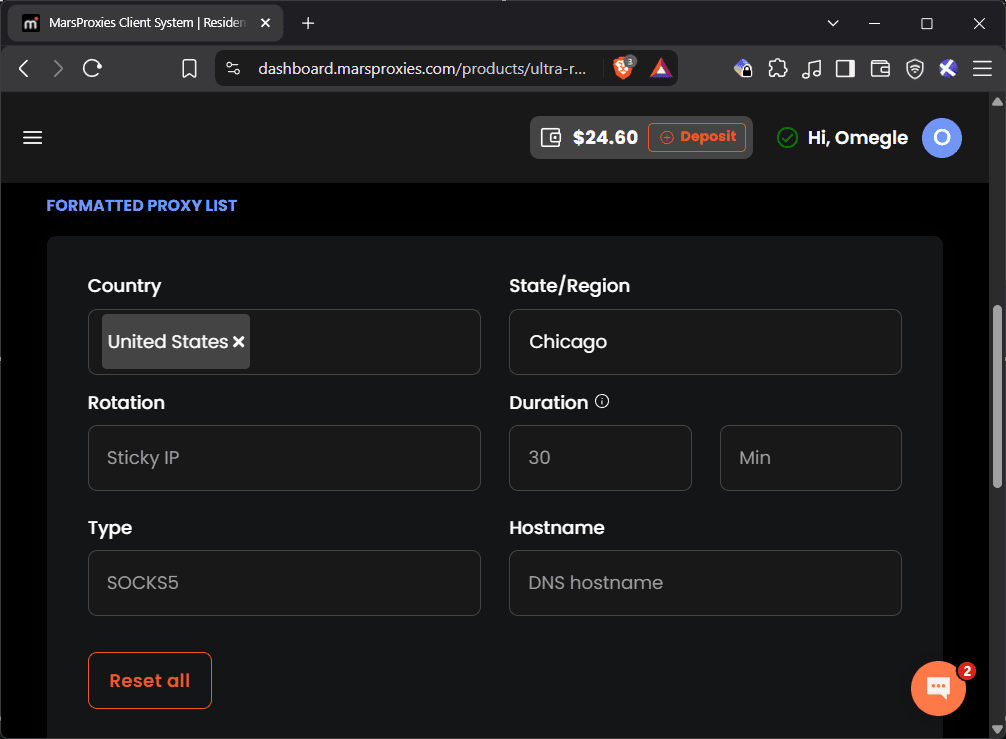
For more information about these settings, read our guide to configuring MarsProxies residential proxies.
Step 2: MarsProxies will generate a list of proxy strings after you have configured your proxy. Each string contains the hostname and port, followed by the username and password you'll need to enter in SocksDroid.
Here's the format: hostname:port:username:password.
Step 3: Now, open SocksDroid on your Android device.
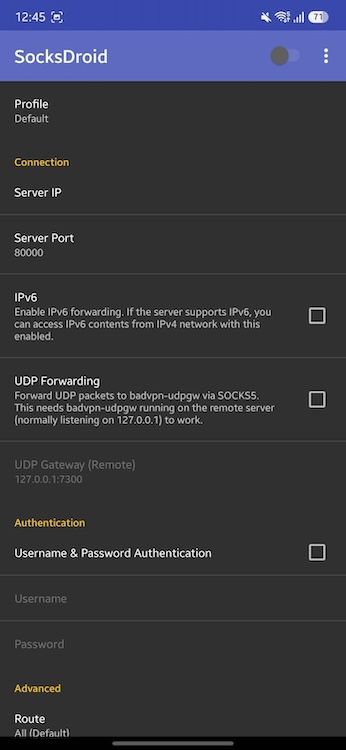
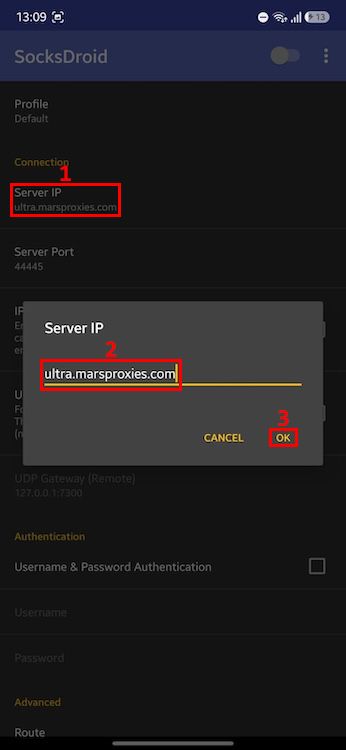
Step 4: Tap 'Server IP' (1), enter the MarsProxies hostname (2) from your generated proxy string, and tap 'OK' (3).
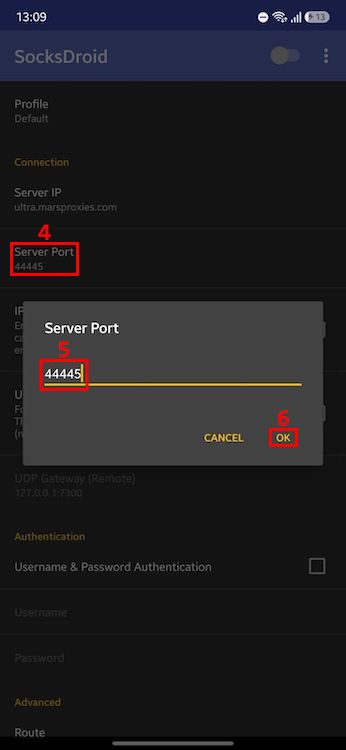
Step 5: Tap 'Server Port' (4), enter the port (5) from your MarsProxies proxy string, and tap 'OK' (6).
Step 6: Check the box (7) next to 'Username & Password Authentication' to enable authentication.
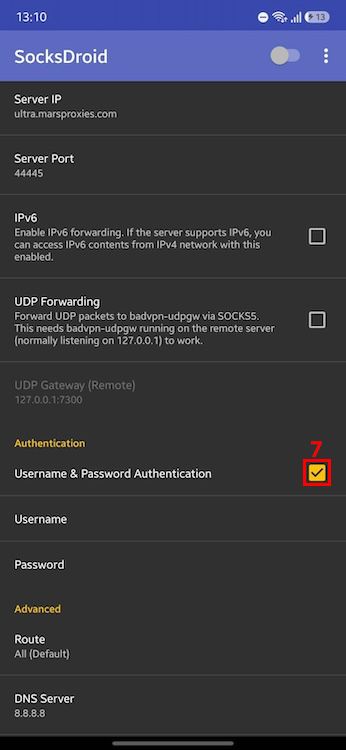
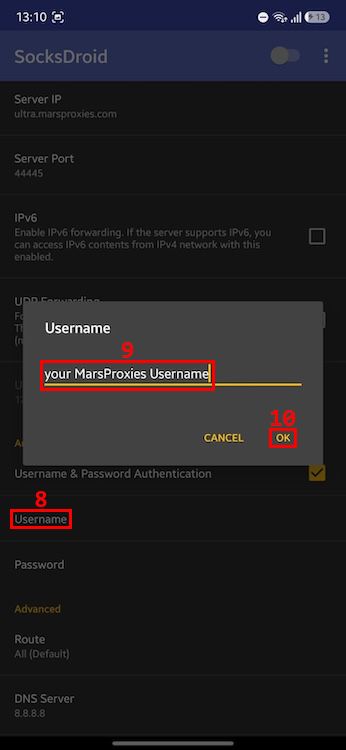
Step 7: Tap 'Username' (8) and enter the username (9) from your proxy string. Then tap 'OK' (10).
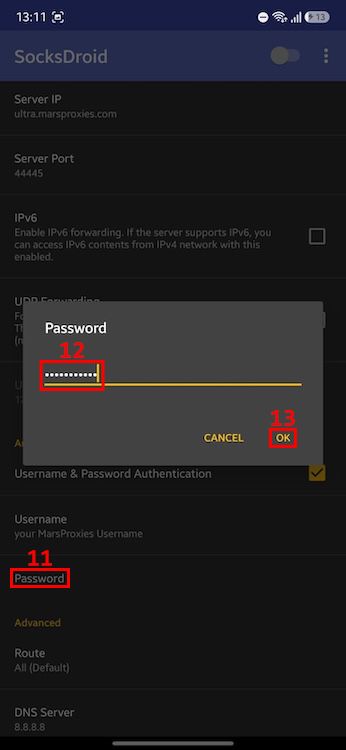
Step 8: Next, tap 'Password' (11), enter the password (12) from your MarsProxies proxy string, and tap 'OK' (13).
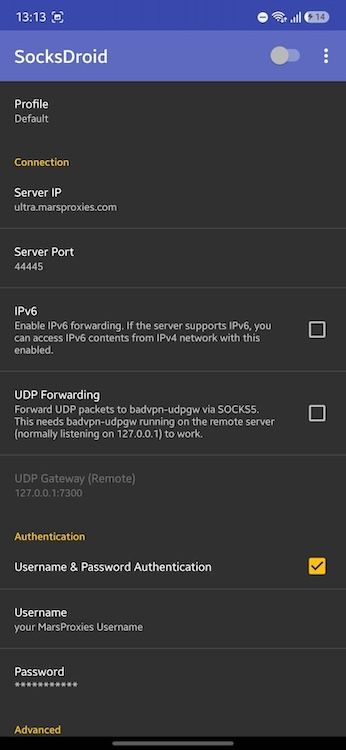
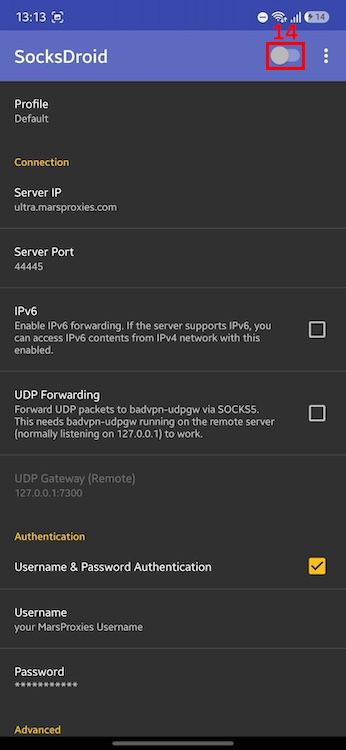
Step 9: Your SocksDroid proxy configuration should now look like the example below, with your own proxy details entered.
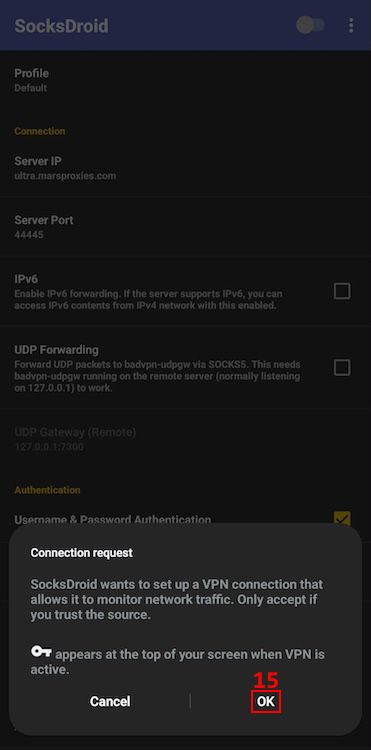
Step 10: To activate the connection, toggle the switch (14) in the top-right corner of the SocksDroid app.Step 11: Android will display a VPN connection request. Tap 'OK' (15) to allow SocksDroid to establish the connection.
Step 11: Android will display a VPN connection request. Tap 'OK' (15) to allow SocksDroid to establish the connection.
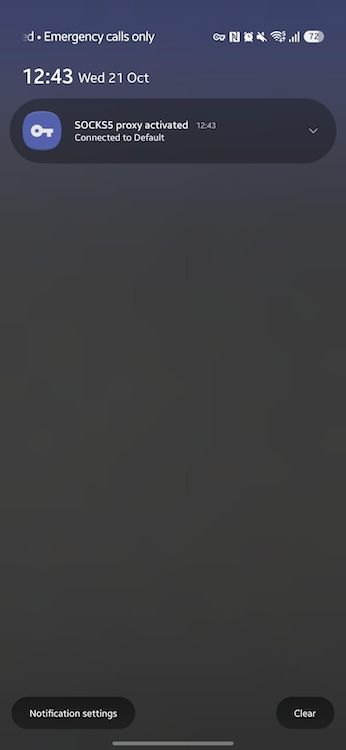
Step 12: Once SocksDroid is running, you should see a VPN icon in your Android device's status bar. You'll also see a notification indicating that the SOCKS5 proxy service is active, along with the profile you're using.
Step 13: To confirm your connection is working as intended, go to What Is My IP Address and check the displayed IP address. It should match the MarsProxies IP that you just configured.
Advanced SocksDroid proxy settings
Now that you know how to set up SocksDroid on your Android phone, you may want specific apps to route network traffic through your proxy while others use your regular connection. This is especially relevant when you're working with limited bandwidth and don't want other apps consuming your paid traffic.
How to route specific Android apps through SocksDroid
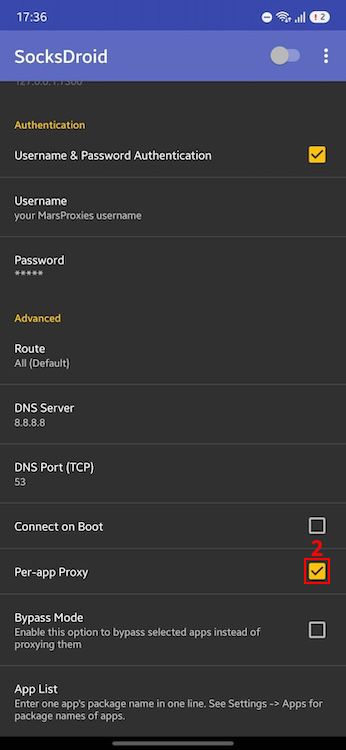
Step 1: Open SocksDroid on your Android device and scroll down until you see the 'Advanced' (1) section.
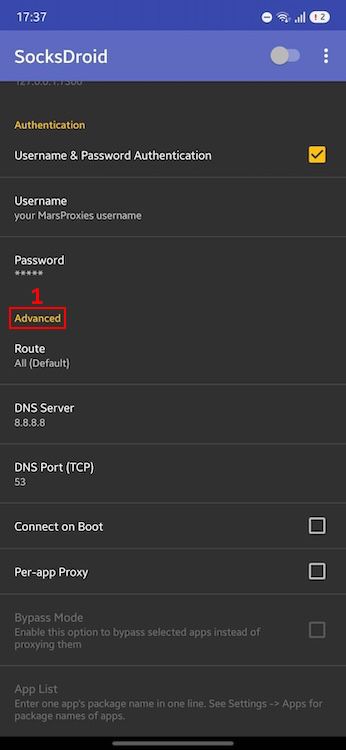
Step 2: Check 'Per-app Proxy' (2).
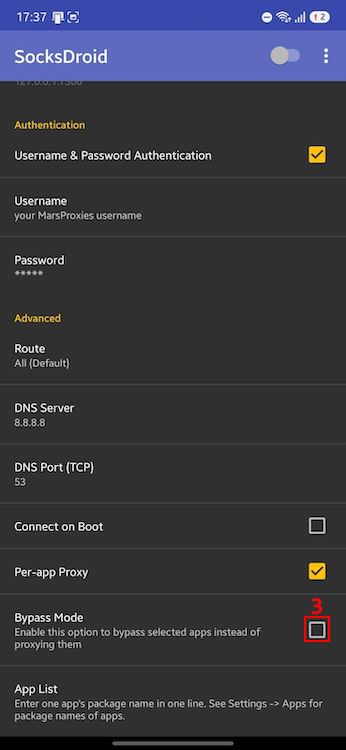
Step 3: Leave 'Bypass Mode' (3) unchecked because you only want the apps you select to use the proxy connection.
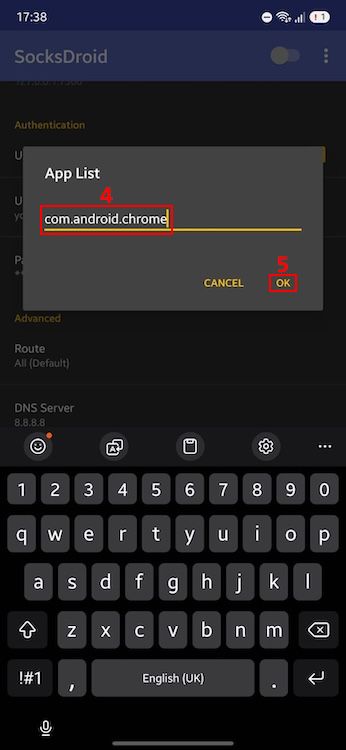
Step 4: Tap 'App list' and enter the package names (4) of the apps you want to route through the proxy. If you're configuring Google Chrome, for instance, enter the following.
Enter each package name on a separate line when you want more than one app to use the proxy. Tap 'OK' (5) to save your list. If SocksDroid is already connected, turn it off and back on to apply the changes you just made.
Step 5: Open the app you just listed and confirm the connection is working.
If you want to route traffic from all your apps through SocksDroid instead, disable 'Per-app Proxy' and leave the routing option set to 'All (Default)'.
Reconnect to apply these changes.
How to configure DNS settings and check for leaks
Even when you configure all apps or specific ones to route traffic through your proxy, that doesn’t necessarily mean their DNS requests will pass through the same route.
To check your DNS settings, open SocksDroid and scroll down to the 'Advanced' section. Tap 'DNS Server' (1) to see the configured address, which is 8.8.8.8 by default. The 'DNS Port (TCP)' (2) setting is 53.
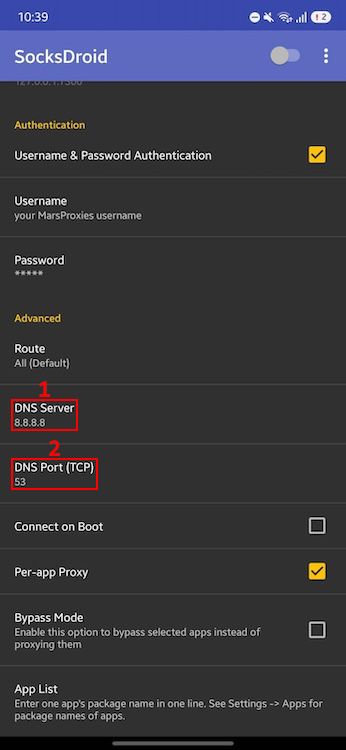
You can leave these settings unchanged unless you need a different DNS resolver. You can also test your proxy for DNS leaks to check whether your DNS requests are using your regular internet connection.
UDP forwarding and IPv6 compatibility
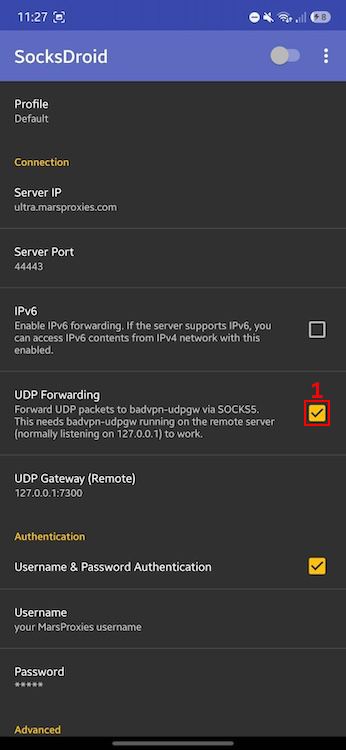
Most apps will work with the proxy you just configured through SocksDroid. But when you need to make video calls or play multiplayer games like Call of Duty through a proxy, you need to configure additional settings.
This is because these apps use UDP traffic for real-time communication, while SocksDroid primarily forwards TCP traffic. Fortunately, SocksDroid supports UDP forwarding.
To enable it, find 'UDP Forwarding' in the settings and check the box (1) to turn it on.
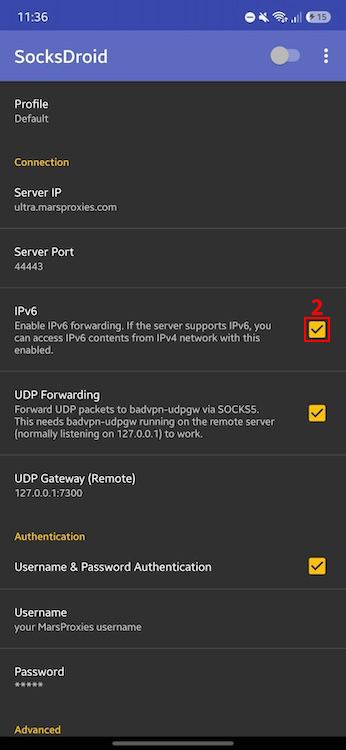
And for IPv6 traffic, check the 'IPv6' (2) option on the SocksDroid dashboard.
Static vs rotating SOCKS5 proxies
Manage a social media account
Static ISP SOCKS5 proxy
Keeps the same IP across sessions
Test an app's login or checkout process
Sticky residential SOCKS5 proxy
Keeps your IP consistent during the session
Make independent requests using different IPs
Rotating residential SOCKS5 proxy
Changes the exit IP according to your rotation settings
Test an app from a particular country
Location-targeted residential SOCKS5 proxy
Lets you use an IP from your selected country
Maintain the same IP for long-term Android workflows
Static ISP SOCKS5 proxy
Provides a dedicated IP without automatic rotation
Need help choosing between static and rotating SOCKS5 proxies? Read our blog on static vs rotating proxies.
Common SocksDroid proxy issues and fixes
Here is what to do when you encounter connection issues after completing your proxy configuration in SocksDroid:
Proxy not connecting
First, confirm that your Android device has a working internet connection. Then make sure you accept the VPN connection request that appears when you turn on SocksDroid.
Also, remember that Android only allows one active VPN connection at a time, so disconnect any other VPNs you might have running in the background.
Incorrect host, port, or credentials
When SocksDroid connects, but the target won’t load, inspect the proxy details you just entered. Go back to your MarsProxies dashboard and check the hostname and port number, and confirm that you selected SOCKS5 as the proxy type.
Authentication failures
You know you’re dealing with authentication issues when SocksDroid works, but your target keeps saying that the proxy is refusing the connection. Go back to SocksDroid and confirm that you checked the username & password Authentication option. Then make sure that the credentials you entered are the exact same ones generated in your MarsProxies dashboard.
If the credentials appear correct, use the MarsProxies Proxy Checker to test whether the proxy itself is working. Our proxy authentication guide explains how these credentials work.
Apps bypassing the proxy
If you want only selected apps to use the proxy, check your per-app proxy setting in SocksDroid and confirm that the application's correct package name appears in the App List. Also, confirm that Bypass Mode is not turned on.
DNS resolution problems
If apps and websites are still not connecting even after you confirm that:
- Your phone has a working internet connection
- You accepted the VPN connection request
- SocksDroid is the only active VPN in your user profile
- Your credentials are correct
- Your per-app proxy settings are correct
Then your DNS settings could be responsible. The default DNS Server should be 8.8.8.8, and the DNS Port should be 53. If you changed these values, restore them and reconnect.
Slow connections and timeouts
When everything else works, but your apps or websites are taking longer to load, start by turning SocksDroid off to see if the slow connection occurs with your regular internet connection.
If your regular internet works fine, the proxy connection may be responsible. In that case, change the MarsProxies endpoint and confirm that the connection is alive and working through the MarsProxies Proxy Checker.
FAQ
Does SocksDroid support HTTP proxies?
No. SocksDroid only supports SOCKS5 proxies. So make sure to select SOCKS5 as your proxy type when configuring the proxy on the MarsProxies dashboard. If you need an Android app that supports both HTTP and SOCKS5 proxies, check out our Tun2TAP proxy setup guide.
Does SocksDroid support per-app proxy routing?
Yes, SocksDroid supports per-app proxy routing, letting you choose which Android apps use your SOCKS5 proxy while the rest use your regular internet connection.
Can SocksDroid route all Android traffic through a proxy?
SocksDroid can route supported traffic from apps across your Android phone through a SOCKS5 proxy. To enable this, turn off 'Per-app Proxy' and leave 'Route' set to 'All (Default)', then reconnect.
Is SocksDroid a VPN?
Not exactly. While SocksDroid uses Android’s system-level VPN service to route app traffic through a SOCKS5 proxy, it does not encrypt your traffic through a secure tunnel like a VPN. The proxy changes your visible IP address, giving you an extra layer of privacy.
Does SocksDroid require root access?
No. You can use SocksDroid without rooting your Android device because it uses Android’s system-level VPN service to route your app traffic through a proxy.
Other integrations
-
 Learn more
MarsProxies and BitBrowser: Integration Tutorial
The anti-detect browser BitBrowser allows you to run many unique browsers from one device. Here's how to integrate it with MarsProxies.
-
 Learn more
MarsProxies and Accovod browser: Integration Tutorial
Follow our step-by-step guide to integrate residential proxies and stay one step ahead of bans and detection. 🛡️
-
 Learn more
MarsProxies and Vision: Integration Tutorial
Learn how to boost your privacy, manage multiple profiles, and configure proxies like a pro. 🔒