Chrome is one of the most widely used internet browsers. Billions of people worldwide make use of Google Chrome for their everyday tasks. Be it for staying abreast of news, purchasing new trinkets online, or entertainment through streaming or gaming, this browser has become ubiquitous.
Part of that is due to its convenient features and user friendliness. Among said features is the ability to personalize content based on your physical location. This helps Google provide you with search results and recommendations tailored to you.
As handy as this feature is, there may be instances, whether for work, research, or privacy, in which controlling the location data you share is important. Knowing how to change your location information in Google Chrome can unlock a world of possibilities online, from accessing blocked sites to better automation.
In this article, we’ll go over how to enable location settings on various common devices, provide different methods to do so, and address any issues that may arise.
How to enable or disable location in Chrome
Google Chrome can use your location to offer location-based features, such as directions and more relevant search results. Turning location tracking on or off in this browser takes only a few steps, the process changing ever so slightly depending on the device you are on.
By toggling this feature, you’ll be telling websites how to access your location data.
On desktop
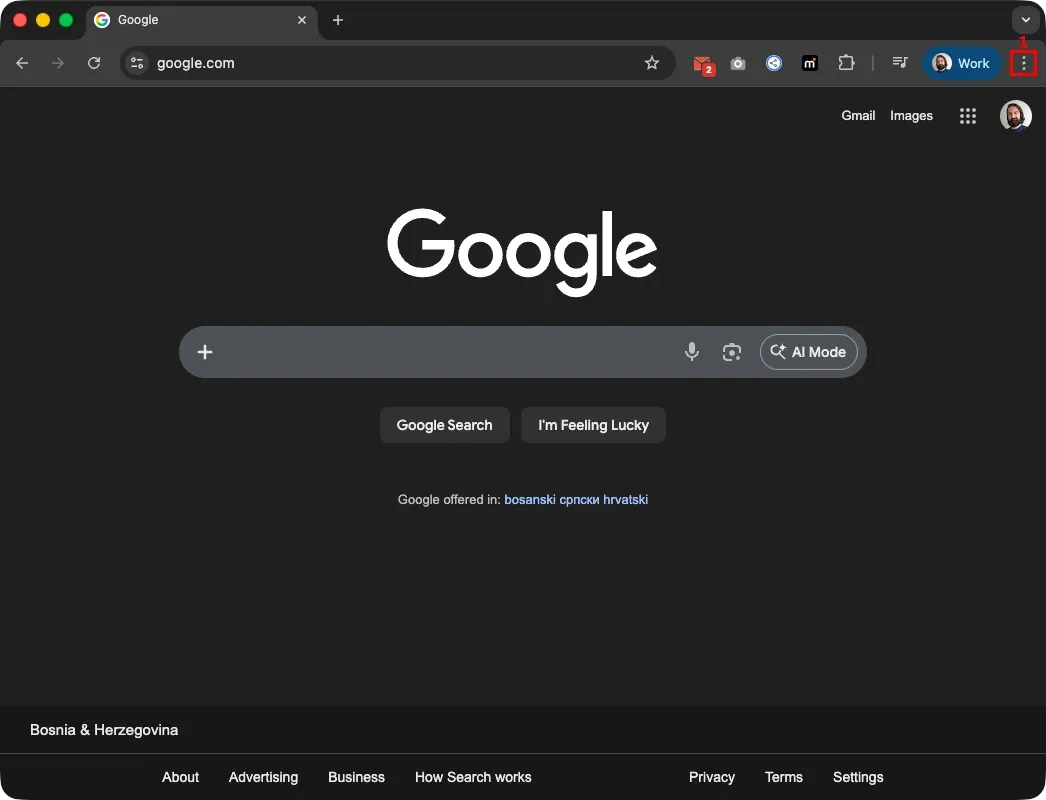
1. Launch the Google Chrome app on your PC and click the three-dot button (1) in the top-right corner.
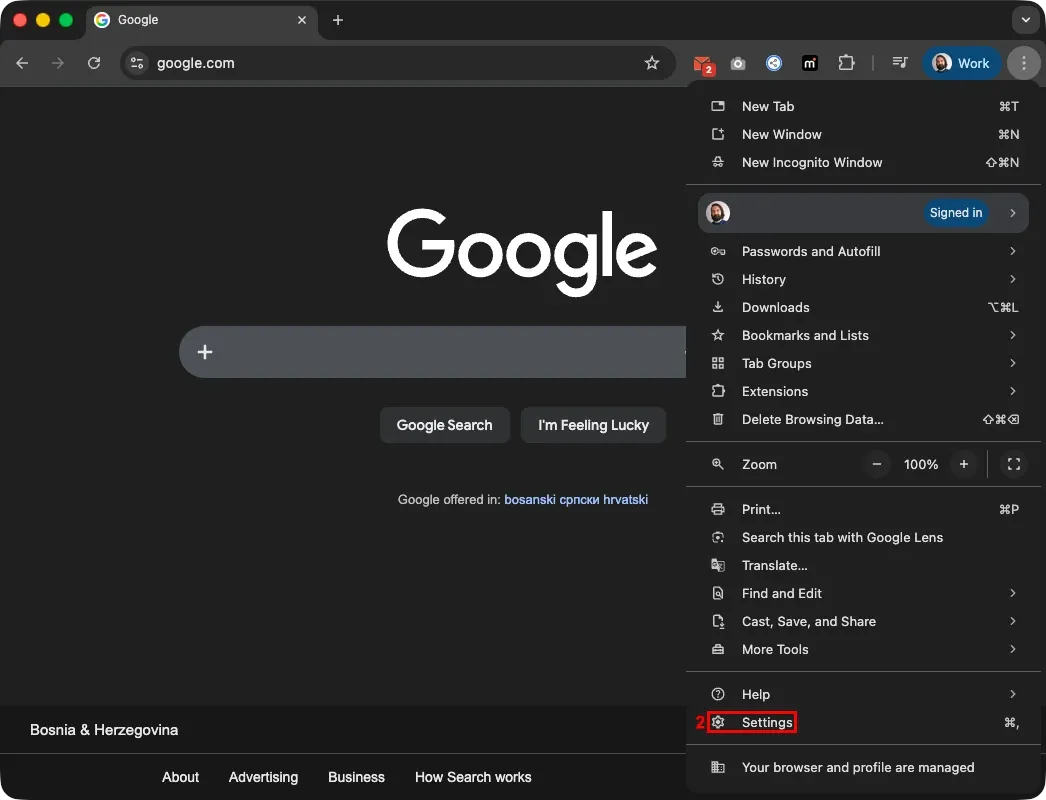
2. Click on ‘Settings’ (2) near the bottom of the dropdown menu.
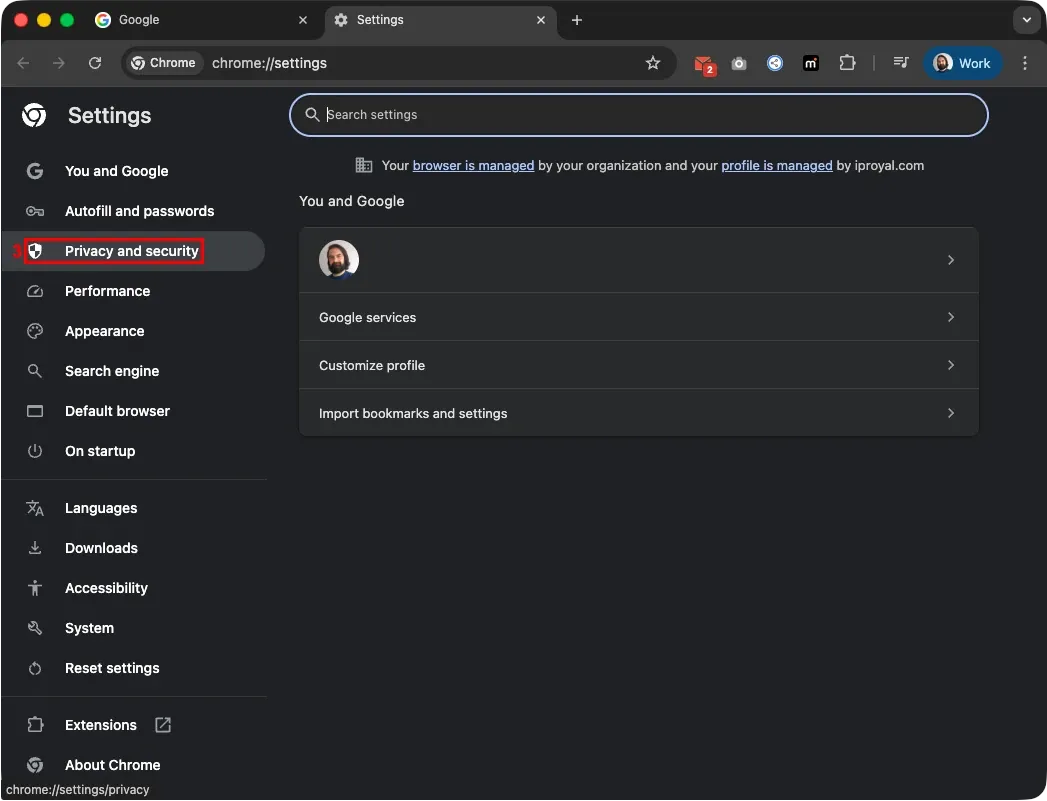
3. You’ll see a panel on the left side of the new tab that has just opened. There, you’ll want to pick ‘Privacy and security’ (3).
4. Scroll down and click on ‘Site Settings’ (4).
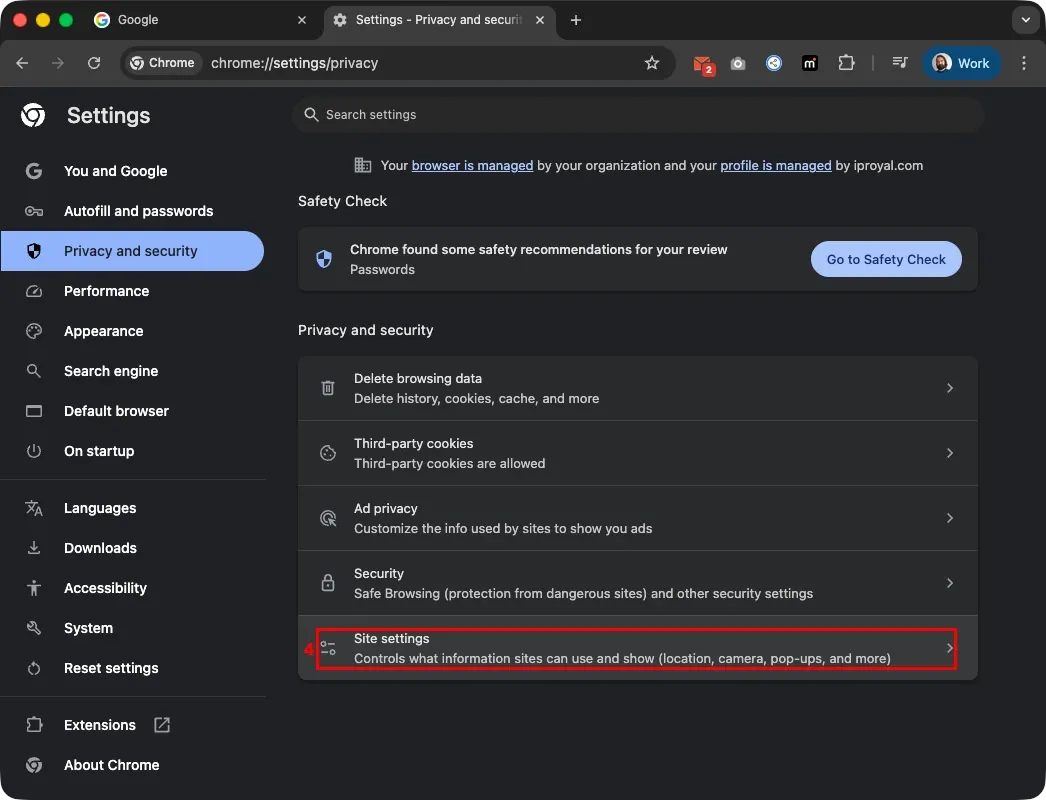
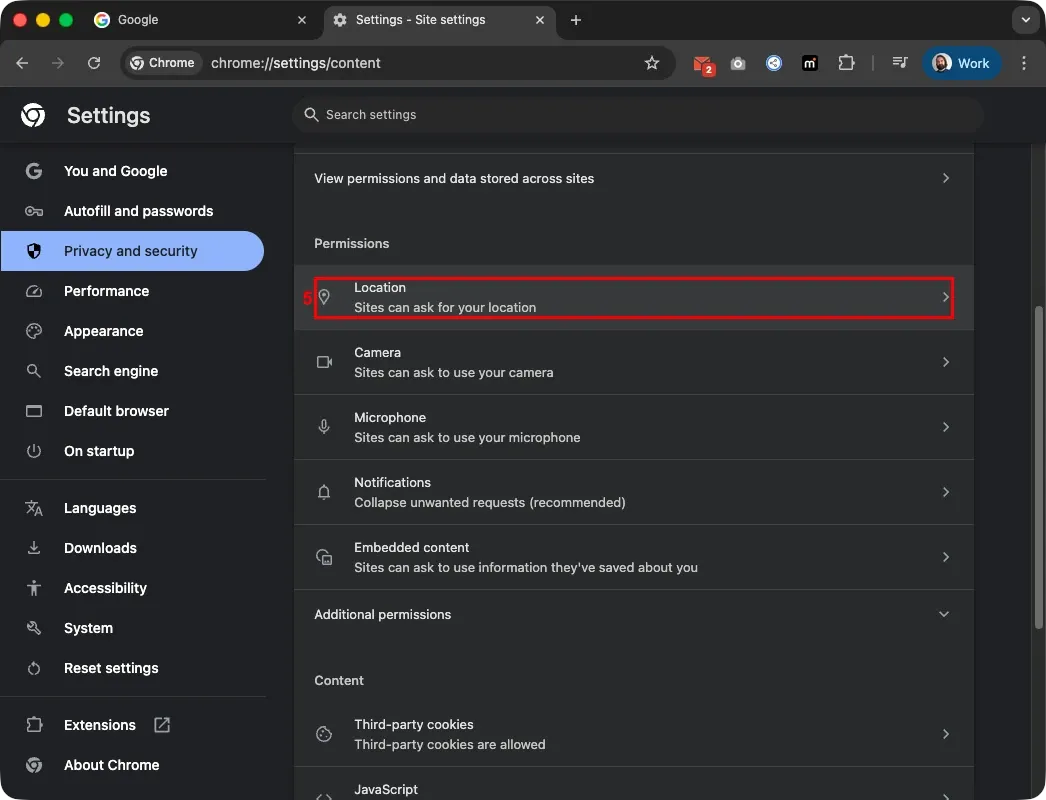
5. Select ‘Location’ (5) under the ‘Permissions’ area.
6. In this new section, you’ll want to check the circle next to the option that says ‘Sites can ask for your location.’ By doing so, you’ll be able to share location data with websites.
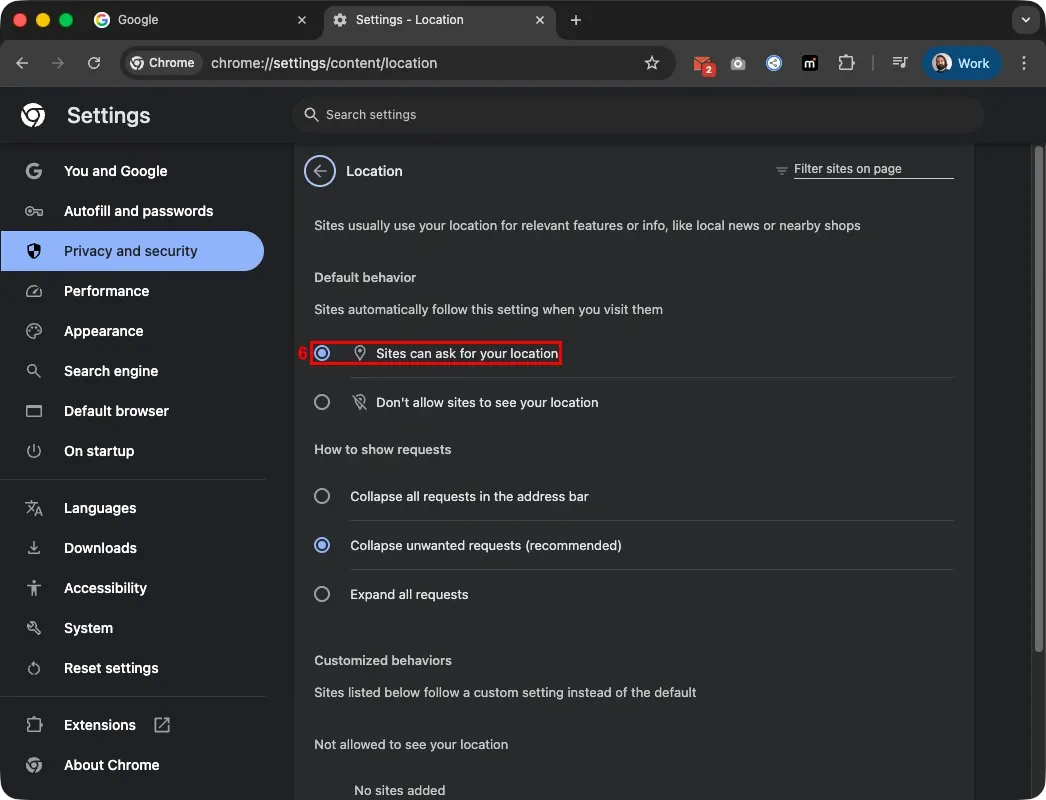
7. Alternatively, you can select ‘Don’t allow sites to see your location’ to disable location permissions.
On Android
Open the Google Chrome app on your Android device and click the three-dot menu button (1) in the top-right corner.
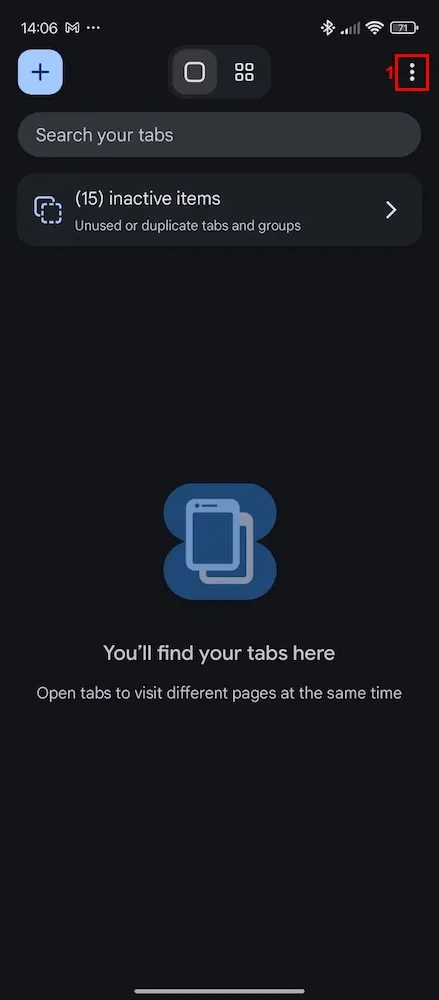
2. In the new dropdown menu that has just appeared, move over to ‘Settings’ (2).
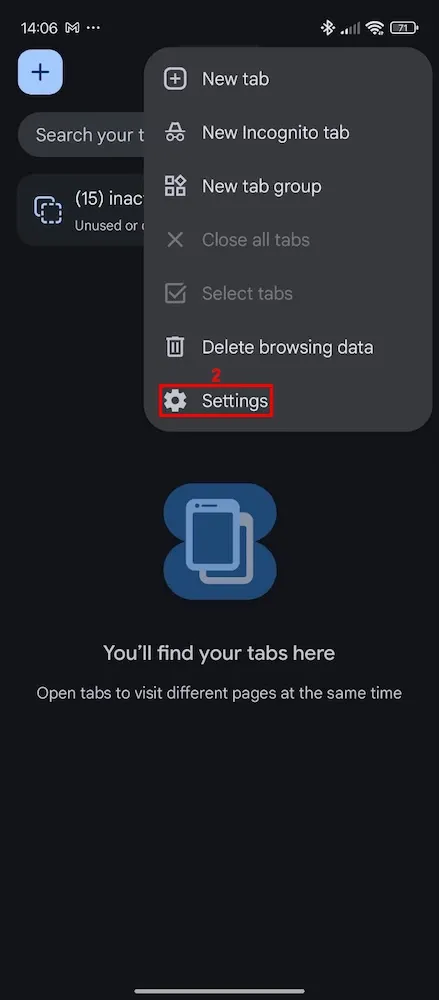
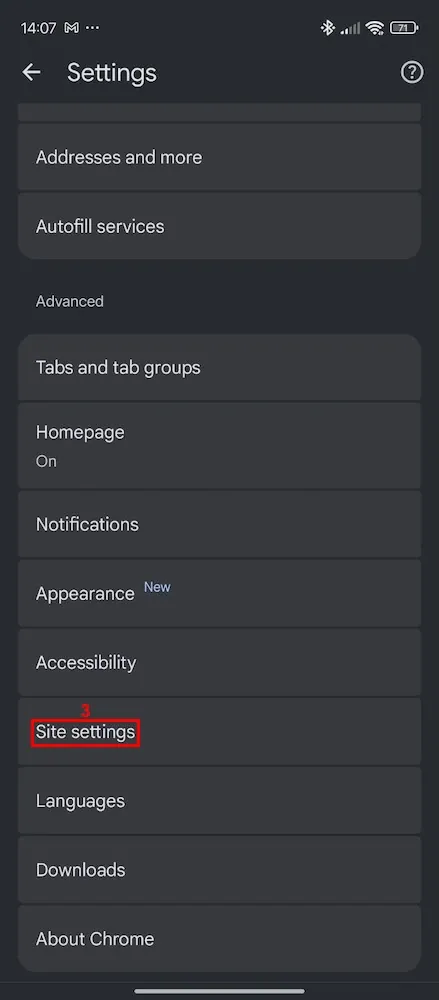
3. Next, you’ll want to head over to ‘Site settings’ (3) under the ‘Advanced’ section.
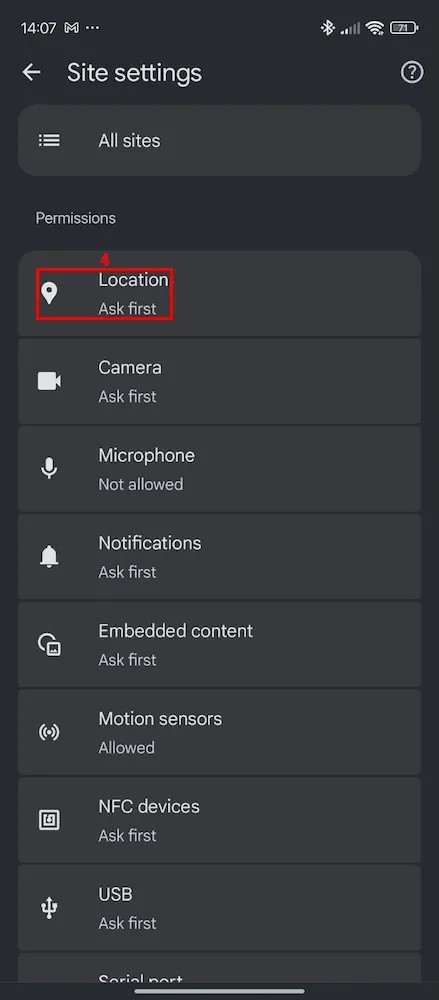
4. Now, find and select the ‘Location’ (4) option.
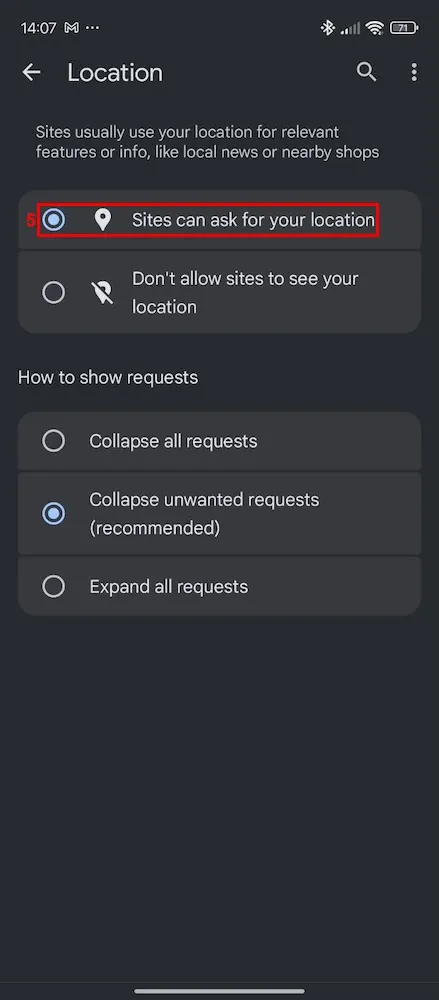
5. Check the circle next to the option that says ‘Sites can ask for your location’ (5).
Employing an Android proxy app can also aid in managing your location data.
On iPhone (iOS)
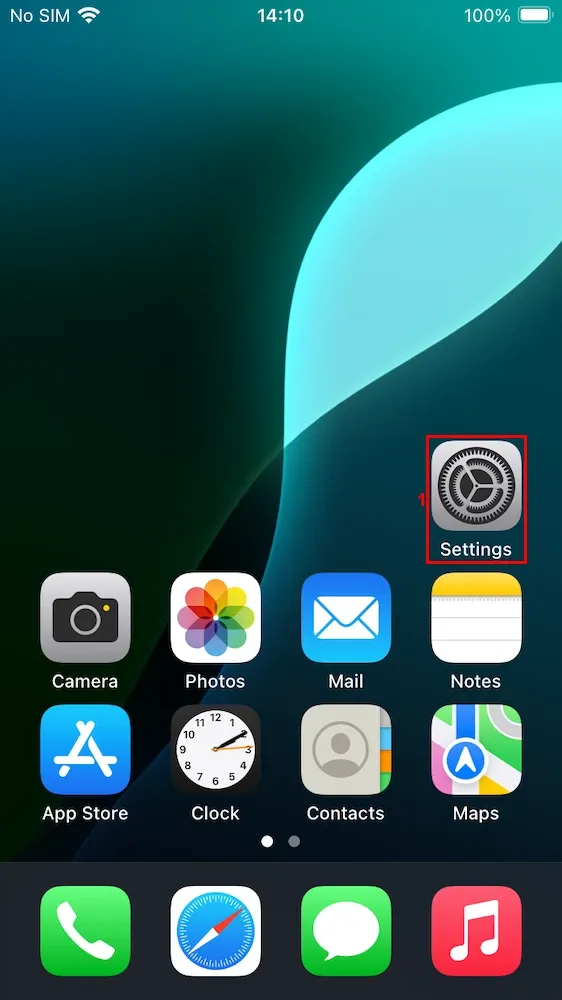
1. Locate and launch your iPhone’s ‘Settings’ (1) app on the home screen.
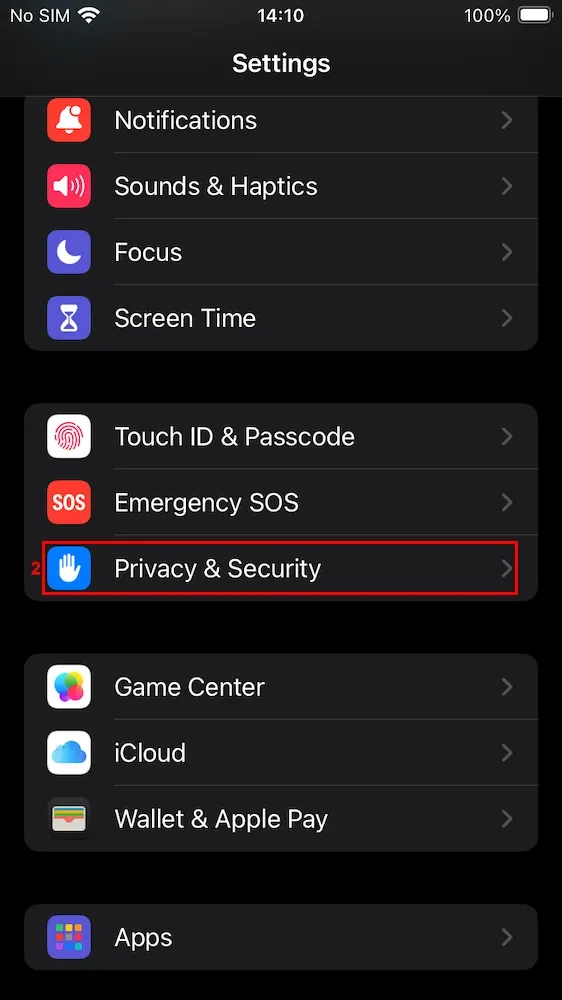
2. Scroll down to find ‘Privacy & Security’ (2) and tap on it.
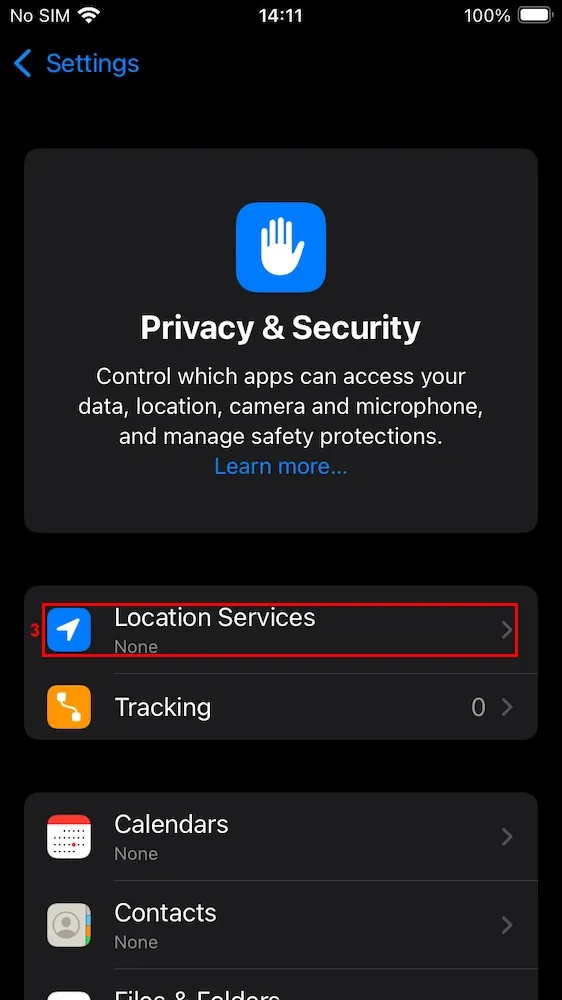
3. Tap on ‘Location Services’ (3) to turn them on or off.
You can also utilize an iOS proxy app to enable custom locations for your online browsing.
How to change location in Chrome: 3 methods
Now that you know how to enable and disable your device’s location settings, it’s time to move on to what you can do to change your location in Chrome.
Changing your location in Google Chrome comes with many benefits, from enhancing your privacy to conducting more accurate research and reducing targeted ads. If you don't share your location in Google Chrome, some sites won't know which content to show you.
Here are three distinct methods to employ custom locations.
Use Chrome DevTools
- Click on the three-dot icon in the top-right corner of your browser.
- Go to ‘More tools’ and then to ‘Developer tools’.
- Press Ctrl+Shift+P (Windows) or Command+Shift+P (macOS) and type in ‘Sensors’.
- Now, click on the dropdown menu next to ‘Location’. From here, you can either pick any of the preset locations or choose a completely custom one.
- Users can also add their custom locations by selecting ‘Manage’.
- Choose an existing option or add a new one by clicking the ‘Add location’ button.
Use MarsProxies Chrome Extension
- Add the MarsProxies Chrome extension to your browser.
- After that, click the ‘Extensions’ icon in the top-right corner of your browser’s window.
- Find the MarsProxies extension and click the pin icon next to it.
- Configure your proxies in the MarsProxies dashboard and copy your credentials.ž
- In the extension, click on ‘Add new proxy’.
- Name your proxy and paste the credentials into any remaining field - the extension will distribute them automatically.
- Click ‘Save’.
- Back in Chrome, click the extension icon, then click the ‘Connect’ button next to your saved proxy profile to start using it.
Use a VPN
- Download and install your desired VPN app.
- Launch the VPN app and log in.
- Then, select a server in the country or city you want and connect to it.
- Lastly, open Google Chrome and browse as usual.
Some VPNs are also available as browser extensions. If you’re using one of those, the steps to configure it should be no different than if you were using a proxy extension.
To help you decide which method fits your needs best, here’s a brief comparison table that you can check below.
Complexity
For advanced users
For intermediate users
For beginner users
Control
Allows for more granular control of location
Has a fair number of control settings that can be tweaked
Depending on provider, location options may be limited
Privacy
Doesn’t provide much extra protection
Provides a nice amount of added anonymity
Best privacy protection through encryption
Performance
Zero hit on performance
Small to negligible impact on internet speed
Performance may be affected due to encryption technology
Why Chrome location settings may not work
When tweaking Google Chrome’s settings, things may not always work out as expected. That is, as a user, you may still face blocks on any websites you’re trying to access, or targeted ads won’t stop coming your way. Regardless, here are the scenarios that can prevent location settings changes from taking effect:
- Location blocked at browser level
Browser data corruption, incompatible extensions, or outdated browsers can impede the new settings from working. Whenever this happens, the program is unable to perform the necessary checks for the chosen location to take effect when browsing online. Incorrect proxy and firewall settings in Google Chrome are also known to cause issues.
- OS-level permissions
Sometimes, an administrator may lock these settings in a school or company environment. This means that system-level directives are being issued from above to stop the new location changes from taking place. In other words, an administrator can forbid users from accessing certain websites with system-wide directives.
- VPN conflicts
Compromised settings can also occur due to conflicts with VPN software. In this scenario, the issues arise whenever Google Chrome attempts to use any GPS or Wi-Fi location data with the VPN running in the background to mask your IP. This inconsistency is what can lead to websites detecting your true location.
How to fix location issues
Trying to fix location issues on your device of choice? Here we’ve compiled a brief selection of tips to help you out:
- Clear cache
Purging your Google Chrome cache can solve any possible location issues. On certain occasions, corrupted cached files can lead to locations not being properly identified by websites. To fix this, simply click over the three-dot menu icon, then select ‘More tools’, and finally ‘Clear browsing data’ with the timeframe you wish to delete.
- Reset permissions
Ensuring both your browser and system permissions settings are configured correctly is vital to avoid location issues.
To reset these permissions, you’ll want to head over to the ‘Privacy and security’ tab in your Google Chrome settings. From there, go to ‘Site Settings’ and then to ‘Location’. There you’ll see a list of websites you can manually manage permissions for.
- Enable device location services
Disabled location settings on your device can cause a range of problems for your apps and services. To fix these, you’ll want to make sure your device-level location services are enabled.
On Chrome on PC, you can find this under: ‘Privacy and security’ > ‘Site settings’ > ‘Location’, where you’ll need to toggle the ‘Sites can ask for your location’ option and then enable ‘Precise location’ after that.
On Android, simply enable the ‘Location’ option within the ‘Settings’ area of your device.
Why is my location wrong on Google Chrome?
Whenever you search for something on Google, it always estimates the general area that you're searching from. Google approximates your device’s real-life location with a variety of data, such as your IP address, the network you’re currently in, previous activity, and more.
However, these signals aren’t always 100% precise since, for example, ISPs can route IPs through another city, or permissions within your device could be restricted. This can result in inaccurate or outdated data, leading Google to perceive you in the wrong location.
Can Chrome track my exact location?
Yes. If you grant the necessary permissions and provide accurate data, Google Chrome can track your exact location.
Should I allow location access on Chrome?
This is more of a personal privacy choice. On one hand, allowing location access can be beneficial, as it provides users with convenience to services like maps and weather, as well as ease of access to businesses near their location. However, it also enables targeted ads and website tracking of location, which can compromise privacy and online security.
In the end, weigh what’s important for you between convenience and privacy, and remember, you can also manually set how much location data you share exactly.
Does incognito mode hide location?
No. Incognito mode does not hide your location from Google. It only prevents the browser from storing cookies and browsing history.